From the empty form to your first look at the admin area.
1.1 Before you start
What it's for: this list shows you what to have ready so you can fill in your listing in one go.
Allow one to two hours for a complete listing. Much of it can follow later. Until approval, your listing is visible only to you anyway.
What you need
•photos at the highest resolution you can manage, at least ten, gladly forty
•price per night in low season and high season, plus the cleaning fee
•rooms, beds, bathrooms, living space, check-in and check-out time
•your house rules
•for the payment account: date of birth, address, mobile number for an SMS code, bank details (IBAN) and your ID, if Stripe asks for a photo of it
Good to know
You need the details for the payment account only later. Without them, though, your listing does not go online. Have them ready from the start.
1.2 Create and confirm your account
What it's for: registration creates your account and your first property.
How to do it
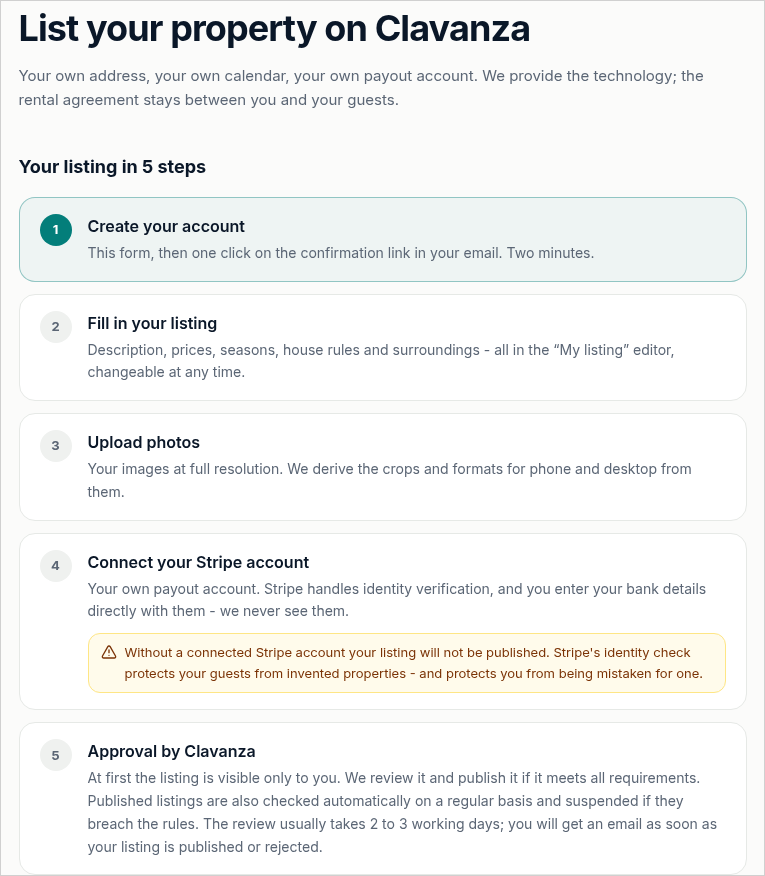
On clavanza.ch, click List your property. The registration form opens.
Enter first name and last name separately, exactly as they appear on your ID.
Enter your email address.
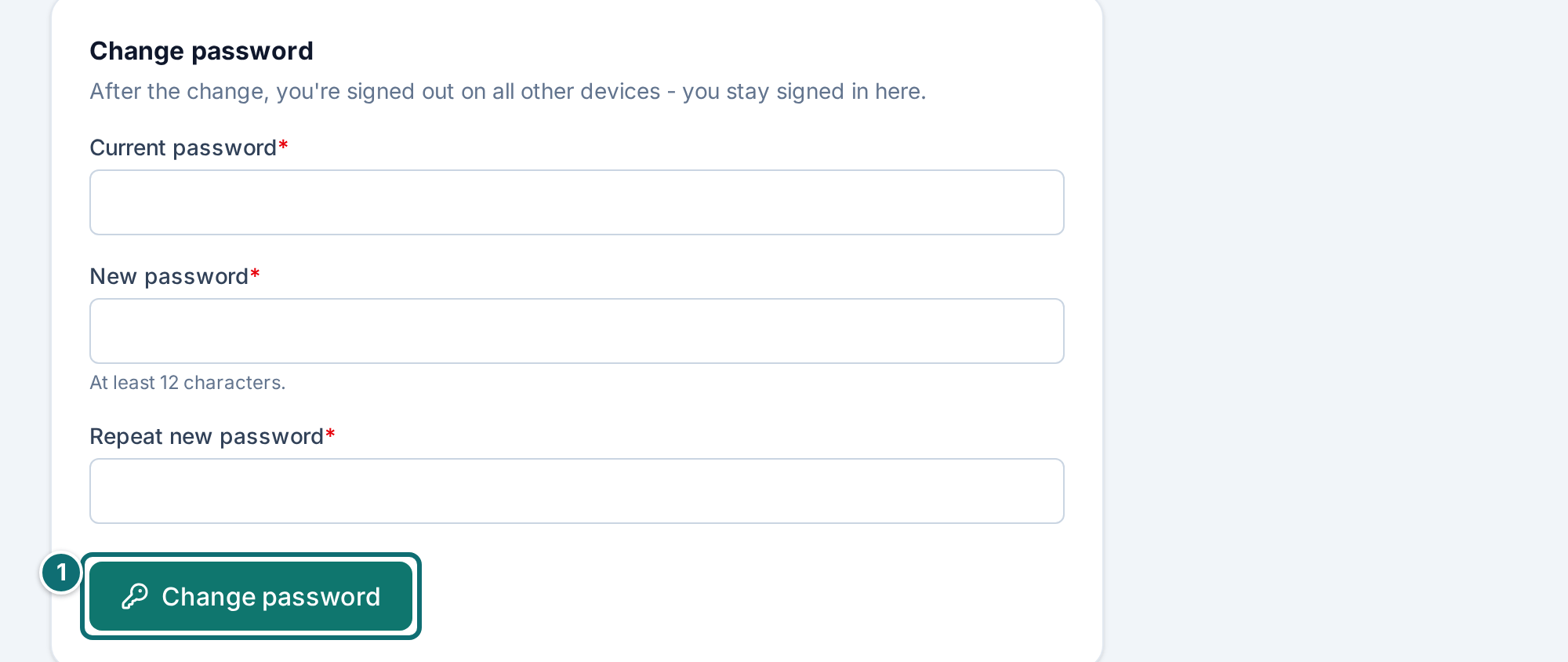
Choose a password of at least 12 characters.
Enter the name of your property. Below it, you see the web address that follows from it as you type.
Tick the general terms. The second tick Newsletter for hosts is optional.
Send the form and open the link in the confirmation email.
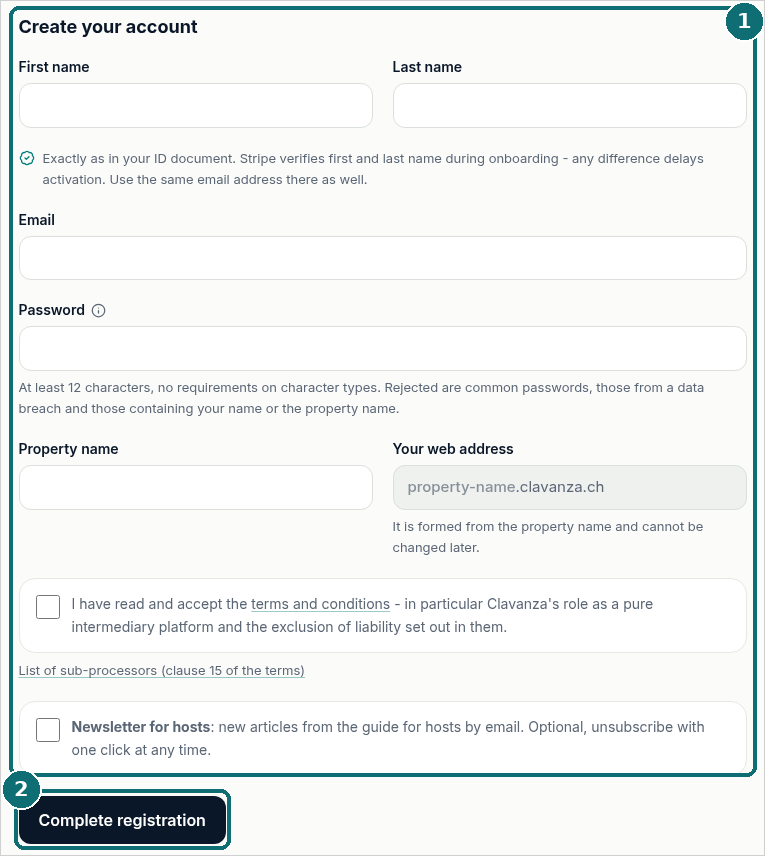
The registration form: under the name of the property, your web address appears as you type.Registration: form "Create your account"Markierungen im Bild: 1. Fill in the form and accept the general terms 2. "Complete registration"
Good to know
Name as on the ID. First name and last name are later matched against the payment account. A difference leads to a follow-up question.
The web address is final. "House by the lake" becomes house-by-the-lake.clavanza.ch. The address cannot be changed later. If it is already taken, extend the name, for example with the place.
Password rules. There are no requirements for capitals, numbers or special characters. Known passwords, passwords from a data leak and passwords that contain your name, your address or the name of the property are rejected. When the check against leaks runs, your password does not leave our server.
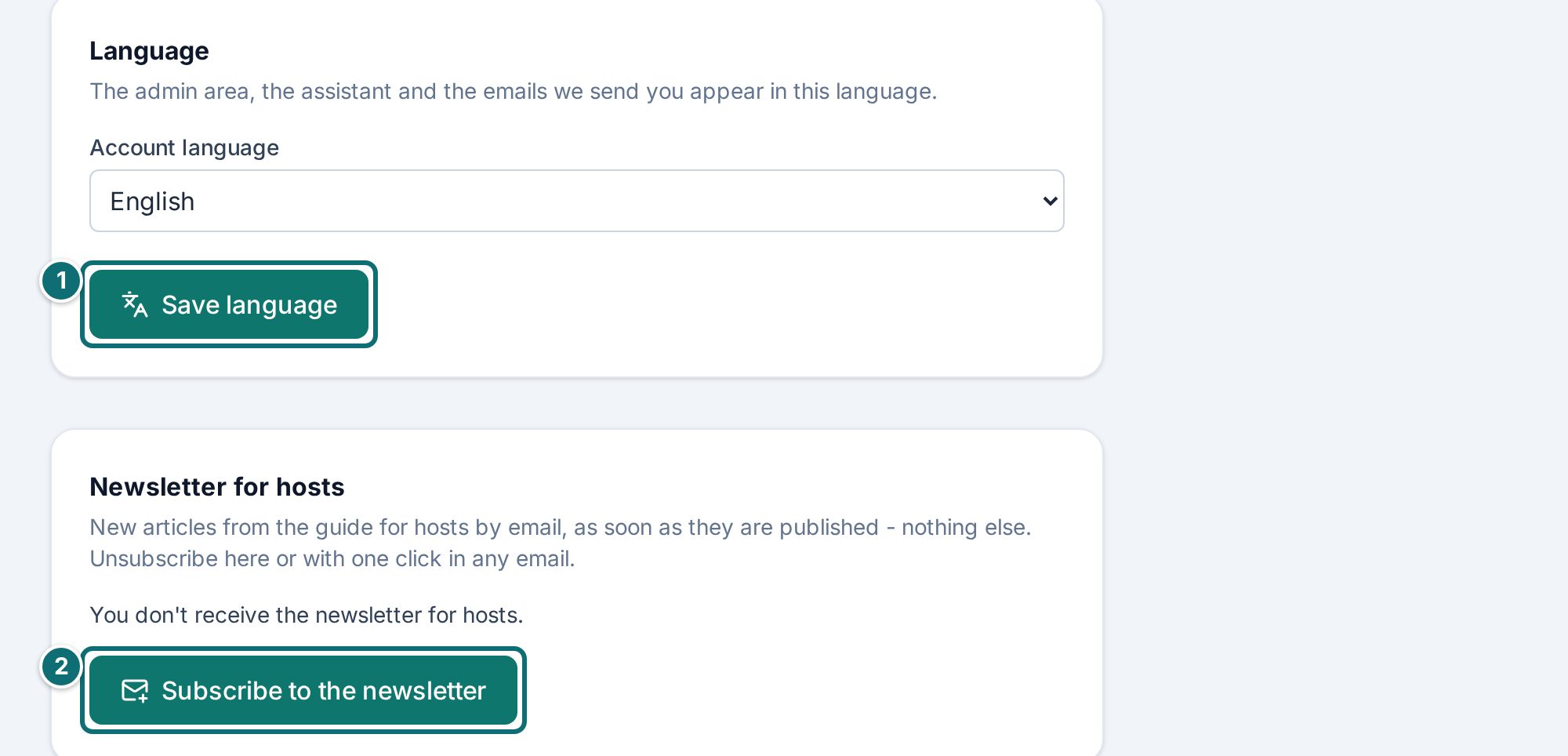
Newsletter for hosts. With this tick you receive articles from our guide for hosts by email, as soon as they appear. The signup only counts once you have confirmed your account.
Confirmation link. The link in the confirmation email is valid for 48 hours and only once. Before that you cannot sign in. That is not an error.
1.3 The admin area
What it's for: in the admin area you maintain your listing and handle bookings, requests, messages and reviews.
How to do it
Sign in at clavanza.ch/login. This address always works, however many properties you run and whichever addresses they use.
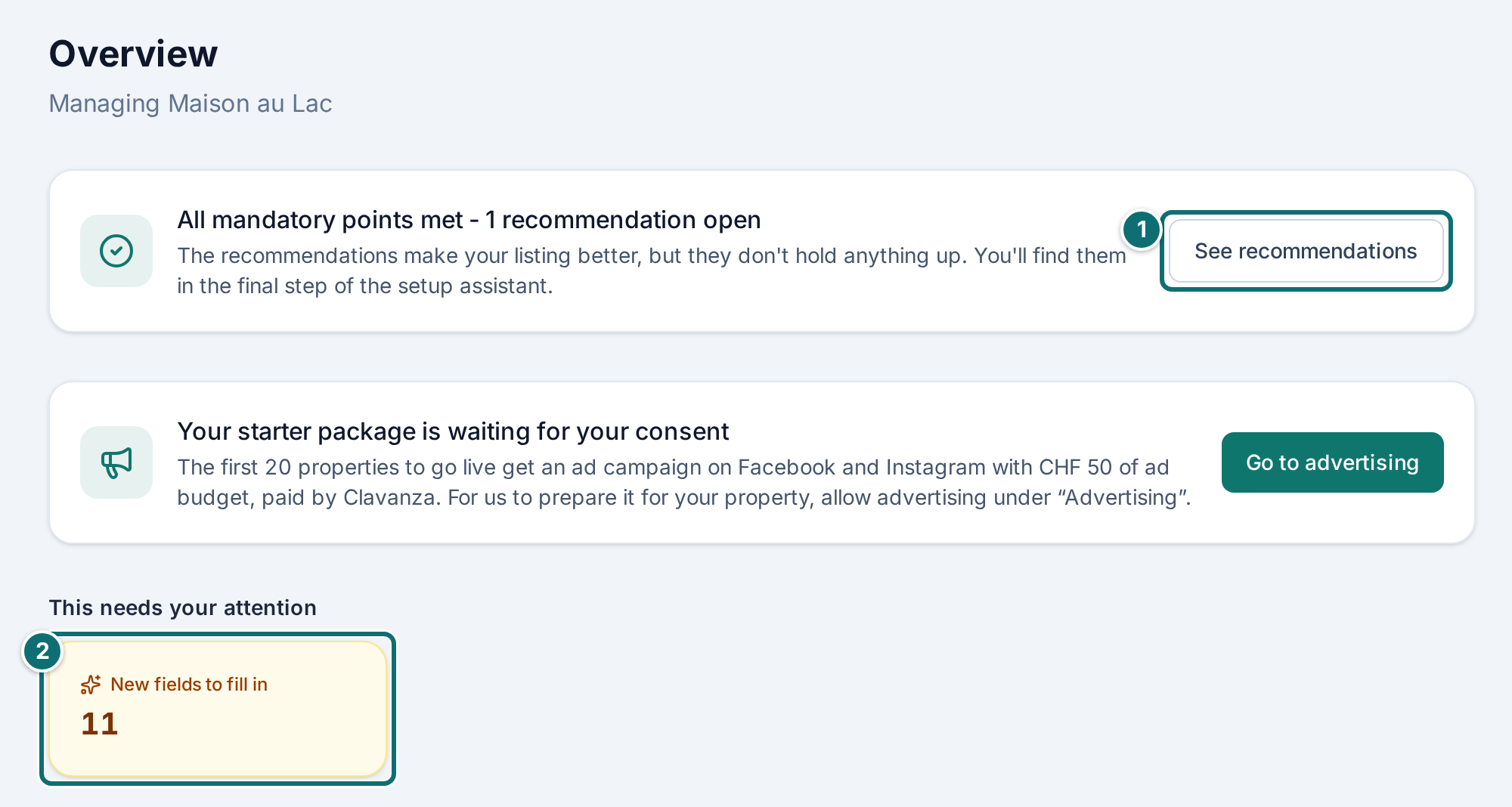
You land on Overview. At the very top are the open tasks: requests without an answer, unread messages, reviews to approve. If nothing is open, nothing is there.
On the left you find the areas: Overview, My listing, Bookings, Blocks, Calendar sync, Messages, Reviews, Vouchers, Visitors, Advertising, Account access (only for "Owner"), Data access request (only for "Owner").
The overview: open tasks at the top, the areas of the admin area on the left.Markierungen im Bild: 1. "Continue setup" takes you back into the assistant 2. Tile "New fields to fill in" under "This needs your attention"
Good to know
Two ways to sign in. You can also sign in under the address of your property. Both ways lead to the same admin area.
Page for hosts. At clavanza.ch/vermieter you find the page that explains what awaits you at Clavanza: the guide, the fee calculator and the path to registration. From there a link leads to sign-in.
On the phone. On narrow screens the sidebar becomes a drop-down menu. It shows the current area and the total of all open points.
Your other properties. The list on the overview shows your other accounts. You see the revenue beside one only if you are allowed to see amounts for that account. If you lack write access, read only appears by the name.
Roles. What you see and what you may change depends on your role. With the role "Owner" you may change everything. With another role you only see the areas that belong to it, and what you may not change is locked. All 5 roles are in chapter 5.10.
1.4 The setup assistant
What it's for: the assistant takes you in order through everything your listing needs, instead of leaving you alone in front of eleven tabs.
As long as something is missing from your listing, the box Your listing isn't finished yet is at the very top of the overview. The first time, it says Set up now. If you have already started, it says Continue setup. The picture shows the second case.
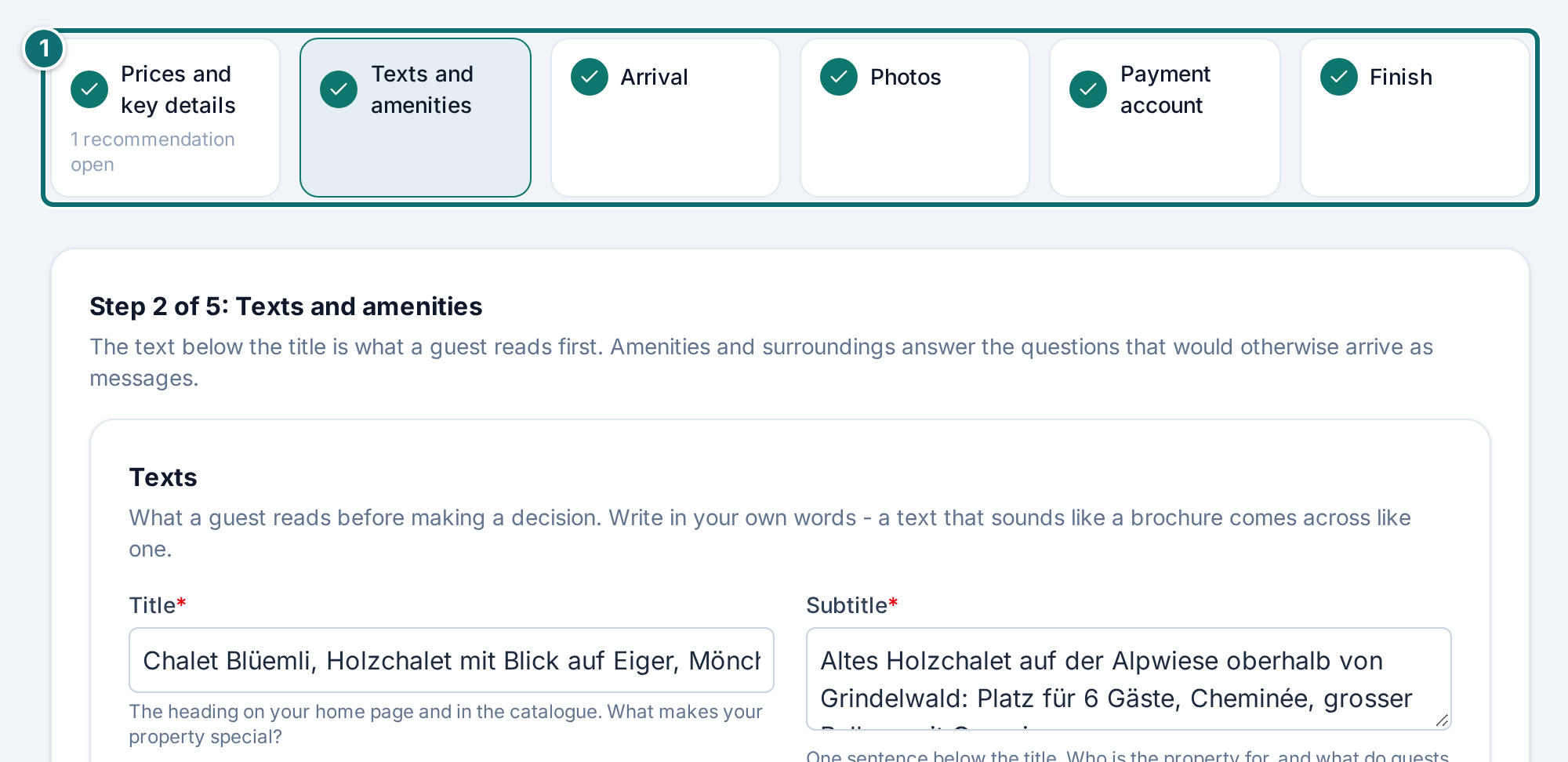
The assistant has five steps: Prices and key details, Texts and amenities, Arrival, Photos, Payment account. Then comes the finish. It sums up what you have entered and does not count as a step of its own.
How to do it
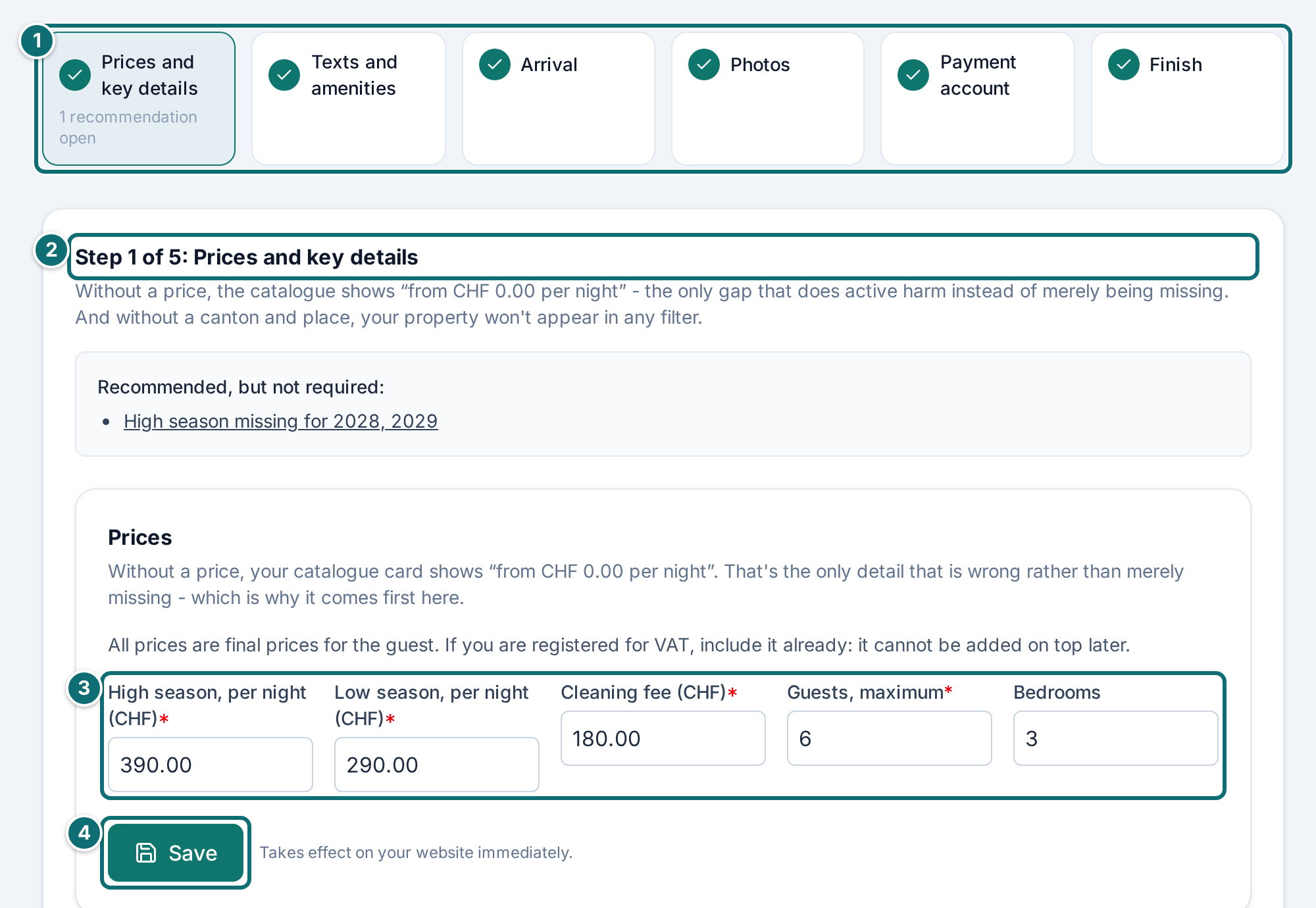
Prices and key details: enter prices, number of guests, bedrooms and high season, plus your details as host (name and address) and the cancellation conditions. Both flow into your terms. At the very end of the step, set the status of the legal texts, and only once those details are right. The locality is required here.
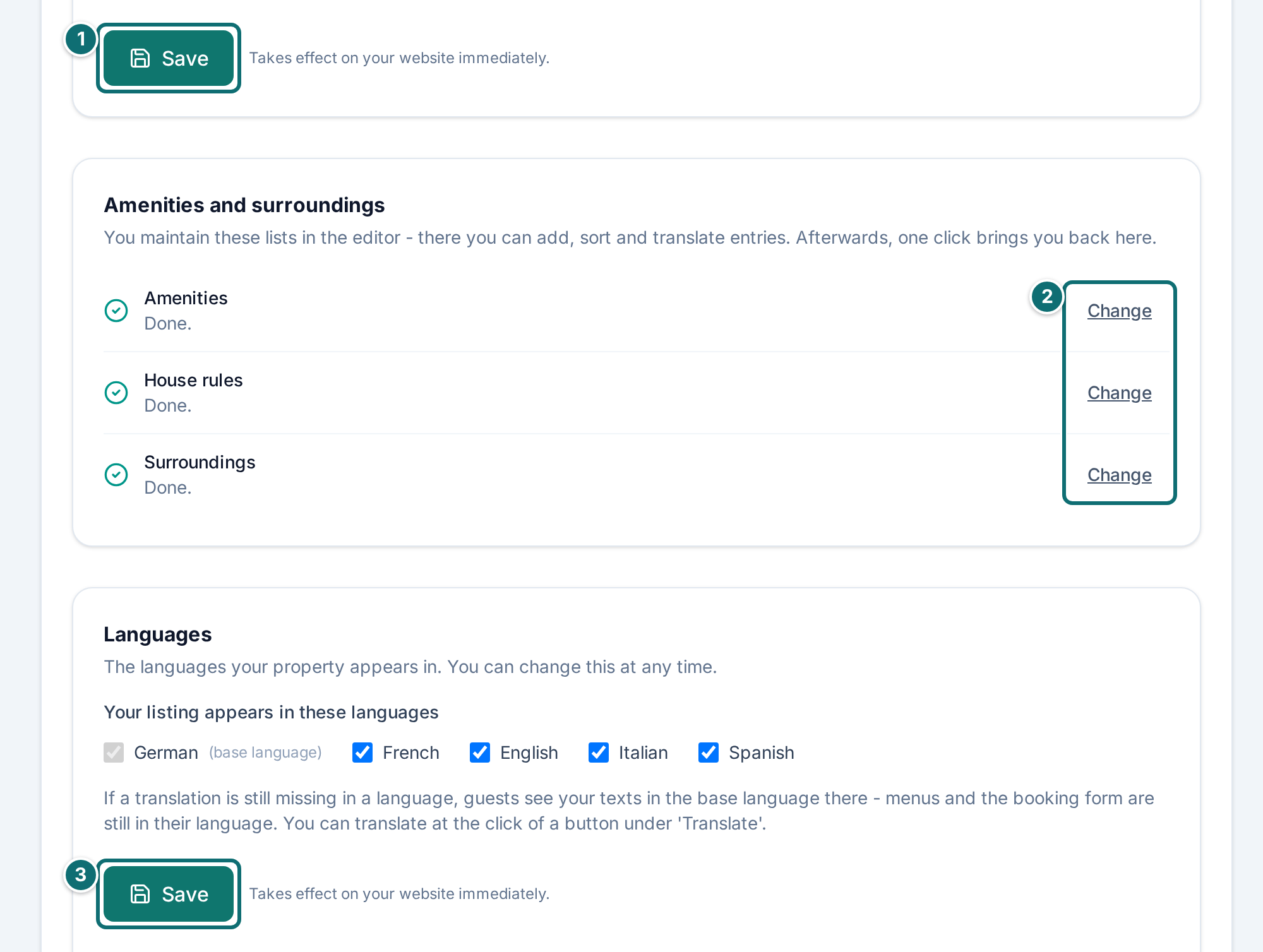
Texts and amenities: fill in texts, amenities, house rules and surroundings. What is filled in carries a green tick. If something is missing, Fill in now leads to the right place in the editor. There, Done? Back to the assistant stays at the top, even after several saves.
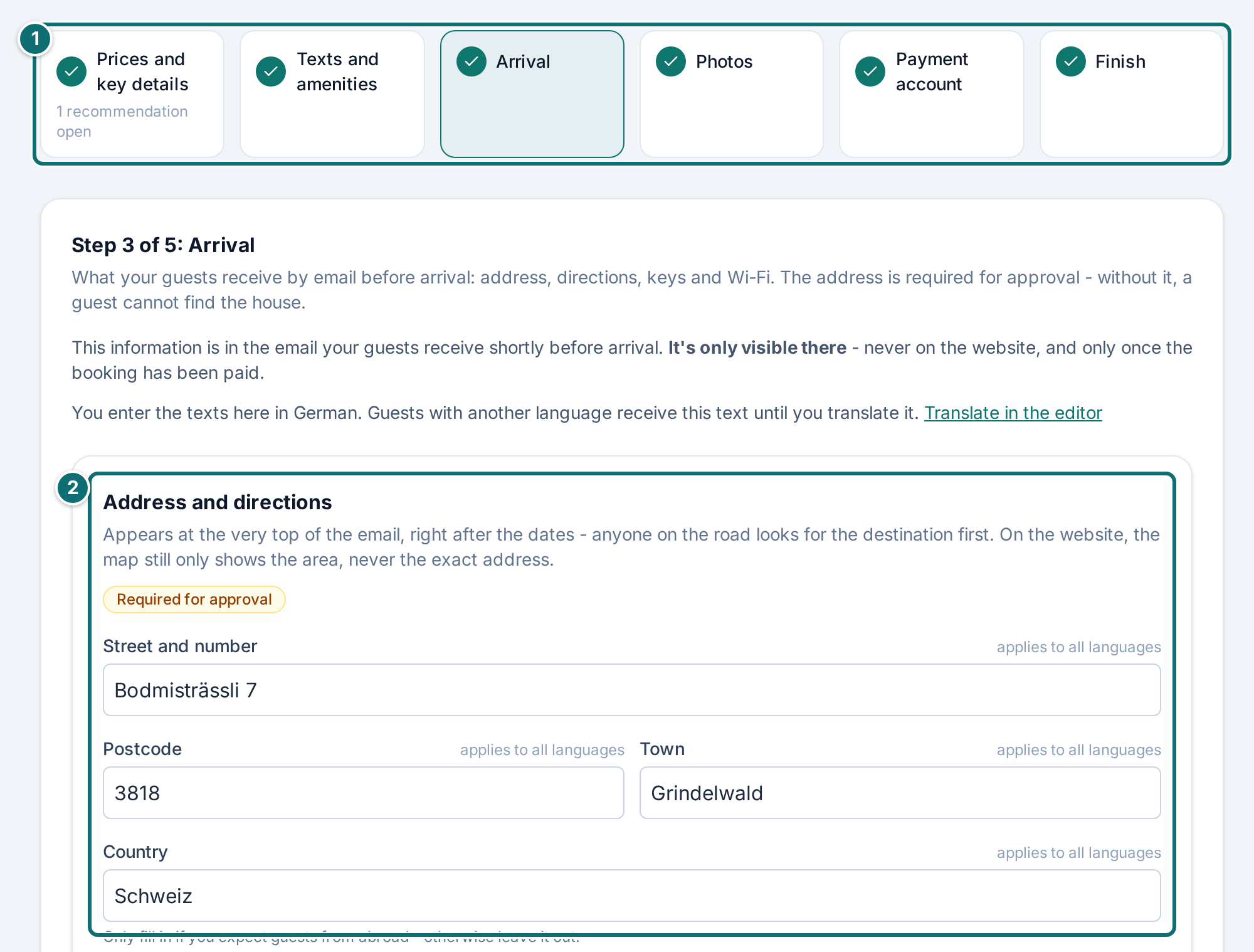
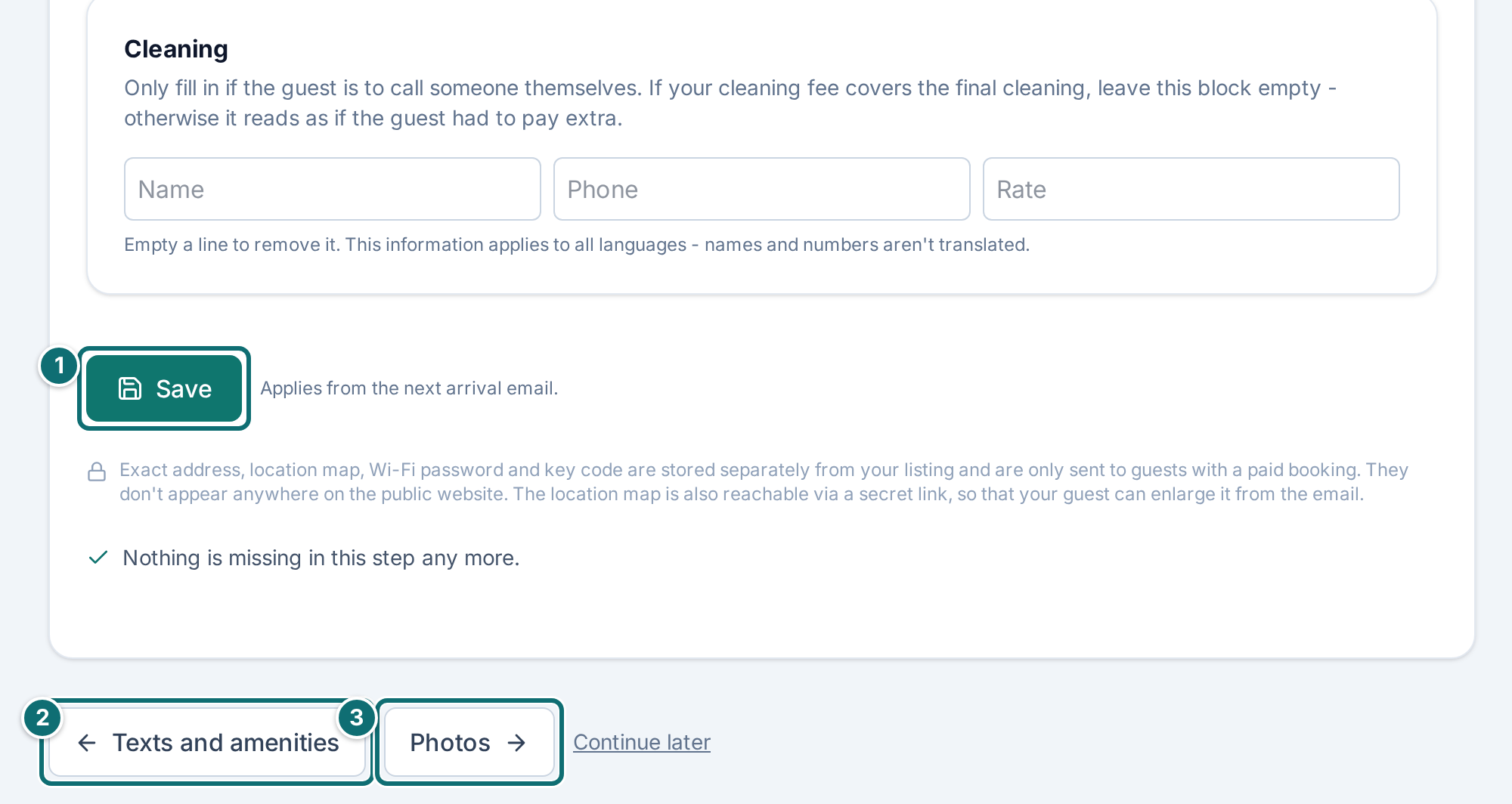
Arrival: enter what your guest receives by email shortly before arrival: address of the property, location plan and directions, key handover, Wi-Fi, check-in time, waste and cleaning. Under Cleaning, the amount field is called Rate. The address is required for approval, directions and key handover are recommended. Exact address, location map, Wi-Fi password and key code are stored separately from your listing and are only sent to guests with a paid booking. They don't appear anywhere on the public website. The location map is also reachable via a secret link, so that your guest can enlarge it from the email. You write here in your default language; you can translate in the editor.
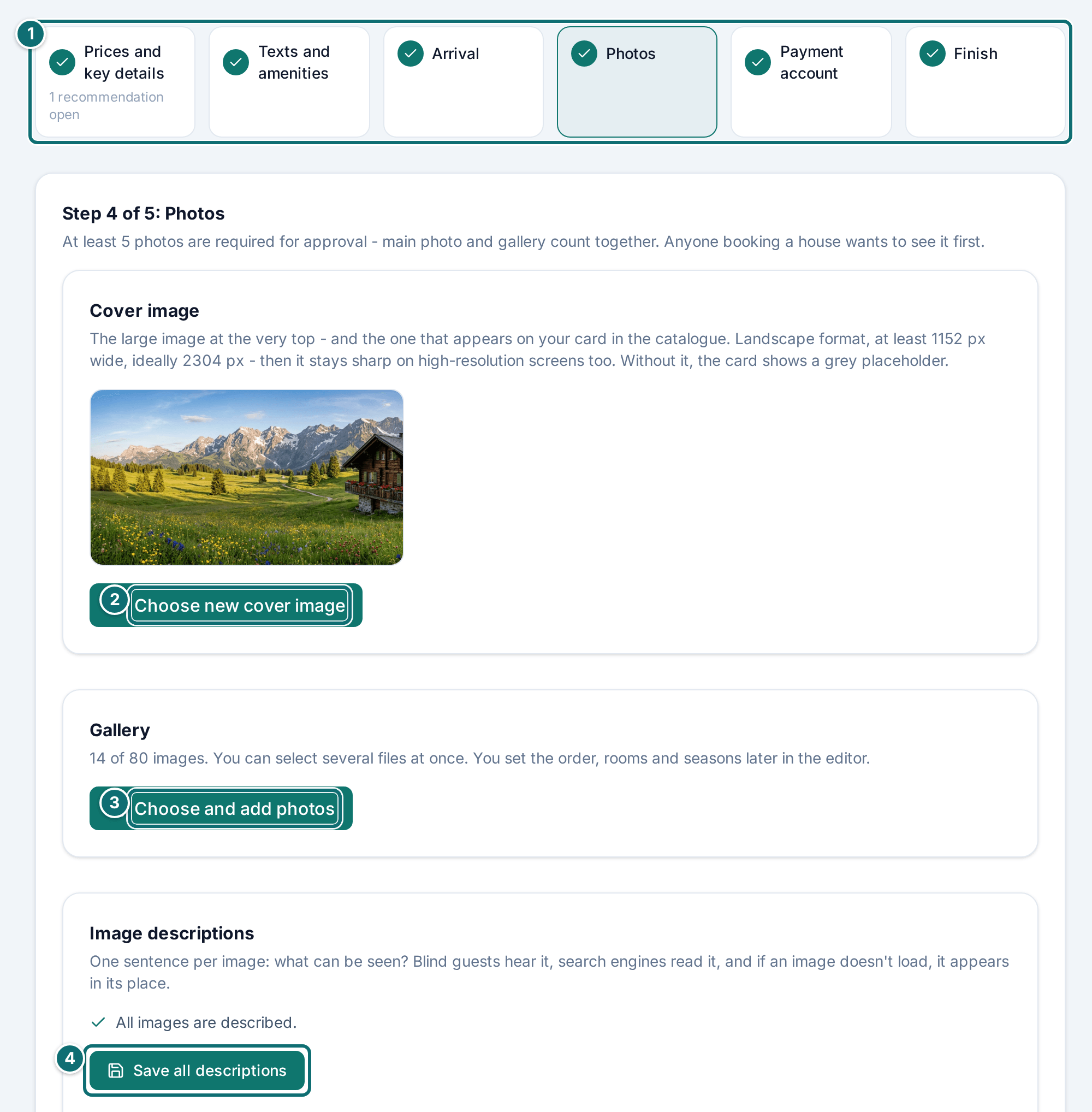
Photos: upload the main photo with Choose cover image or Choose new cover image, and the gallery with Choose and add photos. The box is called Image descriptions. For each image there is the button Suggest a description. It prefills the field. Check the suggestion, then click Save, or take several over at once with Save all descriptions.
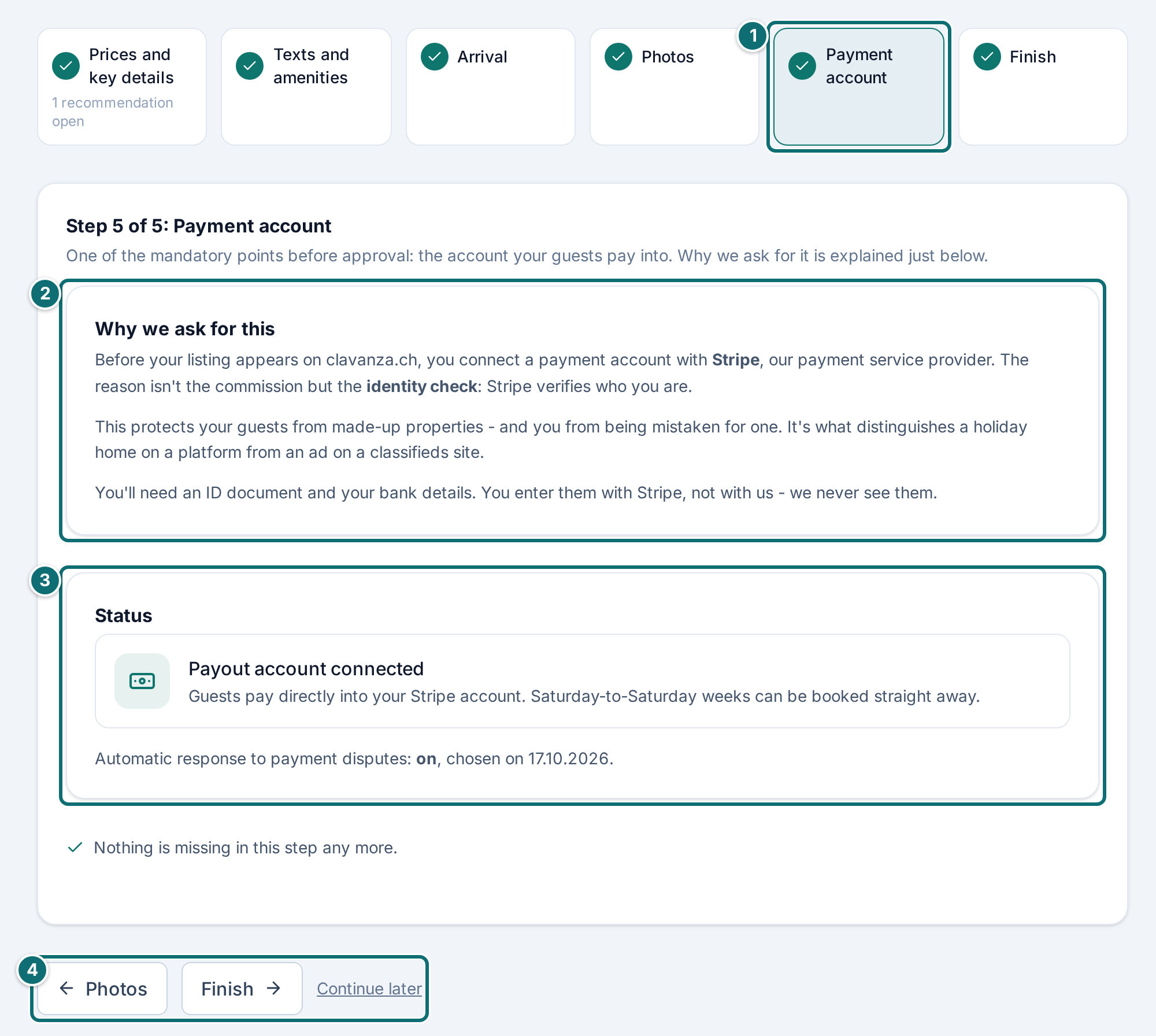
Payment account: connect your payment account (see chapter 3.1).
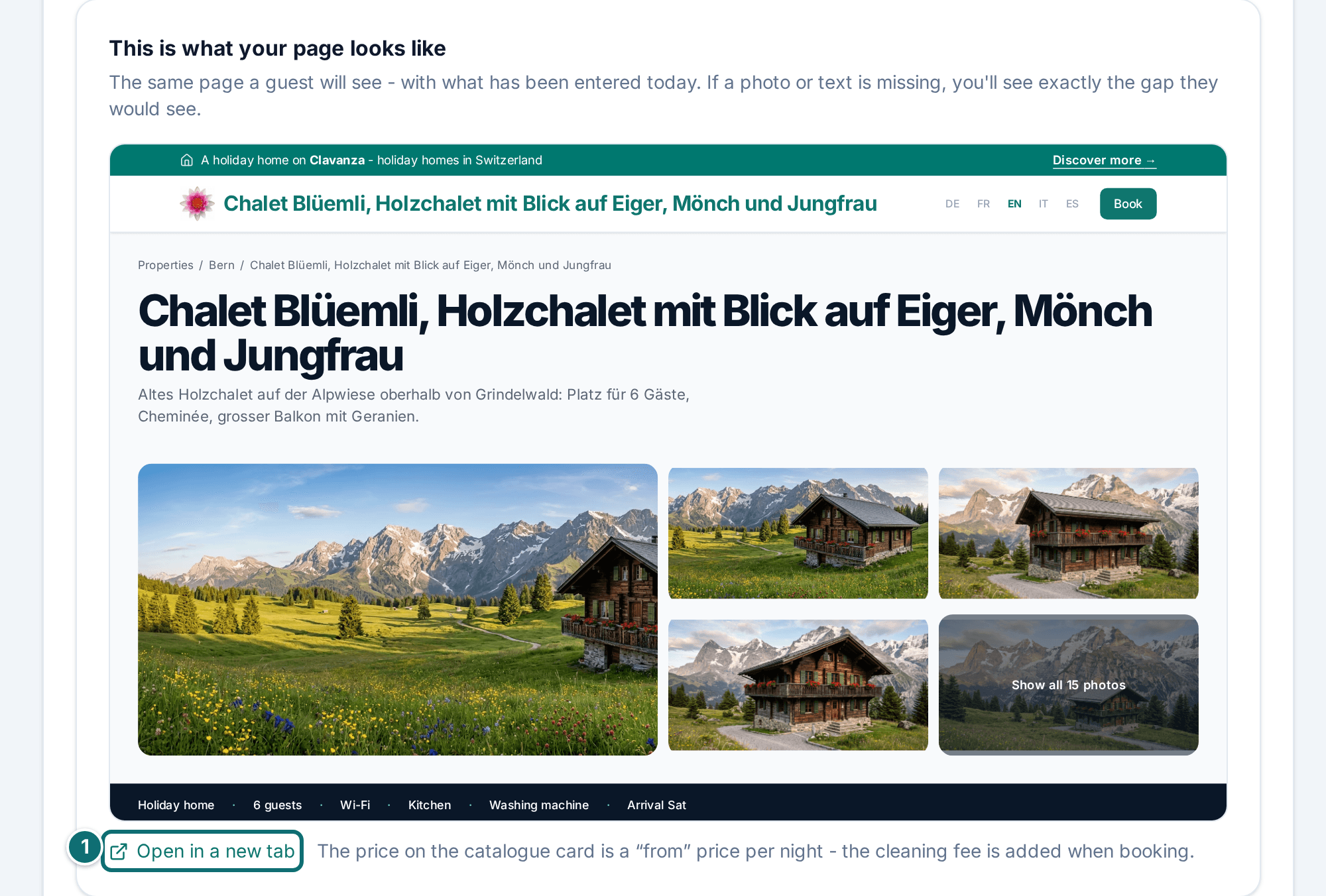
Finish: check the preview and the list of what is still missing.
At the top, the step bar shows which steps are done and how many details are missing in the others. Which ones they are is shown at the top of the step in question. A click leads to the box where you enter them.
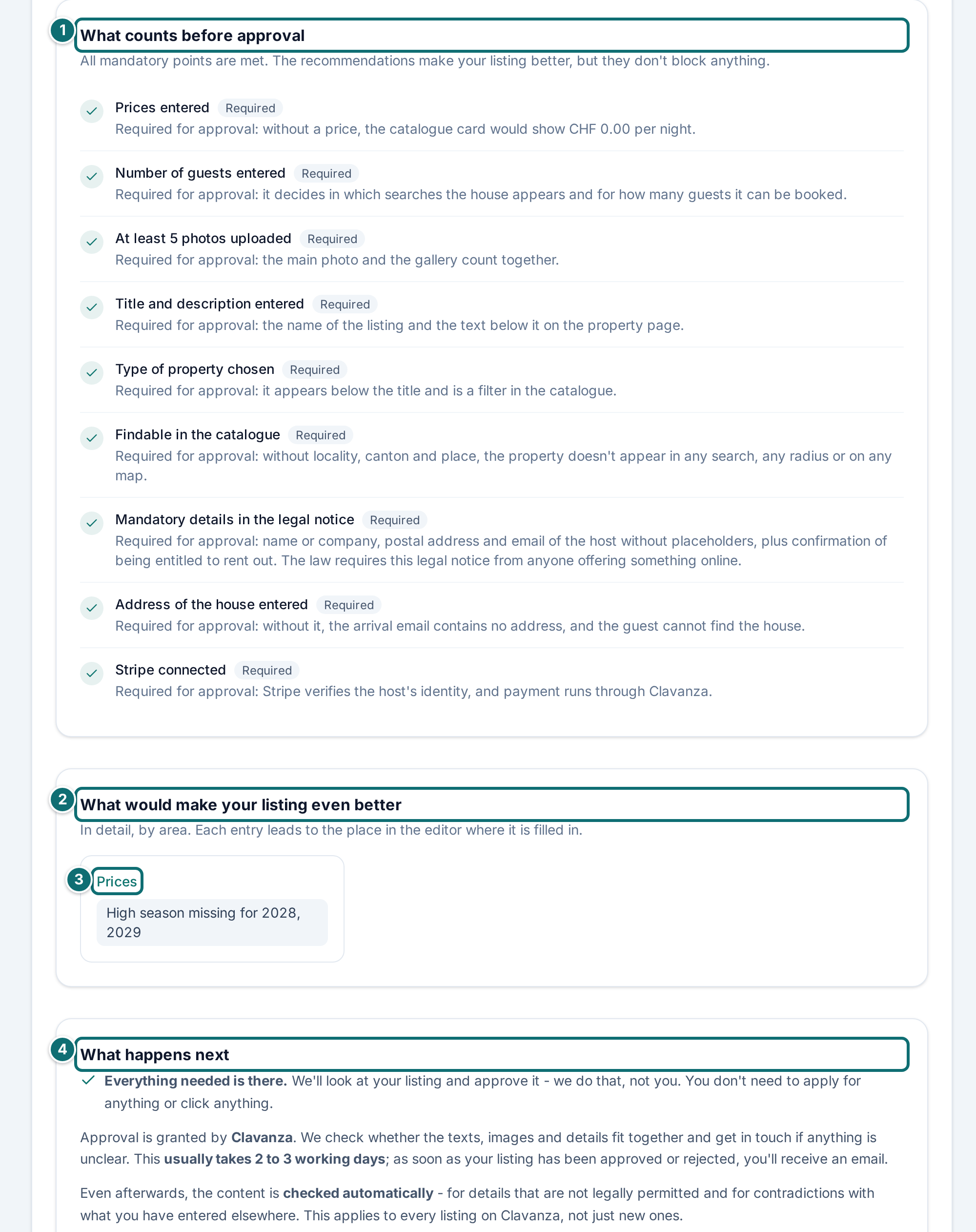
Step 1 of 5: at the top you see what is done and how many details are still missing.Markierungen im Bild: 1. Step bar: where you are, tick = done 2. Title of the current step ("Step 1 of 5: Prices and key details") 3. Fill in prices, cleaning fee and number of guests 4. "Save"Step 2 of 5: a green tick means filled in, "Fill in now" leads to the missing detail.Markierungen im Bild: 1. Step bar, step 2 active ("3 details missing") 2. Links to the missing details, one click jumps thereAssistant step 2, lower part: amenities, surroundings and languagesMarkierungen im Bild: 1. "Save" for the texts 2. "Fill in now" opens the list in the editor 3. "Save" for the languagesStep 3 of 5: your guest receives these details by email shortly before arrival.Markierungen im Bild: 1. Step bar, step 3 active 2. Address and directions (required for approval)Assistant step 3, end: save and navigationMarkierungen im Bild: 1. "Save" 2. Back to the previous step 3. On to the next step ("Photos")Step 4 of 5: the suggestion for the image description is taken over only with "Save".Markierungen im Bild: 1. Step bar, step 4 active 2. "Choose new cover image" 3. "Choose and add photos" for the gallery 4. "Save all descriptions"Step 5 of 5: here you connect the payment account at Stripe.Markierungen im Bild: 1. Active step "Payment account" in the step bar 2. "Why we ask for this" 3. "Status" of the connection with Stripe 4. Navigation: back to "Photos", on to "Finish" or "Continue later"The finish: preview of your property page and what is still missing before approval.Markierungen im Bild: 1. "Open in a new tab" shows the preview largeAssistant, finish: required points, what is still missing, what happens nextMarkierungen im Bild: 1. "What counts before approval": list of required points with ticks 2. "What's still missing", by area 3. Clicking an entry leads straight to the field in the editor 4. "What happens next": review by Clavanza
The finish
The finish shows three things:
•your property page in the language of your account, as a guest would see it on a computer (reduced; on the phone you see the phone version). If a text is missing in that language, it appears in the property's default language. The preview can only be looked at
•the list of what is still missing; each entry leads to the place in the editor
•what counts before approval, split into required and recommended; open recommendations do not hold you up
Required for approval are:
•prices and number of guests
•at least 5 photos
•title and description
•type of property and locality
•the step "Payment account", because of the identity check and not because of the commission
•the required details in the legal notice under "Legal": name, address, email and the tick "entitled to let"
•the address of the property in the step "Arrival"
None of these points holds you up in the assistant. You reach the finish even if they are still open.
Good to know
You can stop at any time. The assistant remembers nothing. On every visit it looks at what is entered and puts you on the first unfinished step. Under every step, Continue later is there for that. If your photos are on your phone, you simply do that step later.
The same forms as in the editor. The assistant shows the forms from "My listing" in a smaller selection and says, for each field, what happens if it stays empty. What you save here is immediately in the editor too, and the other way round. Everything finer (order of the images, house rules, day-trip destinations) stays in the editor; the assistant links to it.
The locality cannot be skipped. Without it, the form on the step "Prices and key details" does not go through, and neither does the editor. Without a locality, Clavanza does not know where your property is, and it appears in no place search, in no radius and on no map.
The preview flatters nothing. If a photo or a text is missing, you see exactly the gap your guest would see. The price on the catalogue card is a from-price per night; the cleaning fee is added at booking.
Newsletter. As long as you do not receive the newsletter for hosts, a note about it sits under the finish. Subscribe to the newsletter signs you up. You can unsubscribe under "My account" or in every newsletter email.
The box on the overview. It disappears as soon as everything is done, and it comes back on its own if something is added later. It applies to the property chosen at the top left. If you create another property, Create property takes you straight into its assistant.
2. Fill in your listing
Under **My listing** there are 11 areas, in the same order as in the admin area. You do not have to work through them in order.
2.1 Overview
What it's for: the editor's start page shows you what is still missing from your listing, and what happens if it stays open.
For each point you see whether it is done, and what follows if it is missing. Example: without a price, the catalogue shows "CHF 0.00 per night".
The list separates what is required from what is recommended:
•Required for approval: prices, number of guests, at least 5 photos, title and description, type of property, locality, mandatory details in the legal notice, address of the property and a connected Stripe account. If one of these is missing, nothing is approved.
•Recommended: everything else, for example amenities, location or translations. Without recommendations, a listing at worst looks less complete.
How to do it
Work through the open points on the list. Each point leads to the matching area.
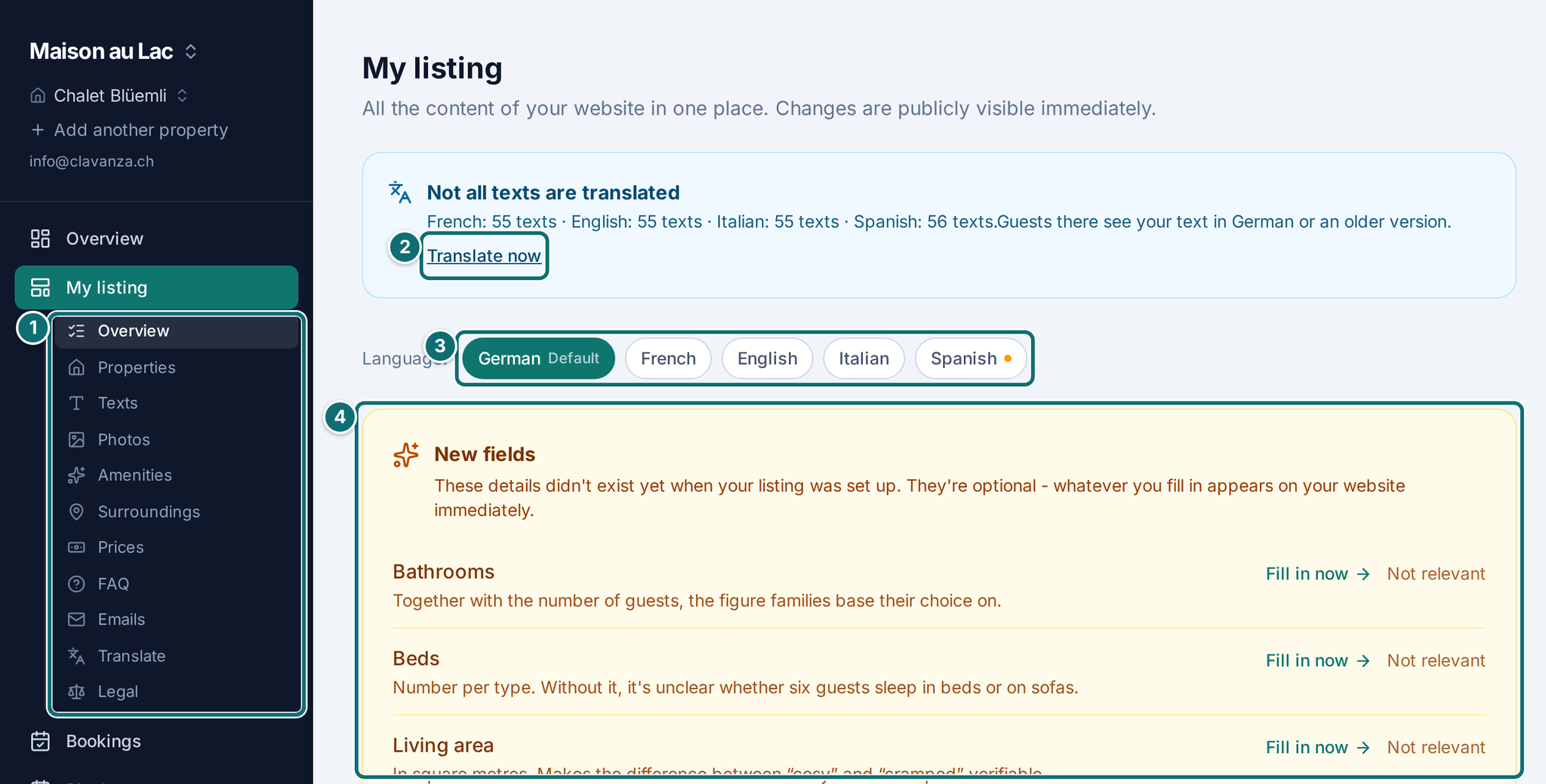
If the yellow box New fields is at the very top, click Fill in now on each row. If a detail does not apply to your property, click Not relevant. The row then disappears for good.
After every larger change, check the result with View website at the top right. The editor shows fields, the website shows the result.
If you want to take your listing offline for a while, use Visibility at the very bottom.
My listing: what is missing is at the top; the consequences of a gap sit right beside it.Markierungen im Bild: 1. Submenu "My listing" with every area 2. "Translate now" 3. Language switcher 4. "New fields": optional details with "Fill in now" or "Not relevant"
Good to know
New fields. You see the same reminder on the overview after you sign in. Each row says what the detail is for. If you clicked too quickly, what you set aside is under the box, ready to expand, with Fill in after all.
Optional, but not without consequence. Details such as pets or accessibility are filters in the catalogue on clavanza.ch. If you enter nothing, you do not appear there. A missing detail does not count as "matches".
Visibility. This pauses your listing, for example at the end of the season, during renovation or after damage. It disappears from the catalogue on clavanza.ch and is no longer reachable at your own address. Guests can no longer make a booking or a request. You can make it public again yourself at any time, without losing anything, as soon as your Stripe account is connected. If you run several properties, you only pause the one you are editing.
Pausing does not cancel any booking. Guests who are already booked keep their booking and receive their check-in information as usual. If you have to cancel them, you cancel each booking one by one under Bookings. The box under Visibility shows how many guests are still due to check in.
2.2 Properties
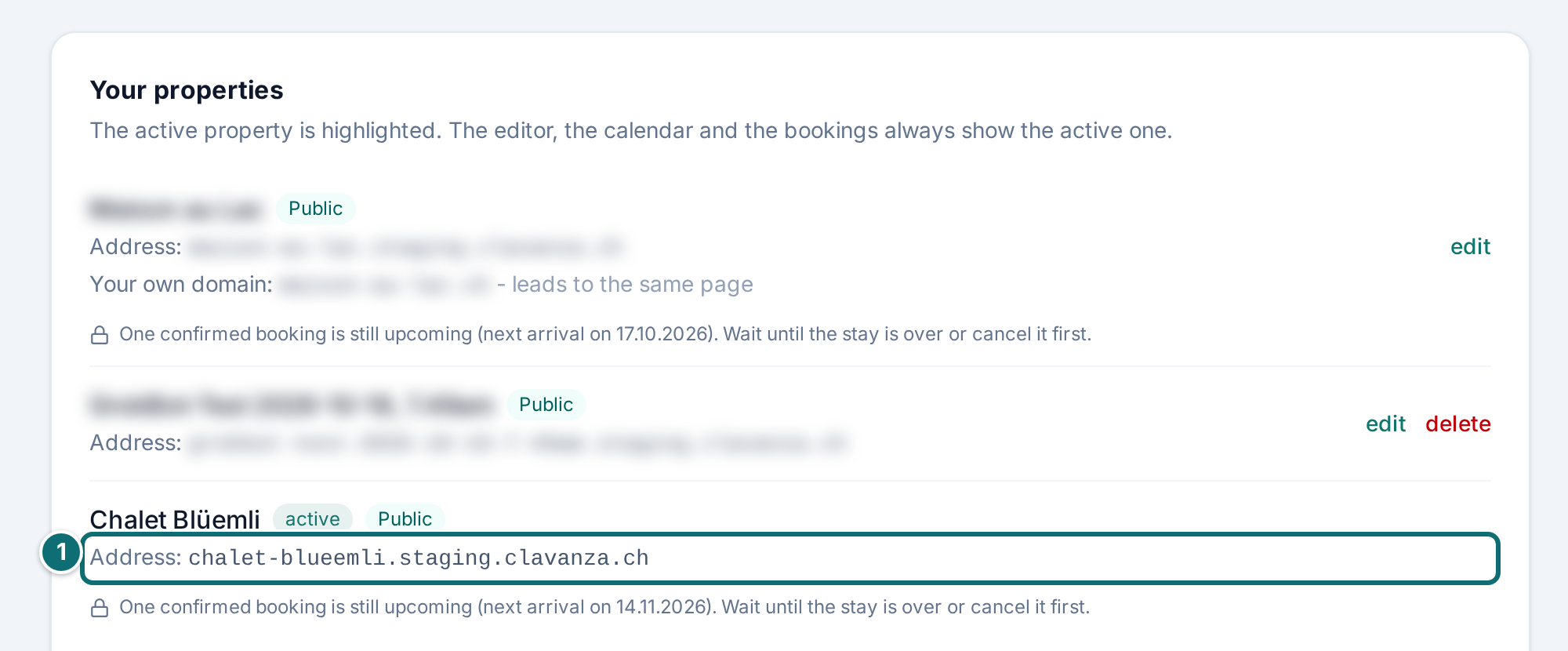
What it's for: here you see your properties, change their names, create more and delete them.
If you have only one, the page is short: it shows that one and lets you change its name. In the list you see for each property whether it is public, paused or not yet approved.
How to create another property
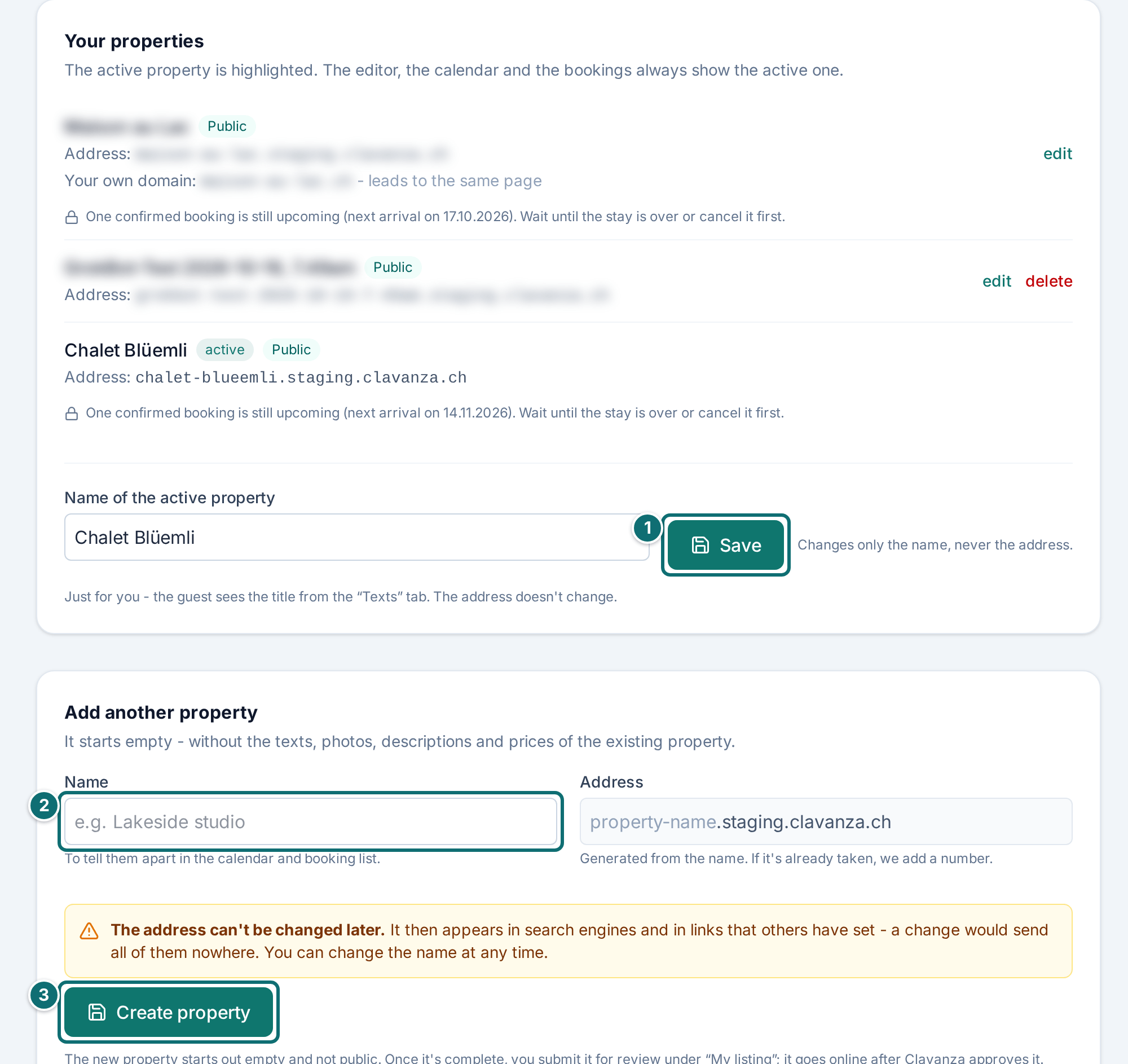
In the sidebar, under your account name, click Add another property. The link is on every page of the admin area and leads to the form on this page.
Enter the name. Under "Address", you see the web address that follows from it as you type. There is no separate field for the address.
Check the address carefully. It cannot be changed after you create the property.
Click Create property. You land straight in the assistant for that additional property.
How to delete a property
Click delete next to the property.
Enter your password to confirm. The deletion cannot be undone.
Every owner address on your access then receives a message, so nobody only hears about it later.
Properties: name and address when you create one, status and deletion in the list.Markierungen im Bild: 1. "Save" for the name of the active property 2. Enter the name of the new property 3. "Create property"
Good to know
The name is only for you. It appears in the switcher, in the calendar and in the booking list, so you can tell the properties apart. What the guest reads is the title from the Texts tab. You change it there, and it is translated.
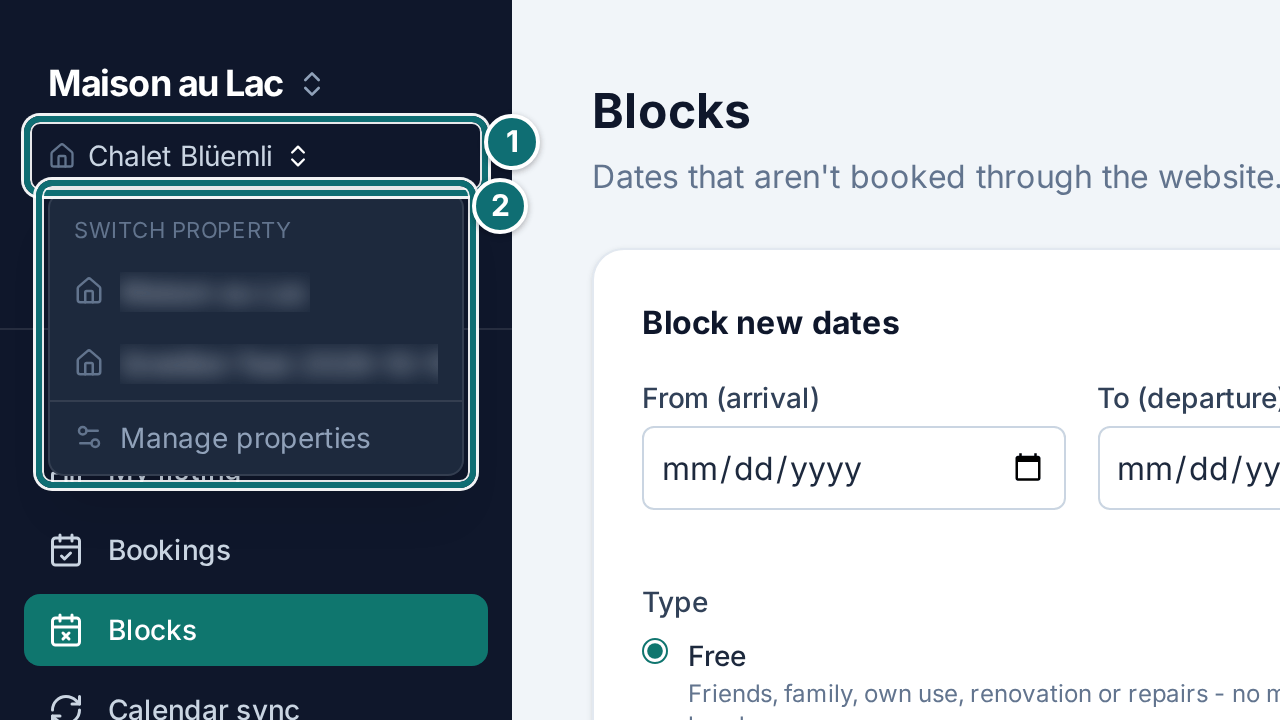
The switcher. If you run several properties, a switcher appears above the editor. The property you choose applies to everything you look at next: texts, photos, prices, calendar and bookings. Which one is active is also in the address bar. You can therefore keep a link to a particular property, or send it to someone.
Another property starts empty. It starts empty - without the texts, photos, descriptions and prices of the existing property. The number of guests is not prefilled, and high season is empty. From the account, only the check-in day of the week is carried over. What you do not overwrite, you publish, and two listings with the same description hurt both.
Review. Another property is not public at first. We review every property before it goes online (see chapter 4.1).
Its own address. Every property gets its own web address: "Studio by the lake" becomes studio-by-the-lake.clavanza.ch. If it is already taken, even by another host, or reserved by the system, we add a number. The addresses of every property at Clavanza share one namespace, so "chalet" can exist only once.
Addresses stay as they are. If you create a second property, the first keeps its address. Everything you have built in advertising and links still holds. The address is final, because it lives in search engines and in other people's links; a change would send everyone nowhere. You can adjust the name at any time.
The petrol bar. At the very top of your page there is a narrow bar saying that your property is with Clavanza, plus a link to our main page. Otherwise a guest who lands there would not know where they are. The bar cannot be switched off; it belongs to the presence at Clavanza.
No overview page of your properties. That is intentional. Anyone looking at one of your properties finds, in the section about you, a link to your others. It leads to Clavanza, where all properties sit side by side and where your next guest is looking anyway.
What happens when you delete. Texts, photos, prices and the calendar of this property are gone. Your bookings remain as a record, without names, addresses and phone numbers of your guests. Your host profile, your other properties and your account are not affected. The address of the deleted property is never given out again, neither to you nor to anyone else. Otherwise bookmarks and search hits would one day land, unnoticed, on someone else's property.
When a property cannot be deleted. In three cases it is not possible, and the page tells you what to do:
1. A confirmed booking is still ahead. Wait until the stay is over, or cancel the booking first.
2. A commission is still open for this property.
3. It is your last property. Your access would then have nothing left. If you want to stop altogether, write to us. We close your access together with the property.
2.3 Texts
What it's for: here you write the texts a guest reads first, and your host profile.
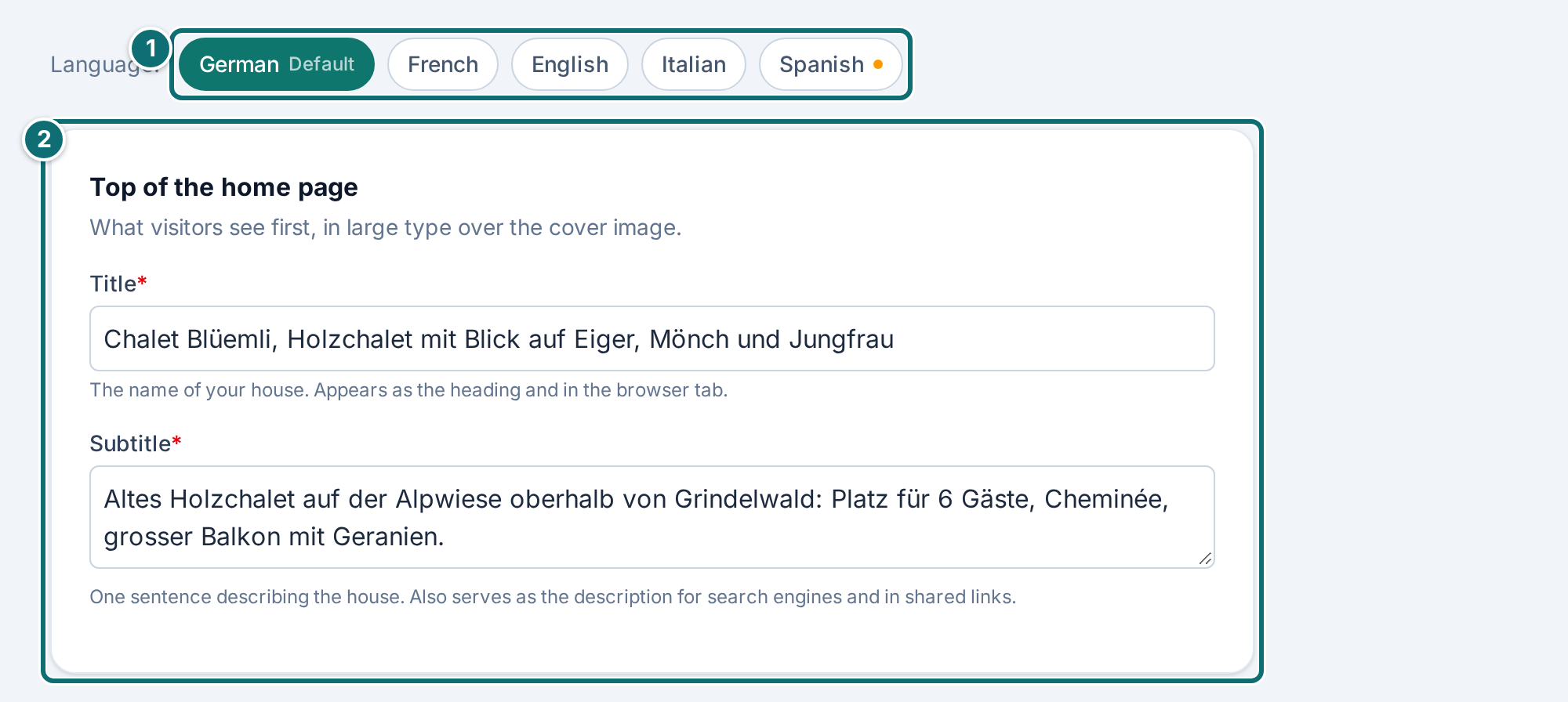
The title appears large above the cover image, the subtitle as the line below it, the description in the section underneath. The location is added to that.
How to do it
At the very top, choose the type of property: Holiday home, Holiday apartment or Other. The selection starts on "not specified". If you choose Other, write a short description of your own, for example "Alpine hut" or "houseboat".
Fill in the title, subtitle, description and location.
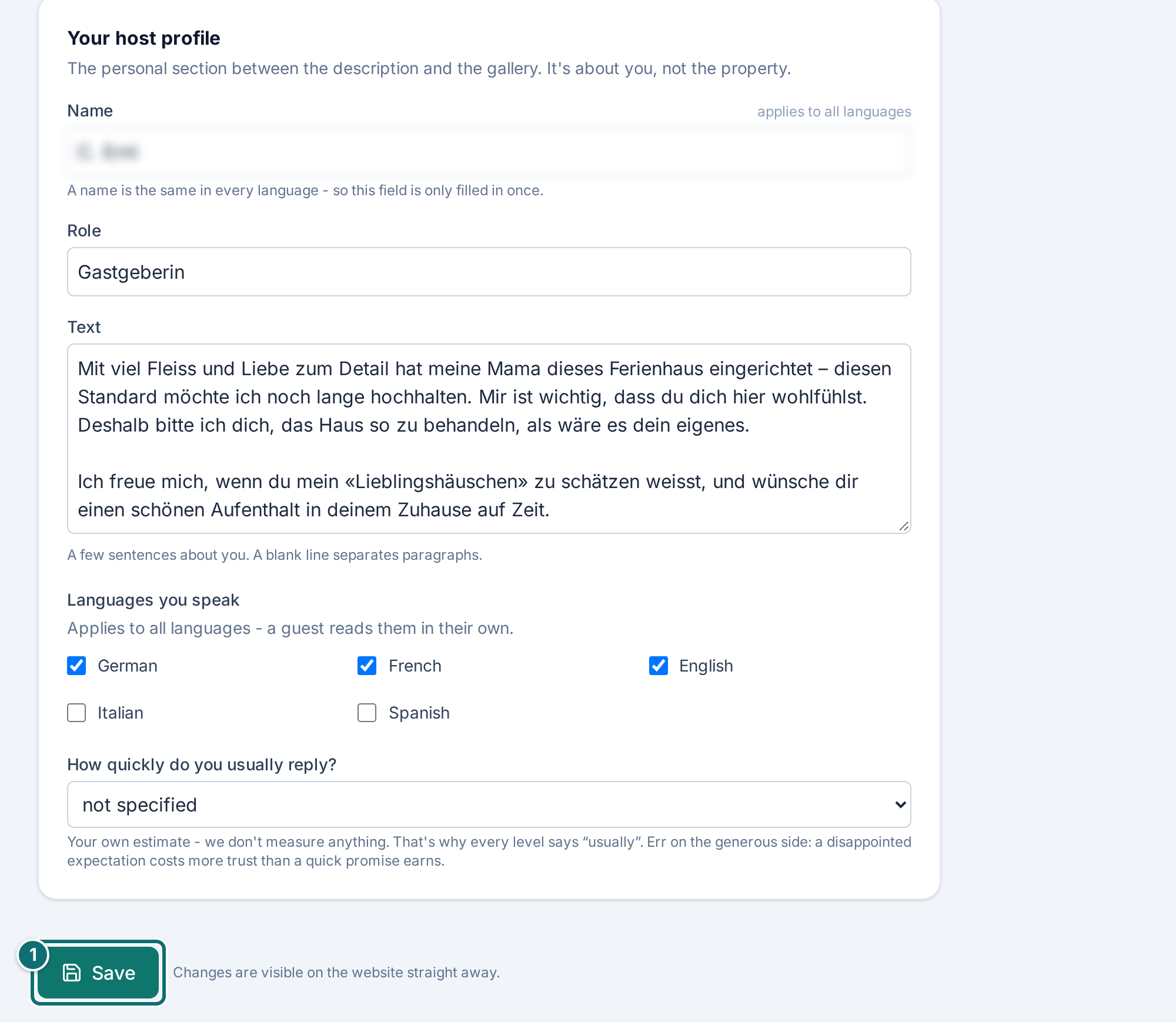
Below that, fill in the host profile: name, role, a text about you, the languages you speak, and how quickly you usually reply.
Click Save.
Texts: the type of property at the top, listing texts and host profile below.Markierungen im Bild: 1. Language switcher: the language you are editing 2. Box "header of the home page" with title and subtitleMy listing, texts: host profile and saveMarkierungen im Bild: 1. "Save" (applies to every box on the page)
Good to know
The type of property is required for approval, just like the title and the description. It appears for the guest under the title and it is a filter in the catalogue: anyone looking for holiday flats will not find a property without this detail. The selection starts on "not specified" on purpose, because a wrongly prefilled value would be worse than none.
"Other" needs a description. Without it, the form does not save and tells you so. "Other" on its own does not answer the guest's question. You translate this text like the others; the selection itself applies in every language.
The host profile sits on the property page just before the reviews. Both answer the same question: who am I trusting this to? The profile belongs to your account, not to one property. You maintain it once, and it appears on all your properties. The same is true of your photo: you upload it on the Photos tab, but it belongs to you.
What is translated. Name, photo, languages and response time apply the same way in every language. Role and text are translated like the other texts; on the Translate tab they are counted.
If something is missing. If a required detail is missing, the message says what is missing, and below that that nothing is lost. The cursor is already in the field that needs attention.
Do not work in two windows. If you open the same page twice and save in the second window, the application reports that the state has changed and saves nothing. Your entries are then back in the form, and above the form it says that they are. You do not have to write anything again, only decide whether you want to look at the other state first. This applies on every tab of the editor and for every message.
2.4 Photos
What it's for: here you upload photos, sort them, set the main photo and upload your host photo.
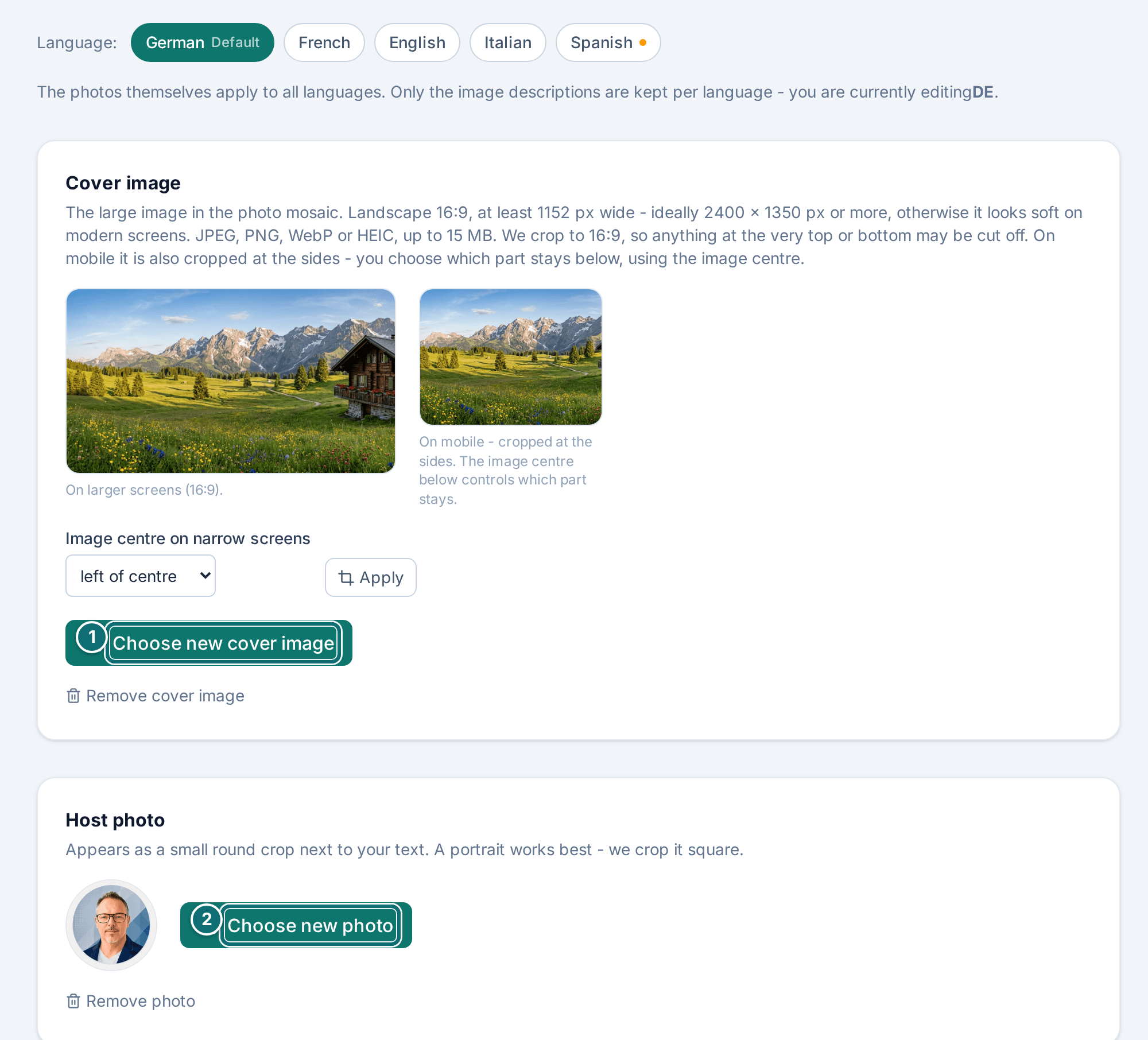
The first image is the large one above the page (main photo). The others form the mosaic and the full-screen view.
How to do it
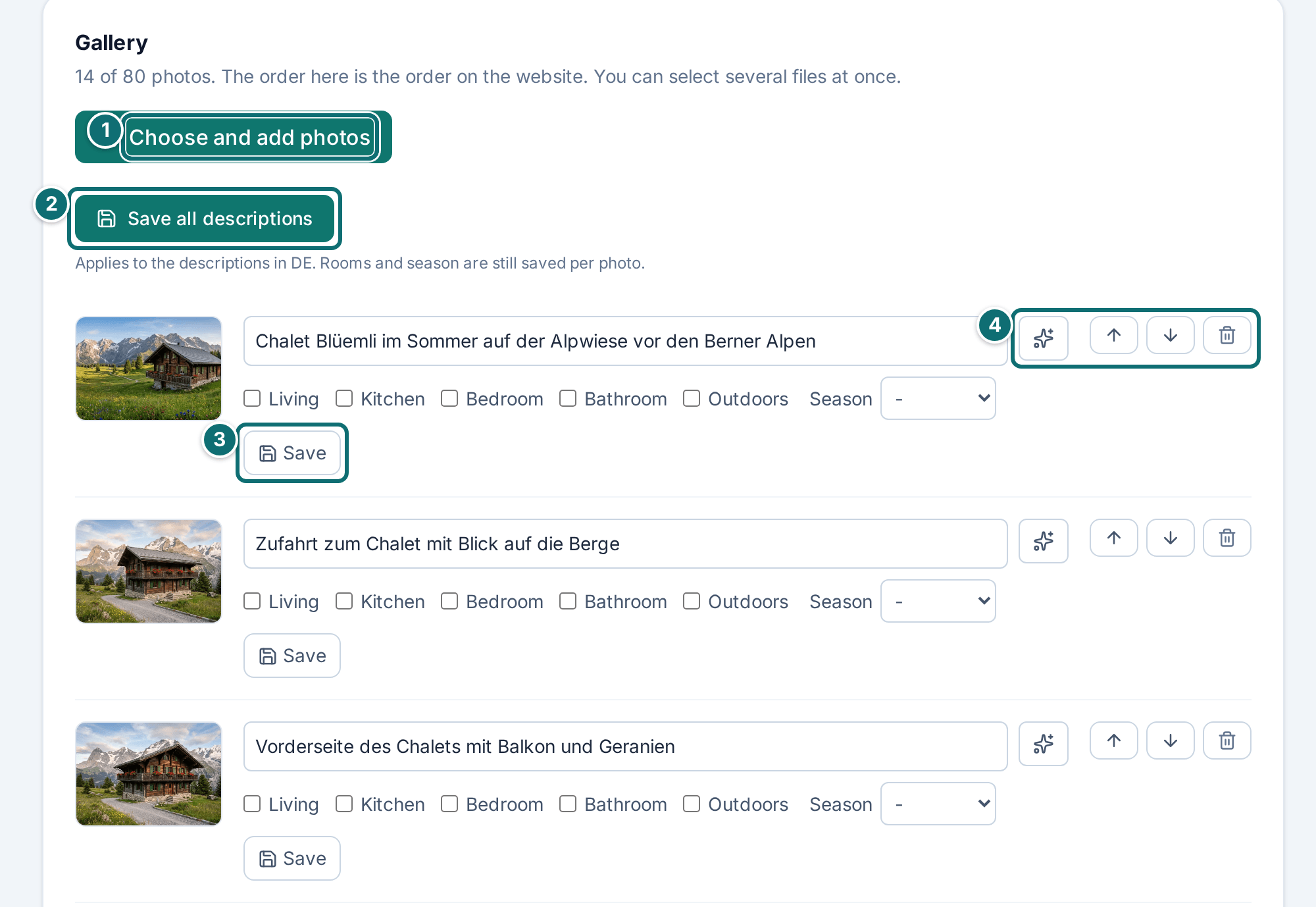
Click Choose cover image, or Choose new cover image if one is already there. For the gallery, click Choose and add photos. As soon as you have chosen, the upload starts; a second click is not needed. While it runs, the button says Uploading ….
Change the order with Move up and Move down.
Write a description for each image, or click Suggest a description. Check the suggestion and click Save.
At the very bottom, upload your host photo.
Photos: upload, sort, describe.Markierungen im Bild: 1. "Choose new cover image" 2. "Choose new photo" for the host photoMy listing, photos: galleryMarkierungen im Bild: 1. "Choose and add photos" 2. "Save all descriptions" 3. "Save" for a single image 4. Symbols: automatic description, up, down, delete
Good to know
At least 5 photos are required for approval; the main photo and the gallery count together. Living room, kitchen, bedroom, bathroom and the view are a good start.
Sizes. One image may be up to 15 MB, several together up to 90 MB. If one is larger, the page says so straight after you select it, and nothing is uploaded. A large phone photo takes a few seconds to upload.
Upload the largest version you have. Every smaller format is calculated from it. A small image cannot be turned into a large one.
The image description is never visible on the page and still matters: it is read aloud to people who cannot see the page, it appears in image search, and it shows when an image fails to load. In the assistant, suggesting also works for every image at once: Suggest missing descriptions prefills every empty field without touching texts that are already there, and Save all descriptions takes them over in one go.
The host photo is cropped to a square and appears in the host section of the property page. It belongs to your account and is the same on all your properties.
Bin. Removed photos stay here for 30 days and are then deleted permanently. With Restore you bring an image back.
2.5 Amenities
What it's for: here you describe the amenities of your property and the house rules, and you tick the boxes for search in the catalogue.
How to do it
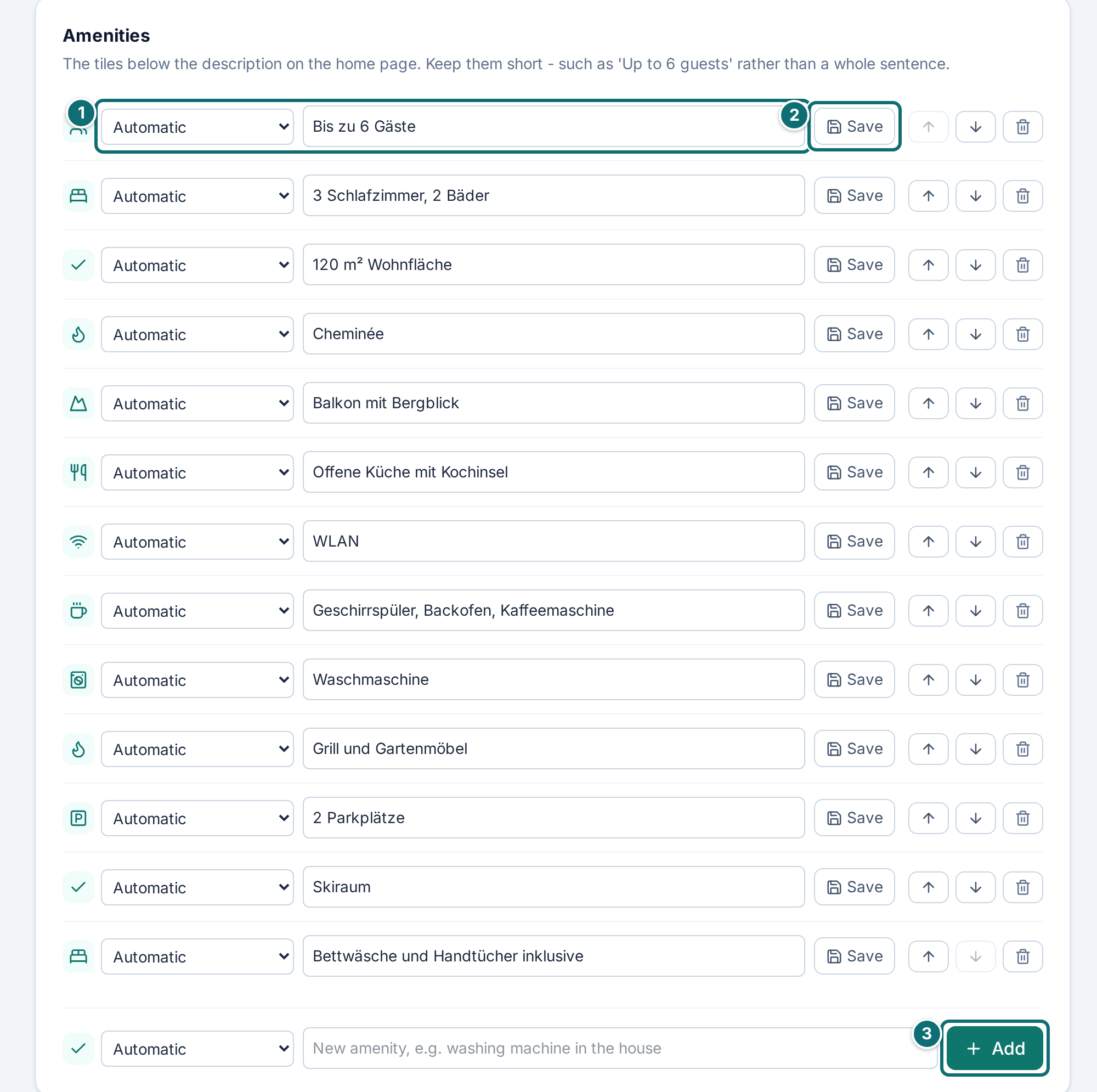
In the Amenities list, enter each feature with a title and a short text. The symbol is suggested from your text; if you write "dishwasher", the matching one appears. You can change it from the list at any time.
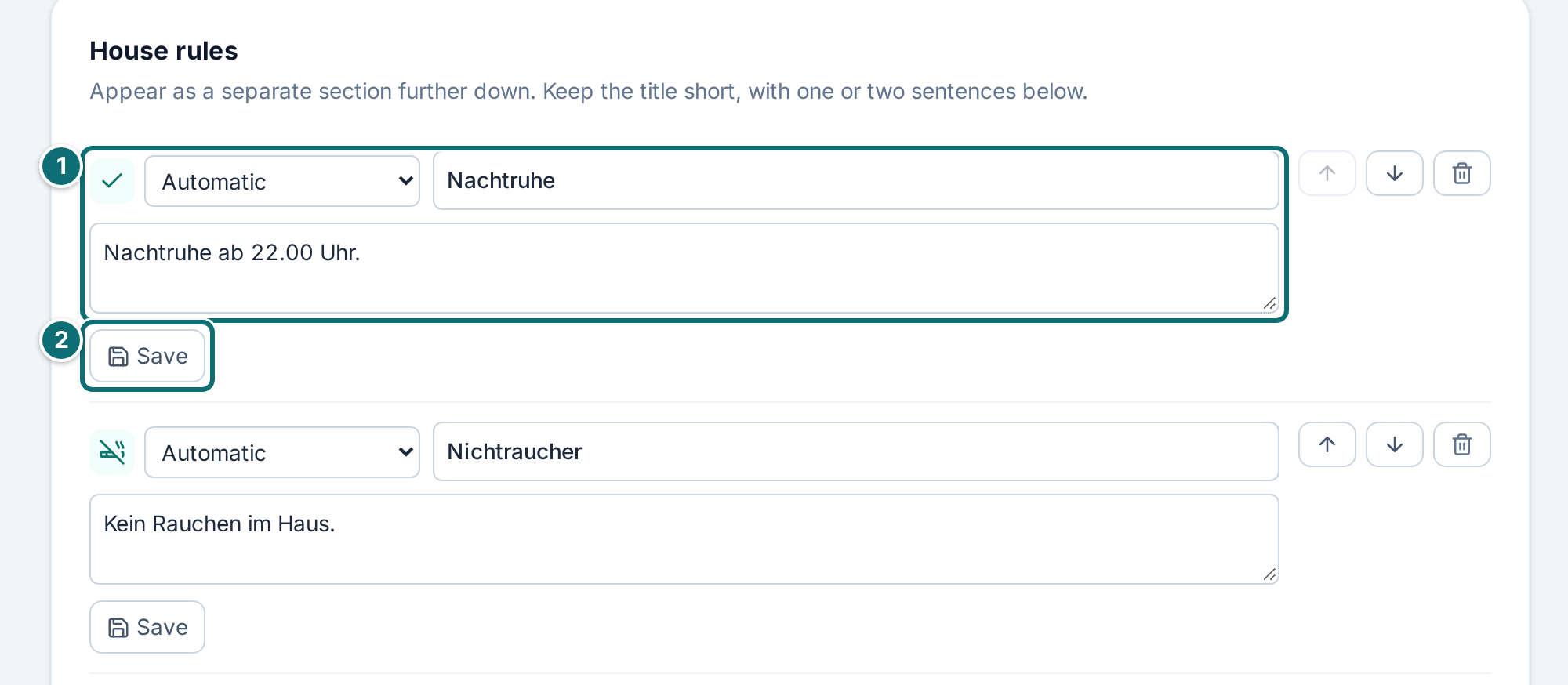
Enter the House rules in the same way.
In the In the catalogue on clavanza.ch box, tick everything that is really there, for example Wi-Fi, Kitchen, Washing machine, Parking.
Click Save.
Amenities: your words at the top, the ticks for search at the bottom.Markierungen im Bild: 1. Choose the symbol and change the text 2. "Save" for this row 3. Enter a new feature and "Add"My listing, amenities: house rulesMarkierungen im Bild: 1. One house rule: symbol, title and text 2. "Save" for this rule
Good to know
Take your time. Ten features look thin next to listings that name thirty. What is not written down, a guest looks for somewhere else.
Both need filling in. The tiles describe your property in your words, the ticks are the fixed language of search. Anyone filtering the catalogue for a washing machine sees your property only if the tick is set. The other way round, a tick on its own says nothing about where the machine is or what it costs. Tick only what is really there.
2.6 Surroundings
What it's for: here you set where your property stands, check the travel times and enter what is nearby.
How to do it
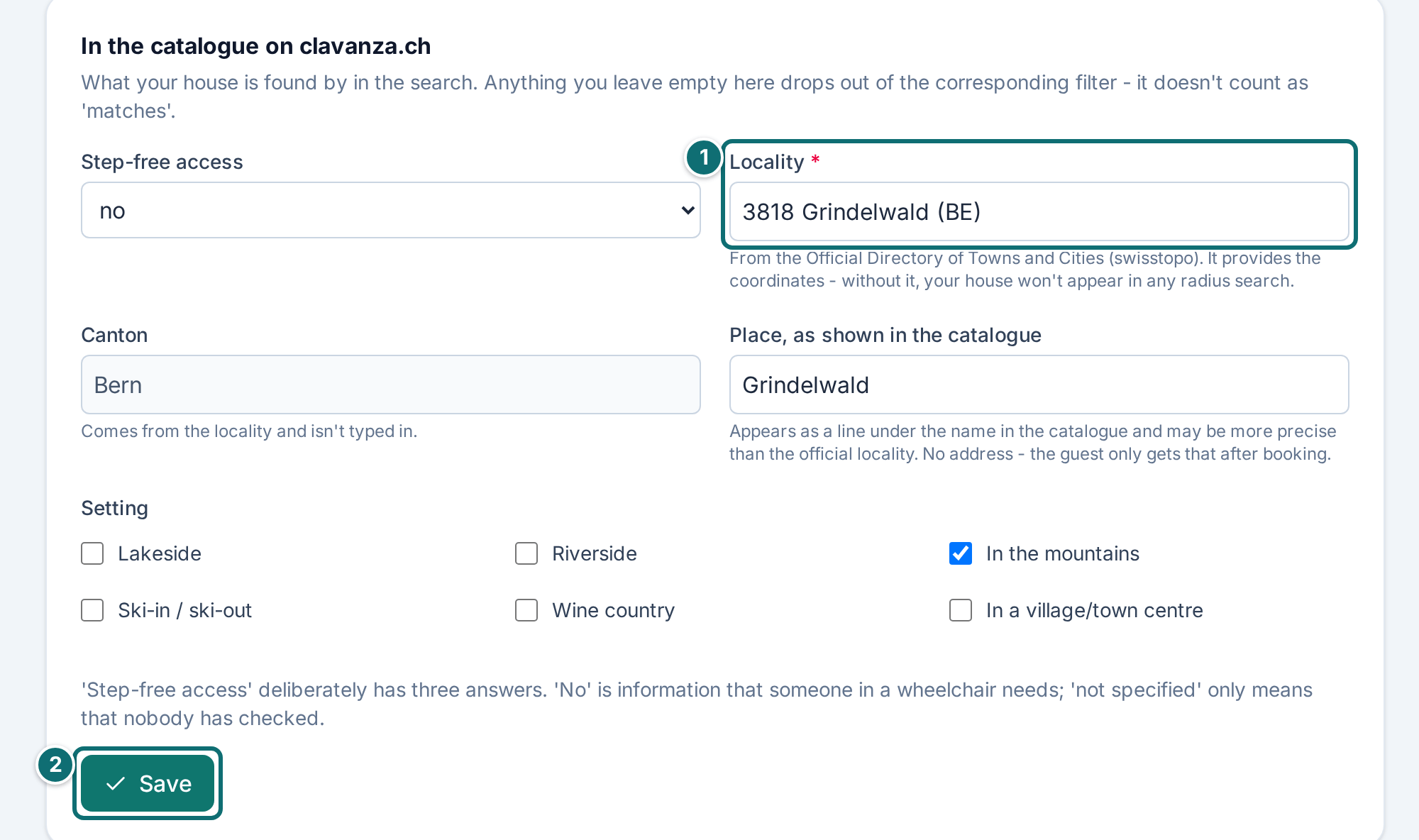
Box "In the catalogue on clavanza.ch": enter the start of the place name or the postcode and choose your locality from the list.
In the field Place, as shown in the catalogue, enter the name guests use when they search for your place. It may be more precise than the official locality.
Answer the question on accessibility and tick the setting (lakeside, riverside, in the mountains, wine country, and so on). For Lakeside or Riverside, you also answer the question about access to the water.
Save the box.
Box "Location and access": check the calculated travel times. If a value is wrong, choose your own figure in the field.
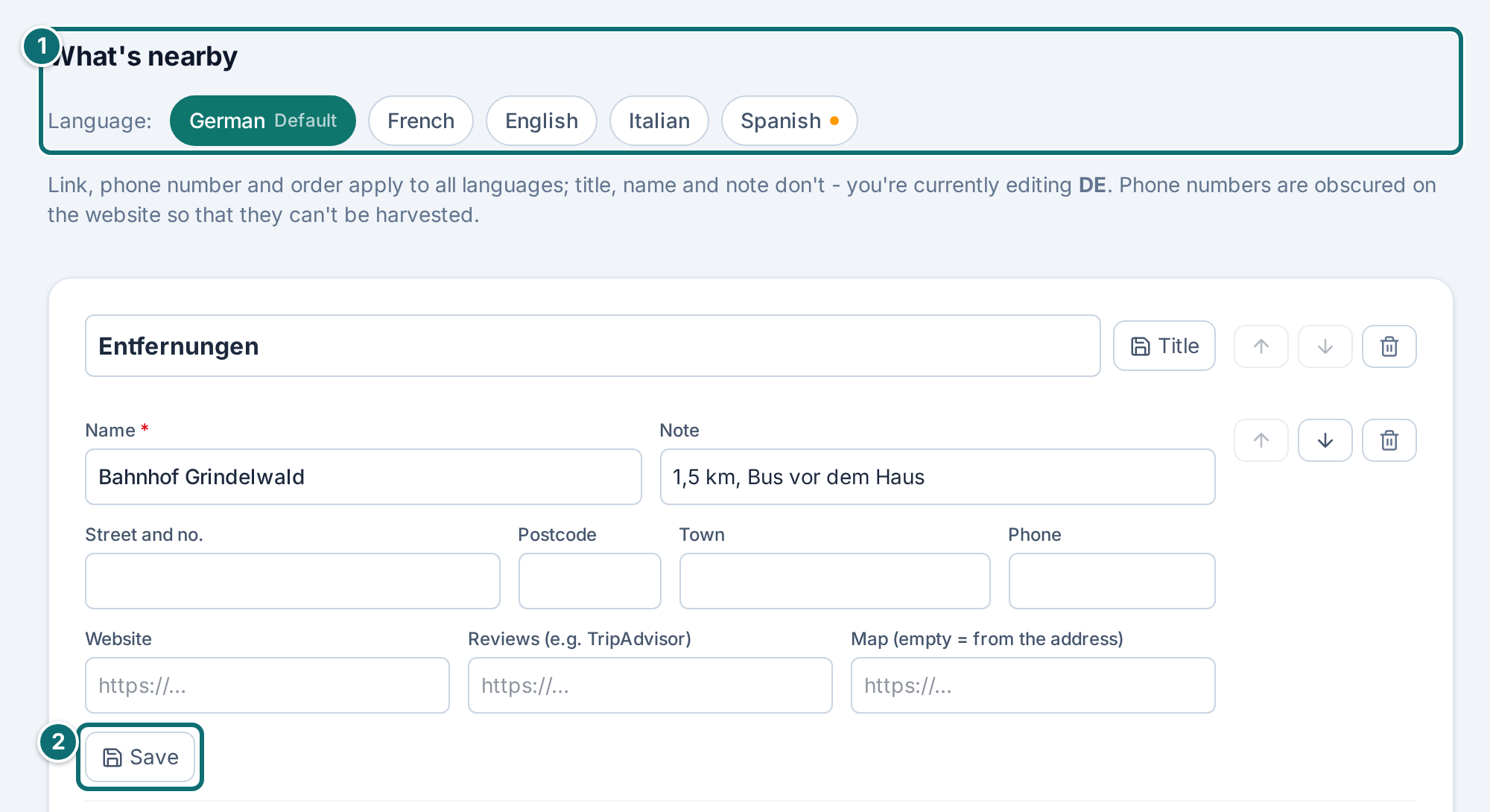
What's nearby: enter shopping, restaurants and day-trip destinations with name, note, website, link to reviews, address, phone and, if you want, a map link.
Surroundings: the setting for search at the top, travel times and nearby tips below.Markierungen im Bild: 1. "Locality" chosen from the official directory 2. "Save"My listing, surroundings: what is nearbyMarkierungen im Bild: 1. "What's nearby" with language switcher 2. "Save" for one entry
Good to know
The locality is required. Without it, the box cannot be saved. Without a locality, your property appears neither in the canton filter nor in place search, in no radius and on no map. Your page then exists, but no guest finds it, and you do not notice.
Where the localities come from. The list shows only localities that really exist. They come from the official directory of localities in Switzerland. The coordinates of your property hang on that, and with them every search for "within 20 km".
The canton follows from the locality and is not a field of its own. Only when a locality crosses a canton border do we ask which canton your property is in.
"Place, as shown in the catalogue" is meant for hamlets and districts that appear in the directory under a larger name. Nothing is ever filtered on this field; that is what the locality is for.
Empty details drop out of the filter. What stays empty here does not count as "matches", it counts as nothing. For accessibility, "no" is expressly an answer, and it helps. "not specified" only tells a guest in a wheelchair that nobody has checked.
Access to the water. For Lakeside or Riverside, the required question "Lake access" or "River access" appears: private lake access with swimming, private lake access without swimming, or no private lake access. Without an answer, the box cannot be saved. A private access appears at the top of your property page as a feature and, in the section "Location and access", replaces the calculated bathing place, marked as the host's own detail. Guests find it in the catalogue under the feature "undefined".
Location and access. The box shows the travel times to the nearest destinations, Public transport stop, Train station, Grocery store, Bathing spot, Indoor pool or water park and Public charging station, on foot and by car, plus the public transport access. In brackets it says what it is, for example "Public transport stop (bus)" or "Bathing spot (beach)". We calculate the values from the address of your property and from public data. On the property page they appear rounded and without the names of the destinations, so nobody can read the exact location from them.
Your own figures. If, for example, a footpath is missing from the maps, you choose your own figure in the field. It replaces the calculated value and is marked on the property page as the host's own detail. If the field is on "Calculated", the calculated value applies. The public transport access is an official classification and cannot be changed.
When the travel times appear. They are worked out in the background after you save the address of the property (tab Emails), and they are updated every month. Until then the section on your property page stays empty, unless you have entered your own figures. Guests can filter the catalogue by these values. If your property does not have them yet, such a filter hides it, with a note that lets the guest show it again.
Languages. The list of what is nearby depends on the language, the box above it does not. Address and phone number are independent of language; only the name and the note are translated.
Map link. You can leave it empty; one is created automatically from the address. Enter it only if the search lands in the wrong place.
2.7 Prices
What it's for: here you set prices, occupancy and high-season periods, and you choose which payment methods guests can use.
Prices, occupancy and season periods belong to the individual property. If you run several, watch the switcher at the top to see which one is active. The payment methods at the end of the page, by contrast, apply to you as the host and therefore to all your properties.
How to do it
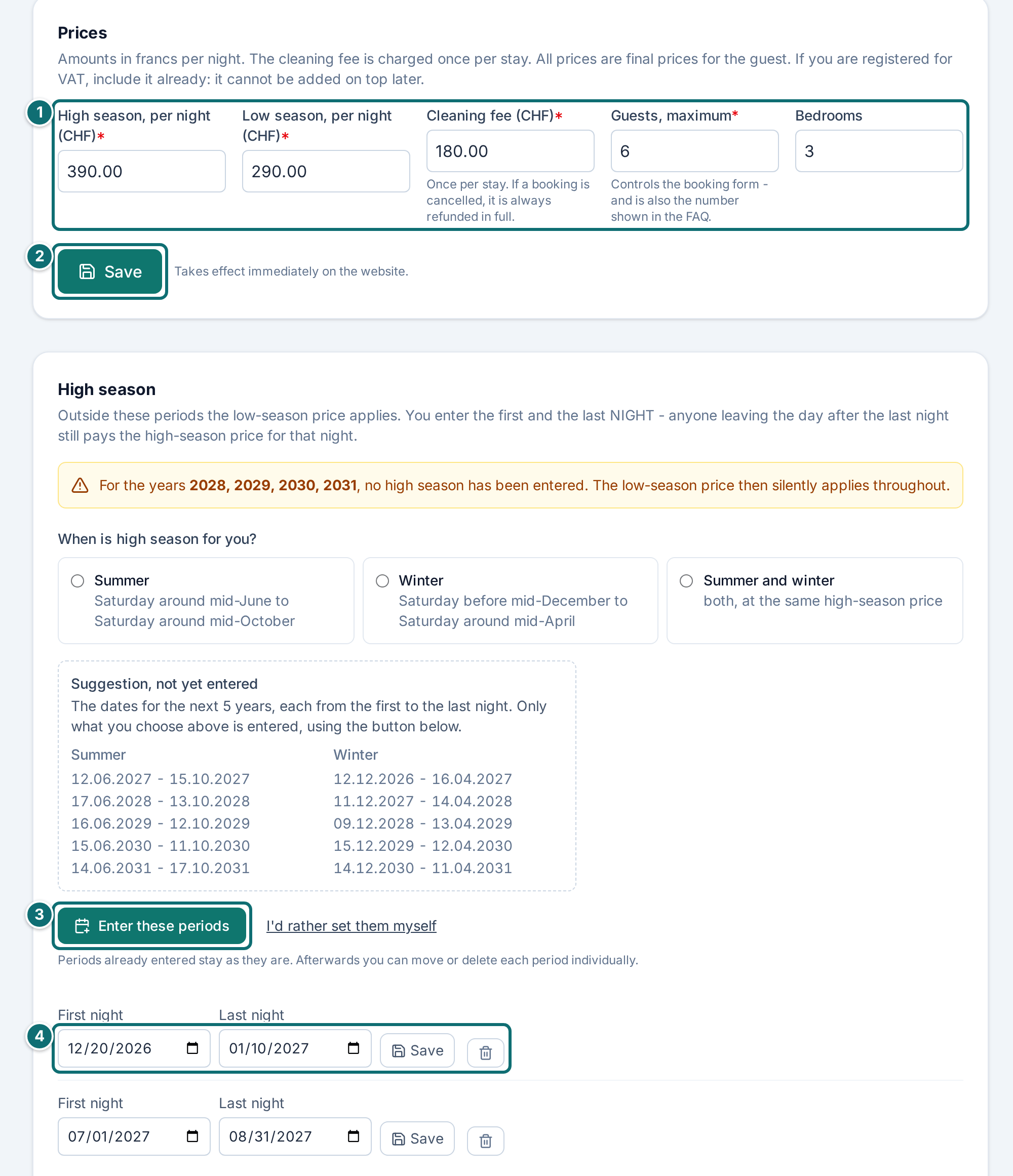
Enter the price per night for high season and low season, plus the cleaning fee.
Enter the highest number of guests and the number of bedrooms, then click Save.
Set the high season. The quickest way is from a suggestion: choose Summer, Winter or Summer and winter, check the dates in the dashed box "Suggestion, not yet entered" and click Enter these periods.
If no suggestion fits, set the periods yourself, each with a first and a last night.
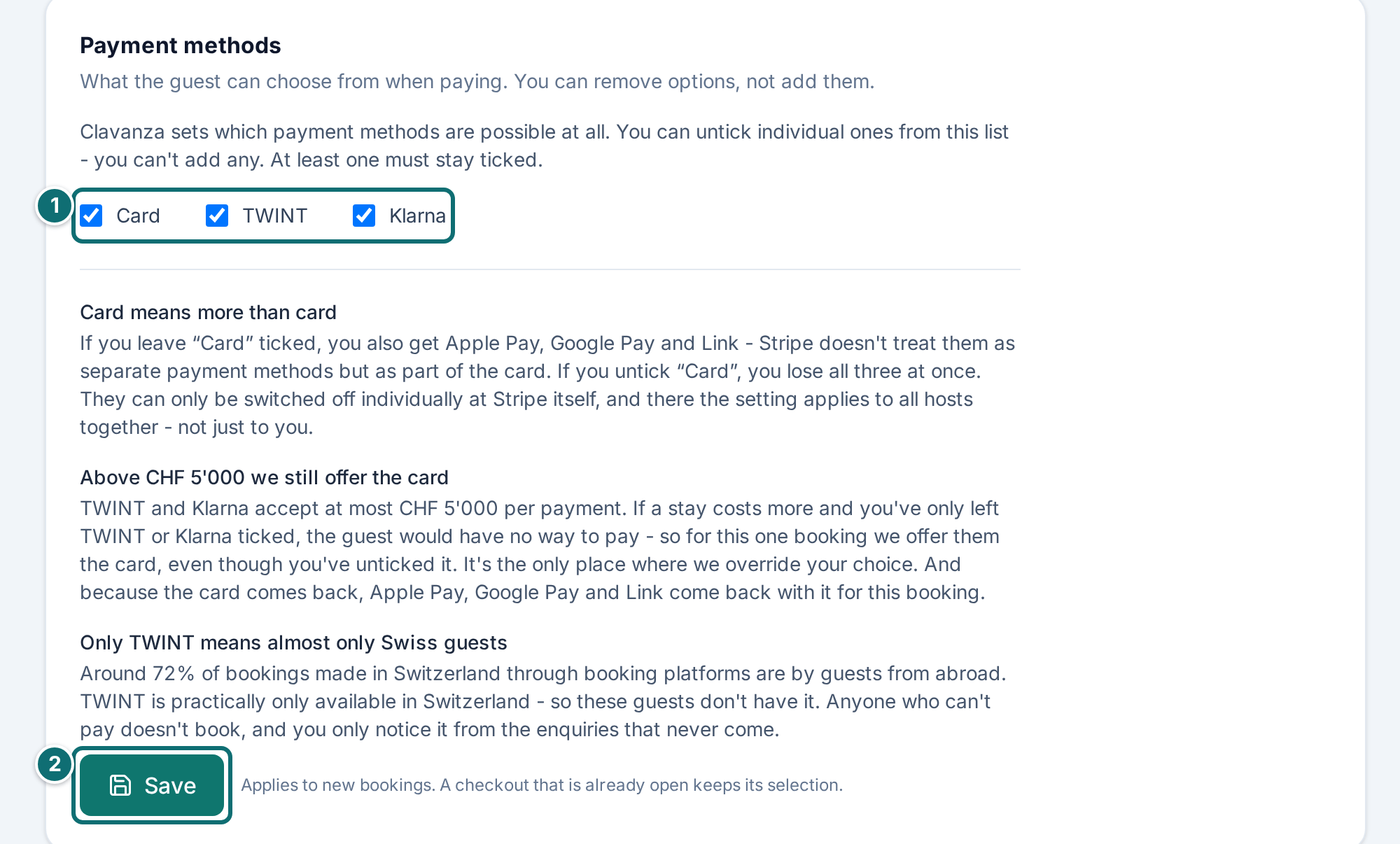
Under Payment methods, untick what you do not want to offer, then click Save.
At the very bottom, under What a stay looks like, check what a guest pays for a week.
Prices: the amounts at the top, the high-season periods below.Markierungen im Bild: 1. Prices and number of guests 2. "Save" 3. "Enter periods from a suggestion (summer, winter or both)" 4. One high-season period with its own "Save"My listing, prices: add a new high-season periodMarkierungen im Bild: 1. Enter the first and last night, then "Add period"Payment methods: you can untick, but you cannot add any.Markierungen im Bild: 1. Tick or untick payment methods 2. "Save"
Good to know
Final prices. All prices are final prices for the guest. If you are liable for VAT, the VAT must already be included; you may not add it on afterwards. That is also what clause 5 of the rental conditions says.
Required and optional. Both prices per night and the number of guests are required for approval. The form does not accept a price per night of 0; it does accept a cleaning fee of 0. The number of guests is deliberately not prefilled on an empty listing: a wrong value would only show up with the first booking. Bedrooms are optional. If they are missing, your property does not appear when a guest filters the catalogue by bedrooms.
The suggestions for high season. "Summer" runs from the Saturday around mid-June to the Saturday around mid-October, "Winter" from the Saturday before mid-December to the Saturday around mid-April. Enter these periods takes them over for the next 5 years. Existing periods stay as they are. What is already entered appears in the assistant, at the top of the box, under "Periods entered".
Your own periods. You can set as many as you like, including several in the same year or across the turn of the year. You can move or delete each period later. Summer and winter use the same high-season price.
If a year is missing, low season applies everywhere in it, with no error message. The editor warns you about that. Take the warning seriously.
Payment methods. Clavanza sets which payment methods are possible at all. You can untick individual ones from this list - you can't add any. At least one must stay ticked. They are Card, TWINT and Klarna.
Card means more than card. If you leave “Card” ticked, you also get Apple Pay, Google Pay and Link - Stripe doesn't treat them as separate payment methods but as part of the card. If you untick “Card”, you lose all three at once. They can only be switched off individually at Stripe itself, and there the setting applies to all hosts together - not just to you.
Above CHF 5'000 we still offer the card. TWINT and Klarna accept at most CHF 5'000 per payment. If a stay costs more and you've only left TWINT or Klarna ticked, the guest would have no way to pay - so for this one booking we offer them the card, even though you've unticked it. It's the only place where we override your choice. And because the card comes back, Apple Pay, Google Pay and Link come back with it for this booking.
Only TWINT means almost only Swiss guests. Around 72% of bookings made in Switzerland through booking platforms are by guests from abroad. TWINT is practically only available in Switzerland - so these guests don't have it. Anyone who can't pay doesn't book, and you only notice it from the enquiries that never come.
With this selection, guests from abroad effectively can't book with you. Around 72% of bookings made in Switzerland through booking platforms are by guests from abroad. You can still save it like this - it's your decision, we just want you to be aware of it.
When a change applies. Applies to new bookings. A checkout that is already open keeps its selection.
2.8 FAQ
What it's for: here you enter the fixed details of your property and add your own questions and answers.
How to do it
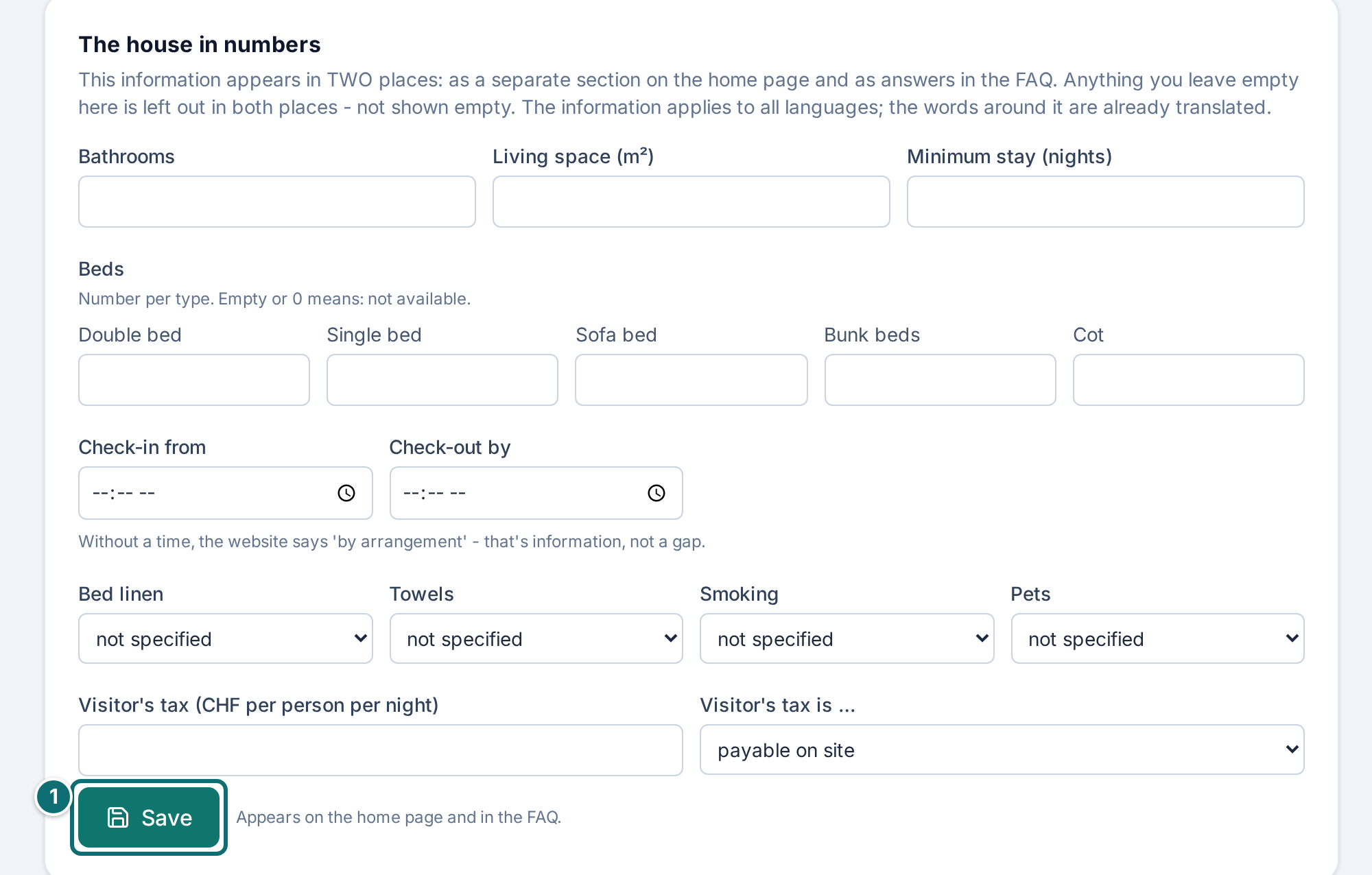
Fill in the fixed details at the top: beds, bathrooms, living space, check-in and check-out time, pets, smoking, visitor's tax, minimum stay.
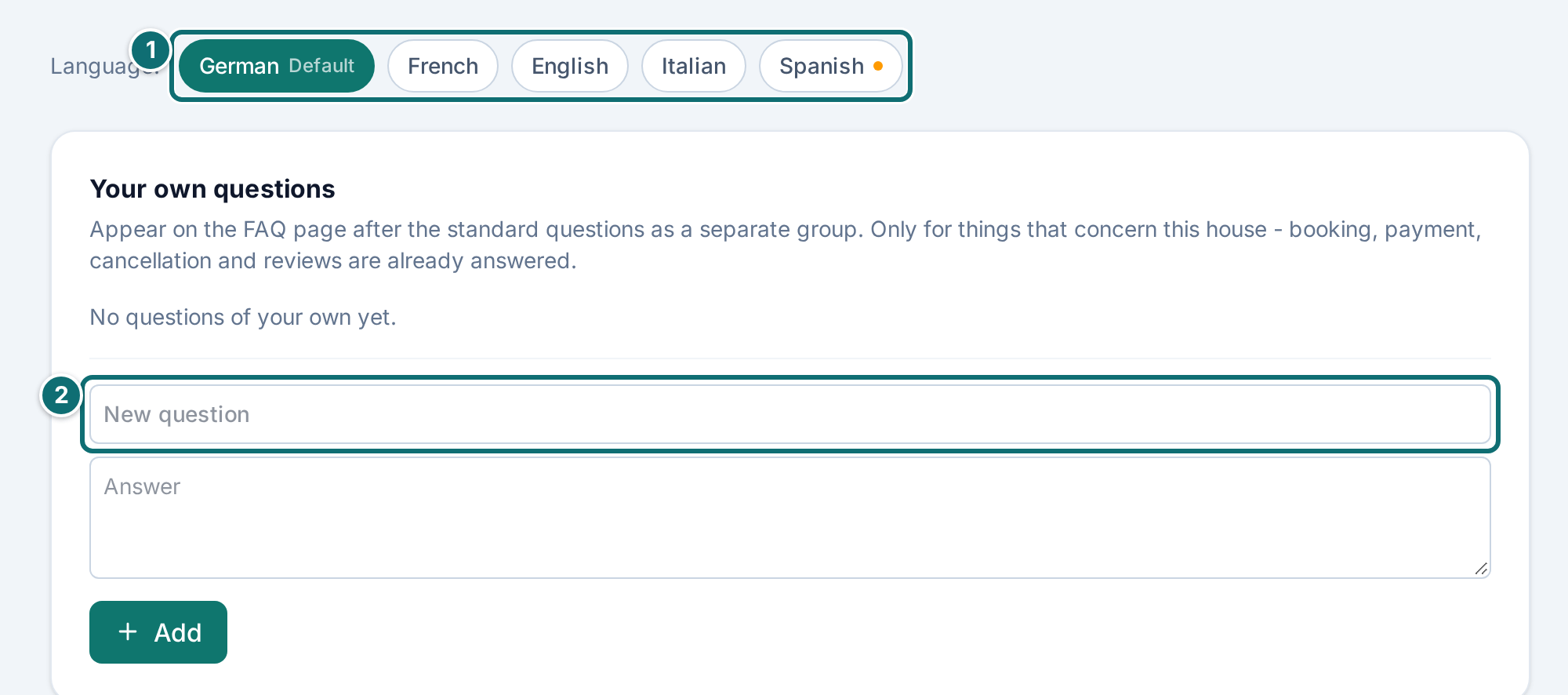
Below that, enter your own questions and answers: everything guests keep asking you that is not in any fixed detail.
Click Save.
FAQ: the fixed details fill two places on your website at once.Markierungen im Bild: 1. "Save"My listing, FAQ: your own questionsMarkierungen im Bild: 1. Language switcher 2. Enter a new question (and the answer below it)
Good to know
Enter once, show twice. The fixed details appear in the section "The house in numbers" on your home page and as answers on the FAQ page.
Bedrooms are entered under Prices, next to the number of guests.
Empty disappears. What you do not fill in does not appear at all, instead of standing there with an empty answer. That also means: a missing detail is noticed by nobody except you.
2.9 Emails
What it's for: here you set how your emails appear to the guest, and you fill in the check-in email that is sent automatically shortly before arrival.
How to do it
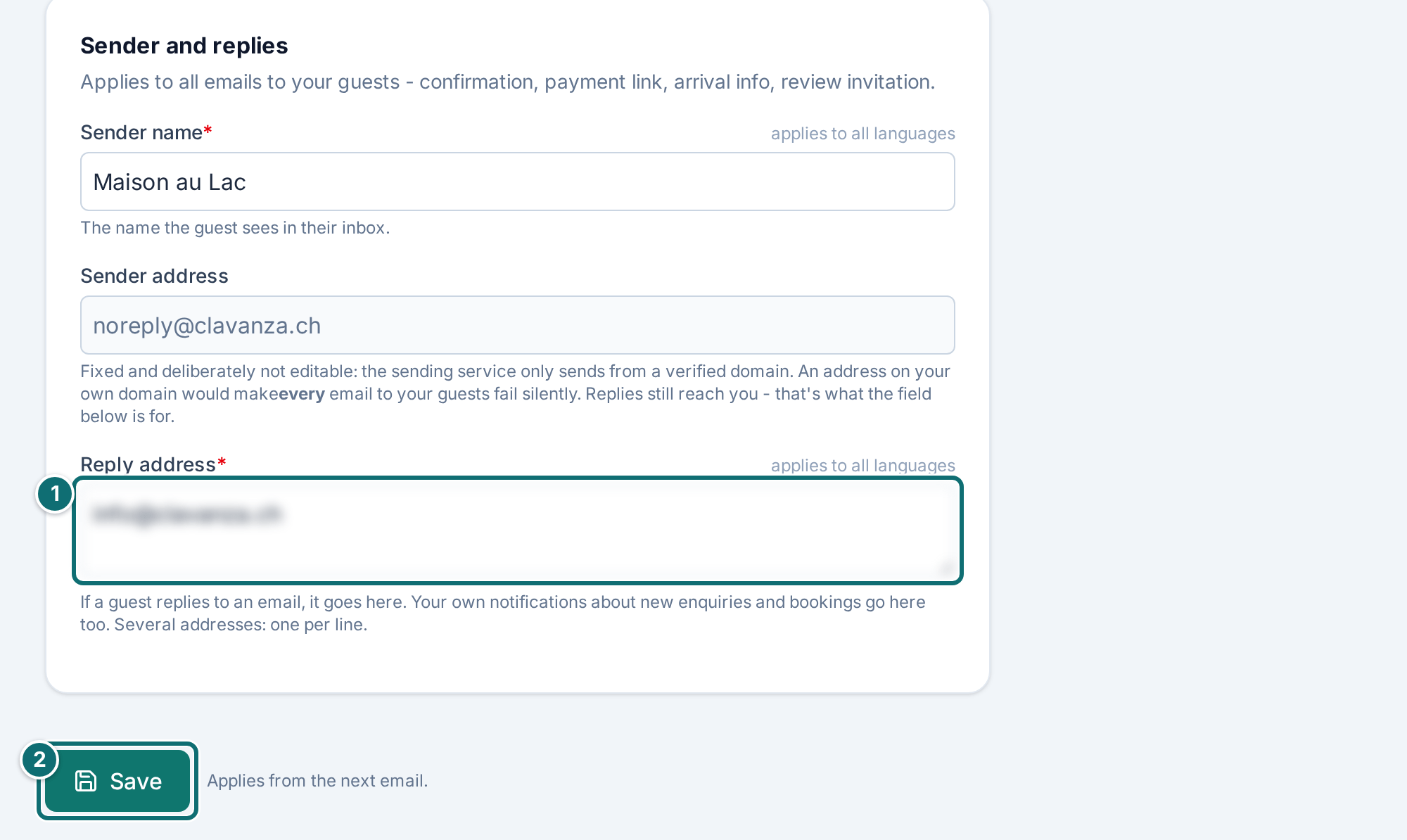
At the top, enter the sender name and the reply address: how you appear in your guest's inbox, and where their reply goes.
Below that, fill in the check-in email: exact address, location plan, note on how to get there, Wi-Fi, key-box code, check-in time, waste. Under Cleaning, the amount field is called Rate.
Click Save.
Check the line under the address. If it reports that only the street was found, or nothing at all, check the street, the house number and the postcode.
Fill in the language-dependent fields for each language.
Emails: the sender at the top, everything for the check-in email below.Markierungen im Bild: 1. "Reply address" (made unreadable here) 2. "Save"
Good to know
The address is required for approval. Without it, your guest would receive a check-in email with no address. Exact address, location map, Wi-Fi password and key code are stored separately from your listing and are only sent to guests with a paid booking. They don't appear anywhere on the public website. The location map is also reachable via a secret link, so that your guest can enlarge it from the email.
Match against swisstopo. After you save, we match the address in the background against swisstopo's official directory of building addresses. Your guest receives the same address in the check-in email. The address and the location derived from it stay private.
Missing languages. If a text is missing in one language, the guest receives the text of your default language. For the key code and the check-in time, a text in the wrong language is better than none. For every empty field, the editor shows what the guest would receive instead.
The sender address itself cannot be changed. It has to sit on a verified domain, otherwise your emails would reach nobody.
2.10 Translate
What it's for: here you choose the languages of your listing, set your base language and have the missing translations produced.
How to do it
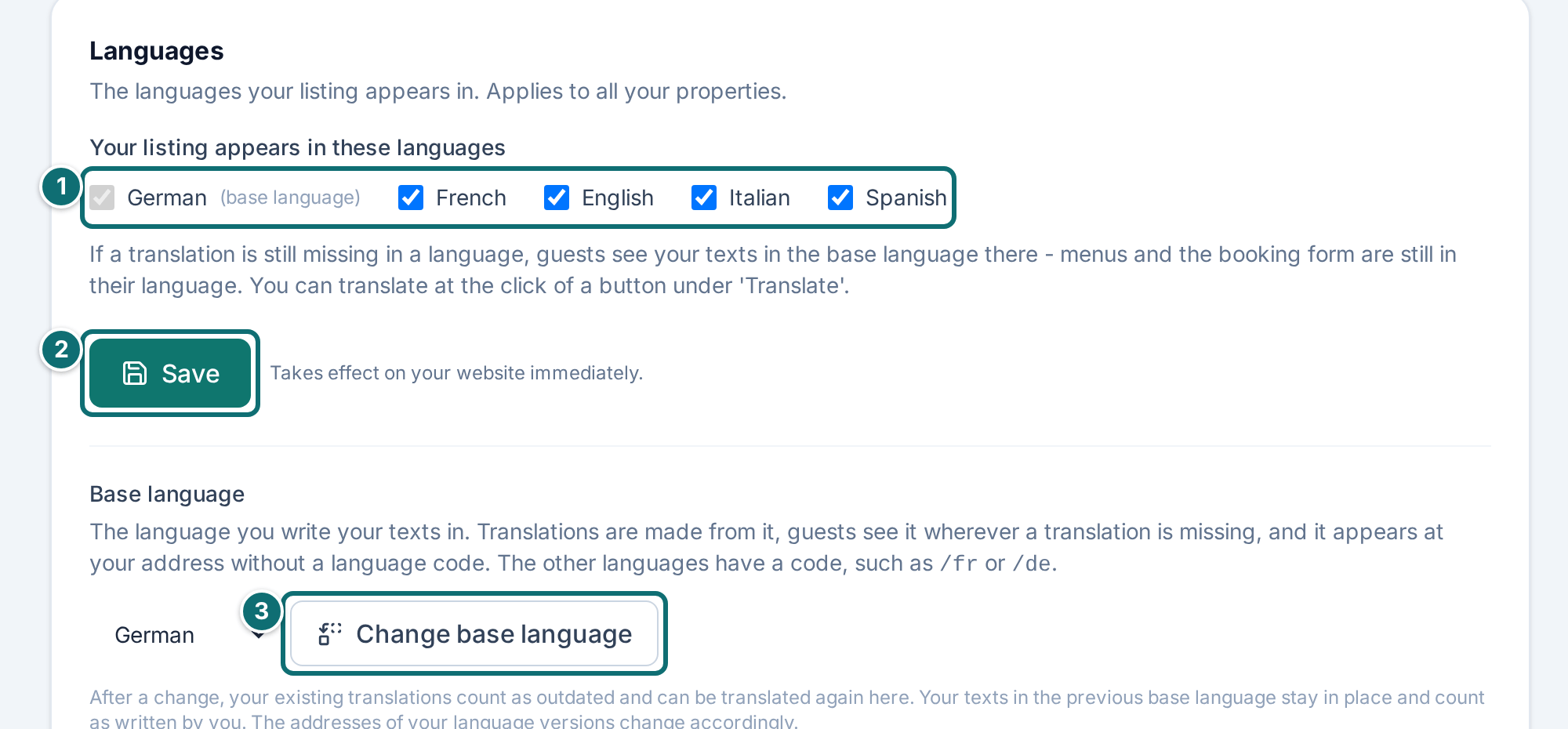
At the very top, choose the languages in which your listing appears. At the start, all five are ticked. Your base language always stays.
Below that, check the base language. That is the language in which you write your texts and from which they are translated. Change it if you need to.
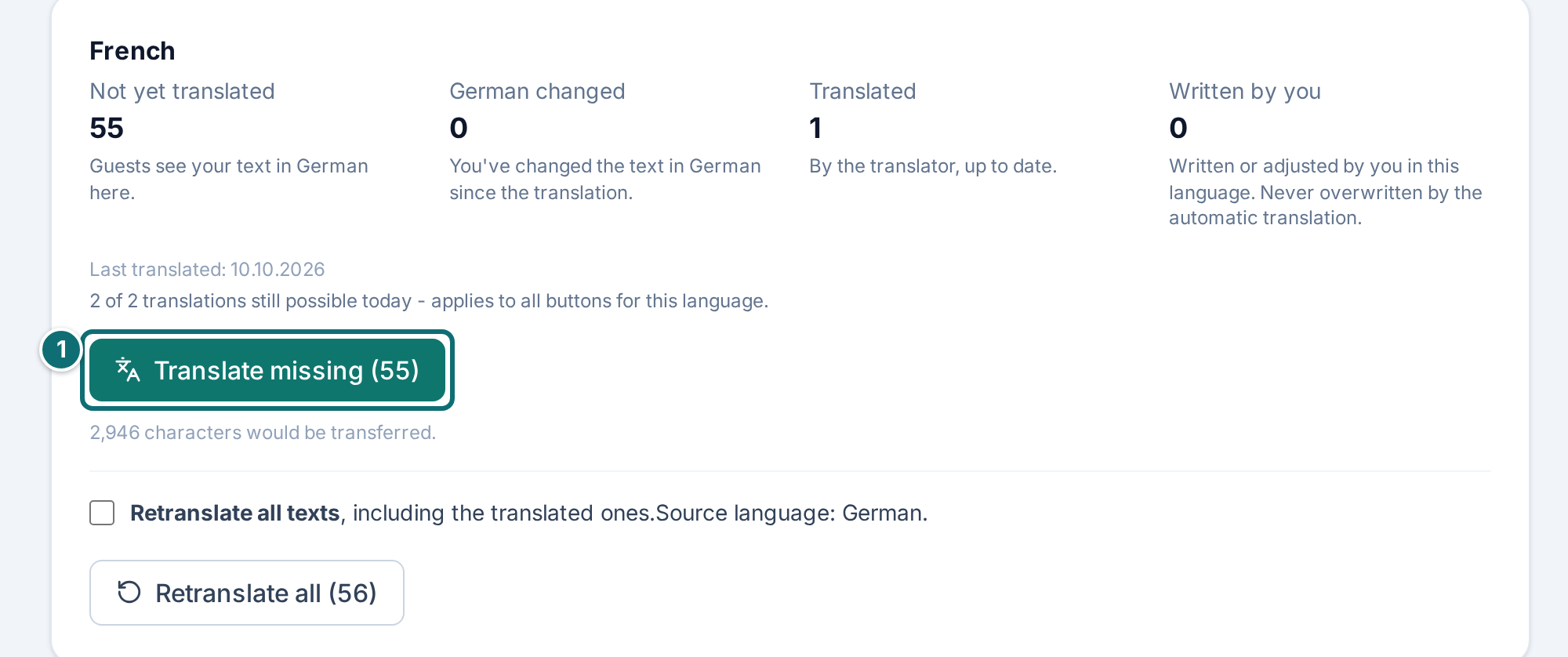
For each language, read the four figures: Not yet translated, … changed (with the name of your base language), Translated and Written by you.
Click Translate missing. The number in brackets says how many texts are missing. Leave the page open until the window in the middle disappears. It usually takes less than a minute.
Read the message after the run. If it names rejected fields, write those by hand.
Translate: for each language you see what is missing, outdated, translated or written by you.Markierungen im Bild: 1. Tick the languages 2. "Save" 3. "Change base language"My listing, translate: status per languageMarkierungen im Bild: 1. "Translate missing (1)"
Good to know
Missing translation. If a translation is still missing in one language, guests there see your texts in the base language, but the menus and the booking form in their own. If something is missing, a note at the top of My listing points it out.
Changing the base language. That is needed, for example, if you write your listing in French but registered on the German page. After a change, your existing translations count as outdated and can be translated again with one click. Your texts in the previous base language stay and count as written by you.
Addresses per language. The base language appears under your address without a language code, all the others with a code (for example /fr or /de). If you change the base language, these addresses change with it.
What is translated: your listing texts, your host profile and the free texts of your check-in email (directions, key, waste, notes), for every language you chose. Key code, Wi-Fi and address are independent of language and are not translated.
Only what is missing or outdated. A field is outdated when its text in the base language has changed since the last translation. What you wrote by hand is never overwritten, unless you tick Retranslate all texts for a language. Then every text of that language is translated, including the ones you wrote; the page asks first. If a language contains the text of your base language word for word, it counts as not translated and is translated on the next run.
The four figures. "Not yet translated": guests see your text in the base language. "… changed": the translation belongs to an older version. "Translated": by the translator, up to date. "Written by you": written or adjusted by you in this language; the automatic translation never overwrites it.
2 runs per day. Per property and language you can have translations run 2 times a day, whichever button you use. The page shows how many runs are still possible today. A run where there was nothing to translate does not count.
Rejected fields. Every translation is compared with your original before it is saved. If it contains a web address, bank details, an email address or a phone number that is not in your original, or if it is implausibly much longer or shorter, the field is rejected and stays empty. That is not a mistake on your part. The translation service added something that does not come from your text, and that must never reach your page without you seeing it.
2.11 Legal
What it's for: here you enter your details as host for the legal notice and the privacy policy, and you set the cancellation conditions of your property.
This page holds two kinds of details:
•For all your properties: contracting party, contact and the version of the legal texts. They describe you.
•For the individual property: the cancellation scale and the handling fee. A studio for two nights and a chalet for the holiday week do not suit the same deadlines.
How to do it
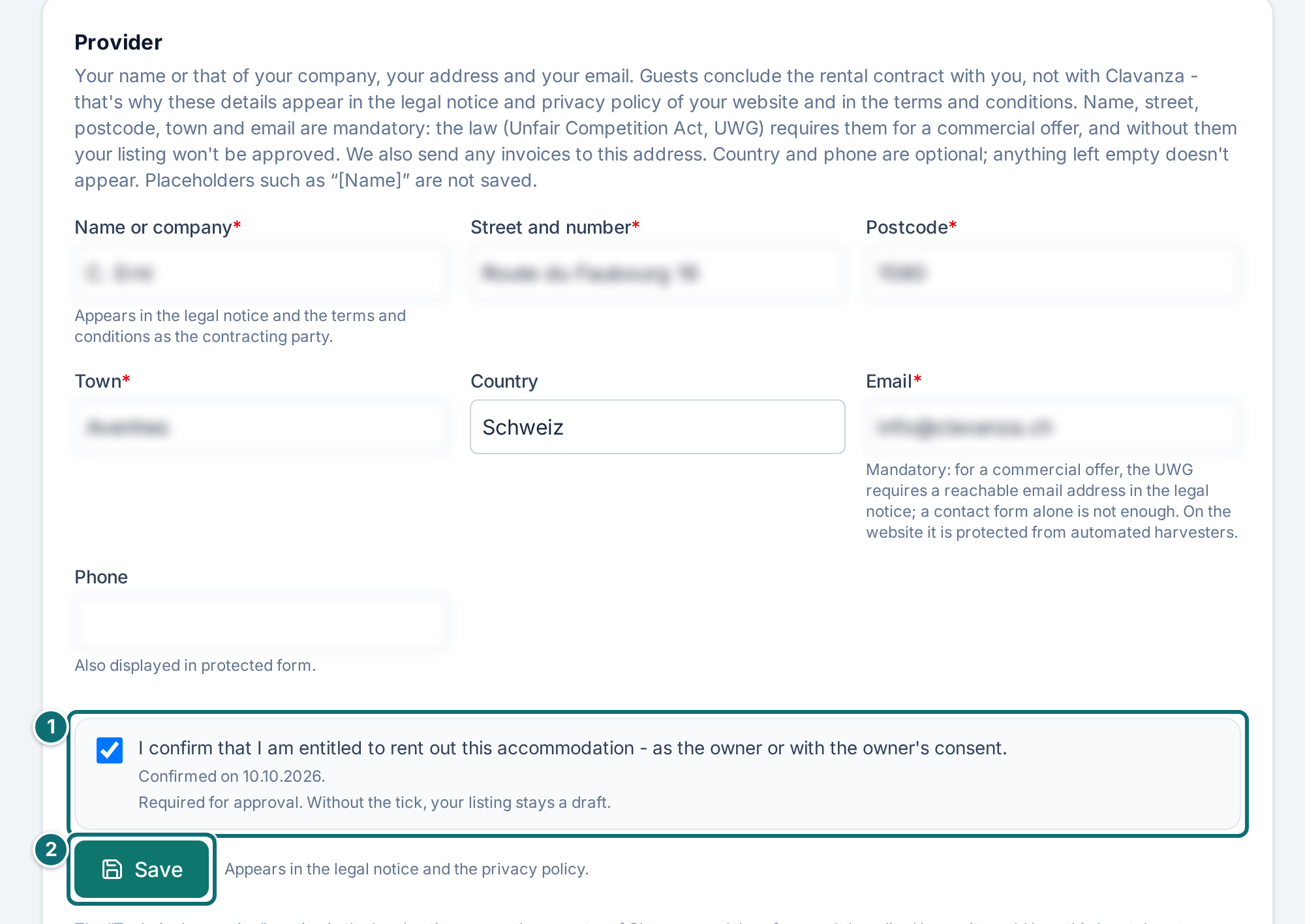
Enter your details as host: name or company, street, postcode, place, country, email and phone.
Tick that you are entitled to let the property, as owner or with the owner's consent.
Set the cancellation scale: for each step, Days before arrival and Share in percent, the share you keep.
Click Save.
Legal: your details as host at the top, the property's cancellation scale below.Markierungen im Bild: 1. Confirmation of the right to let 2. "Save"
Good to know
Required details. Name, street with house number, postcode, place and email are required. The law demands them for a commercial offer; a contact form on its own is not enough. Any invoice from Clavanza also goes to this address. Placeholders such as "[Name]" are not saved.
Without the details and the tick, your listing stays a draft. Like the payment account and the address of the property, they belong to the required points for approval.
The cancellation text comes from your figures. The scale produces the cancellation text in your terms and in the FAQ. You do not write it yourself, and it therefore cannot drift from what is actually charged. The same produces the note on the booking card of your property page: until how many days before check-in a cancellation is free. If your scale has no free top step, that note is not there.
The cleaning fee is always refunded in full on a cancellation, on every step. Count on that when you set the scale.
Each property its own scale. If you run several properties, each can have its own. A Christmas week in the chalet and a single night in the city flat rarely need the same conditions.
Changes apply to future bookings. What a guest agreed to when booking stays valid for that booking, even if you enter something else later. Tightening the terms therefore does not help you against a booking that worries you. For that, you talk to the guest.
3. Set up payments
How your guests' money reaches you, and what of it stays with Clavanza.
3.1 Connect the payout account
What it's for: through the payout account at our payment provider Stripe you receive your guests' money, and it confirms who is behind your offer.
How to do it
On Overview, in the tile for your payout account, click Connect account.
Answer the question under the button: should Stripe answer payment disputes automatically for you (Smart Disputes)? Without an answer you cannot continue.
Enter your password if we ask for it.
At Stripe, enter your details: name, date of birth, address, phone and bank details. Stripe asks for a photo of your ID only if the details cannot be confirmed automatically.
Wait for the review. The tile shows you the status.
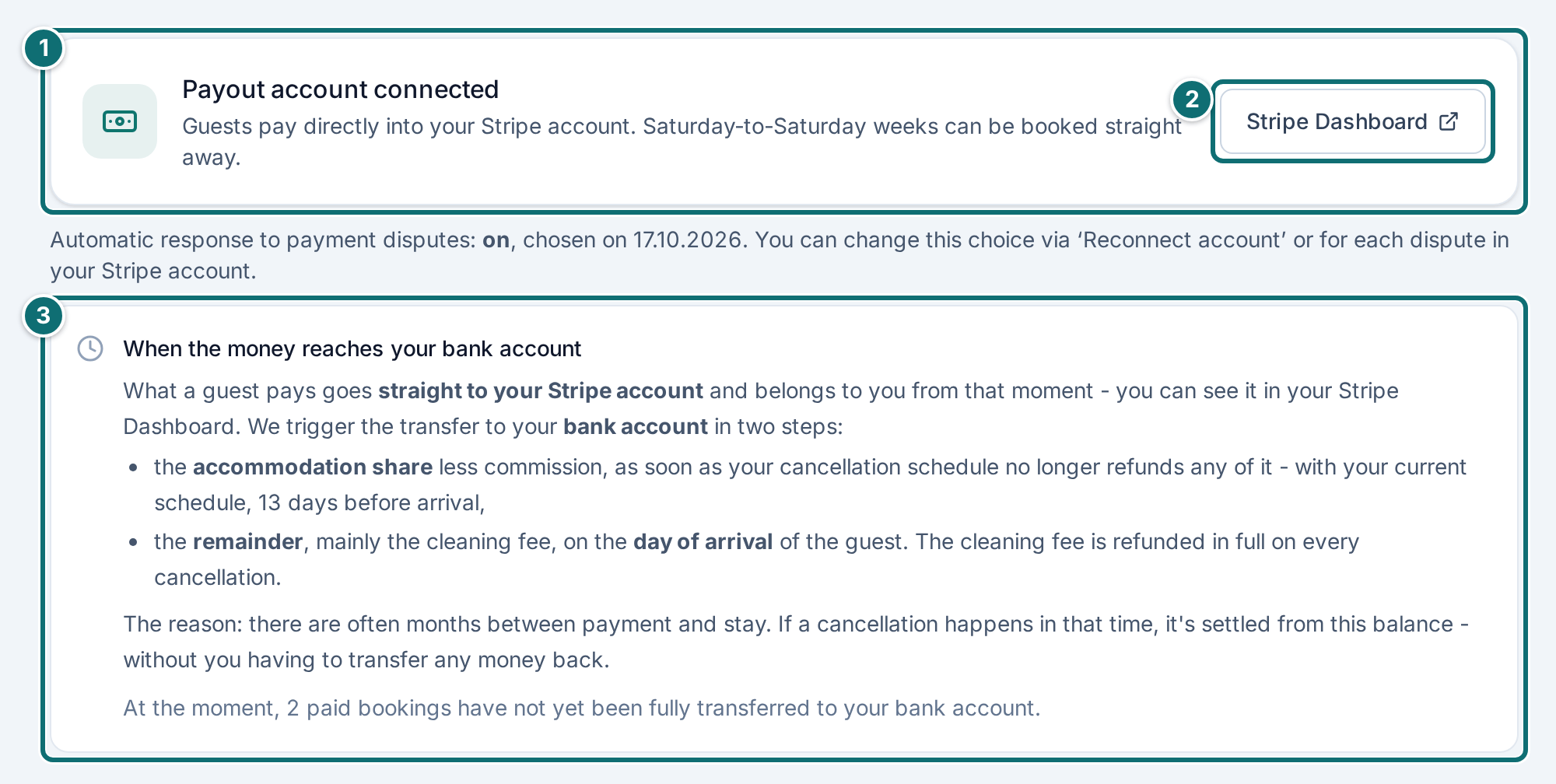
The tile for the payout account: before and after connecting.Markierungen im Bild: 1. Tile "Payout account connected" 2. "Stripe Dashboard" opens your Stripe account 3. Info "When the money is in your bank account"
The tile names the status with its heading: Payout account not connected, Onboarding not completed yet, Reconnect payment account, Payments active, payouts blocked or Payout account connected. When the account is connected, it says underneath: Guests pay directly into your Stripe account. Saturday-to-Saturday weeks can be booked straight away. The review usually takes a few minutes. It can take longer if Stripe asks for documents.
Good to know
Smart Disputes. With the tick, Stripe submits the response from the booking data itself when there is a dispute, and keeps a share of the disputed amount if it succeeds. Without the tick, you reply yourself in your Stripe account, and we remind you of the deadline. You then see your choice in the same tile. You can change it via Reconnect account or, dispute by dispute, in your Stripe account.
The password prompt is intentional. We ask for your password when you connect and when you click Stripe Dashboard. That protects your money: someone who finds an open laptop or a stolen cookie should not be able to change where your payouts go. After that, access stays open for 10 minutes, then we ask again.
Stripe Dashboard. When the account is connected, Stripe Dashboard appears in the tile. The button opens your Stripe account in another tab, including the password prompt before it. Clavanza stays open in the original tab.
The email "Payout account: access confirmed" arrives straight after every such access, with the time and the account concerned. It goes to every address you have stored under notifications. It is from us and it is not a fraud attempt. If it arrives without you having done anything, contact us at once and change your password.
Your bank details you enter directly at Stripe. We never see them; we only learn whether your account is ready.
No active account, no approval. As long as the account is not active, your listing cannot be approved and is not visible to guests. If an active account later becomes invalid, for example because Stripe asks for more details, your listing is hidden for a while and appears again on its own as soon as the account is active. Existing bookings stay in place. This is the most common reason a finished listing does not go online.
3.2 What Clavanza costs
What it's for: this chapter explains the commission and how it is charged.
There is no base fee and no setup cost. From every payment that runs through the website, we keep 9.9 %. You therefore pay only when you have actually let.
How the commission is charged
The amount is deducted directly from the guest's payment. You receive no invoice for it and you do not have to transfer anything.
Exception, cash letting: if you confirm a cash payment when you enter a block, a claim arises (see chapter 5.2). We announce the offset to you by email.
At the earliest 10 days after the announcement, we offset the claim against your next payment through the website.
If such a payment stays away for longer than 90 days, we invoice the claim.
Good to know
The rate at the time of booking counts. What counts is the rate that applied when the booking was made. A change affects only future bookings. The figures of a season already under way do not change in retrospect.
Early Bird rate. Anyone who goes live with a property during the start phase pays a lower rate for a limited time. If you have it, your overview shows under Your commission which rate applies to you and until when. Here too the booking date counts: a booking that arrives before the end date keeps the preferential rate, even if the stay is later. If you pause your listing, you keep it.
The invoice arrives as a PDF by email, in your language and to the address from your legal details (chapter 2.11). It is payable within 30 days. When you transfer, quote the reference that is on the invoice.
Never twice. As long as a claim is on an open invoice, we do not also offset it against a payment. In your lists it then says "on invoice …".
3.3 When your money arrives
What it's for: this chapter explains when your guests' money is on your Stripe account and when it arrives at your bank.
Two moments are often mixed up:
The guest's payment: as soon as your guest pays, the amount is on your own Stripe account and belongs to you. You see it there at once.
Payout to your bank account: we trigger this in two steps.
The two payouts
Part · When we pay it out
Part
When we pay it out
Share of the nights minus the commission
as soon as your cancellation scale no longer provides a refund of the nightly price; with the standard scale, 13 days before check-in
The rest, above all the cleaning fee
on your guest's check-in day, because the cleaning fee is refunded in full on every cancellation
Cancellation fee after a cancellation, minus the commission
14 days after the check-out day of the cancelled stay
The reason for these moments: until then, a cancellation can still pull money back. If the money is on your Stripe account, the refund is served there. If it is already at your bank, a minus arises on your Stripe account, which Stripe collects from you. Anyone who allows more generous cancellation is therefore paid out later.
For the cancellation fee, a re-let up to the payout day can mean you have to give your guest part of it back. The money should therefore be ready on your Stripe account. If you already received the share of the nights before the cancellation, only what is left on your Stripe account arrives at that moment.
If a payout is stuck
If a transfer does not go through, a second mark appears on the booking: Payout stuck. It sits beside Paid, not instead of it. Your guest has paid. What is stuck is only the path from your Stripe account to your bank. Hover over the mark and you see the reason.
Two reasons occur:
•Orange mark: usually the payment provider has not released the balance yet. On newly opened accounts that takes a few days at the start.
•Red mark: less often, something is missing from your payment account, for example a completed identity check or valid bank details. We then write to you about what to do.
You do not have to do anything. We keep trying, hourly for the first few days, then daily, and we do not give up; it is your money. If it stays stuck for longer, we get in touch. The mark disappears on its own as soon as the transfer goes through.
If a guest charges the payment back
If a guest charges the payment back through their bank, the payout rests until the dispute is decided. Unlike Payout stuck, we do not keep trying in this case.
We write to you as soon as such a case comes in, and we tell you the deadline.
Look in your Stripe account at the case to see whether it is suitable for the automatic reply.
Reply yourself in your Stripe account if the case is not suitable or if you want to reply yourself. You submit the response there, not with us.
Three days before the deadline runs out, we remind you, as long as the case is open.
If you win the case, the payout continues on its own.
Good to know
Smart Disputes. On many cases Stripe replies automatically for you, shortly before the deadline runs out. If Stripe wins the case that way, Stripe keeps a share of the disputed amount. You can switch the automatic reply off in your Stripe account, for a single case or altogether.
Not every case is suitable. If it is not, and nobody replies, the chargeback counts as accepted when the deadline runs out. Look as soon as our email arrives.
Fees. For every chargeback Stripe charges a fee of CHF 20, and depending on how it goes further fees as well, for example a share of the amount if Stripe submits the response for you and wins. Usually Stripe deducts these fees directly from your Stripe account; you then see them there.
Fees passed on. If Stripe charges one of these fees to us, we pass it on to you. You see it under Bookings in the box "Passed-on fees". We announce the offset by email and offset it at the earliest 10 days later against your next payment through the website. If none runs for 90 days, we invoice it, as described in chapter 3.2.
No right of retention. We claim no right to the money until the payout and we draw no benefit from it. At both moments it goes to your account without you having to do anything.
4. Becoming visible
How your draft becomes a public listing.
4.1 Review and approval
What it's for: with approval, your listing becomes visible to guests and bookable.
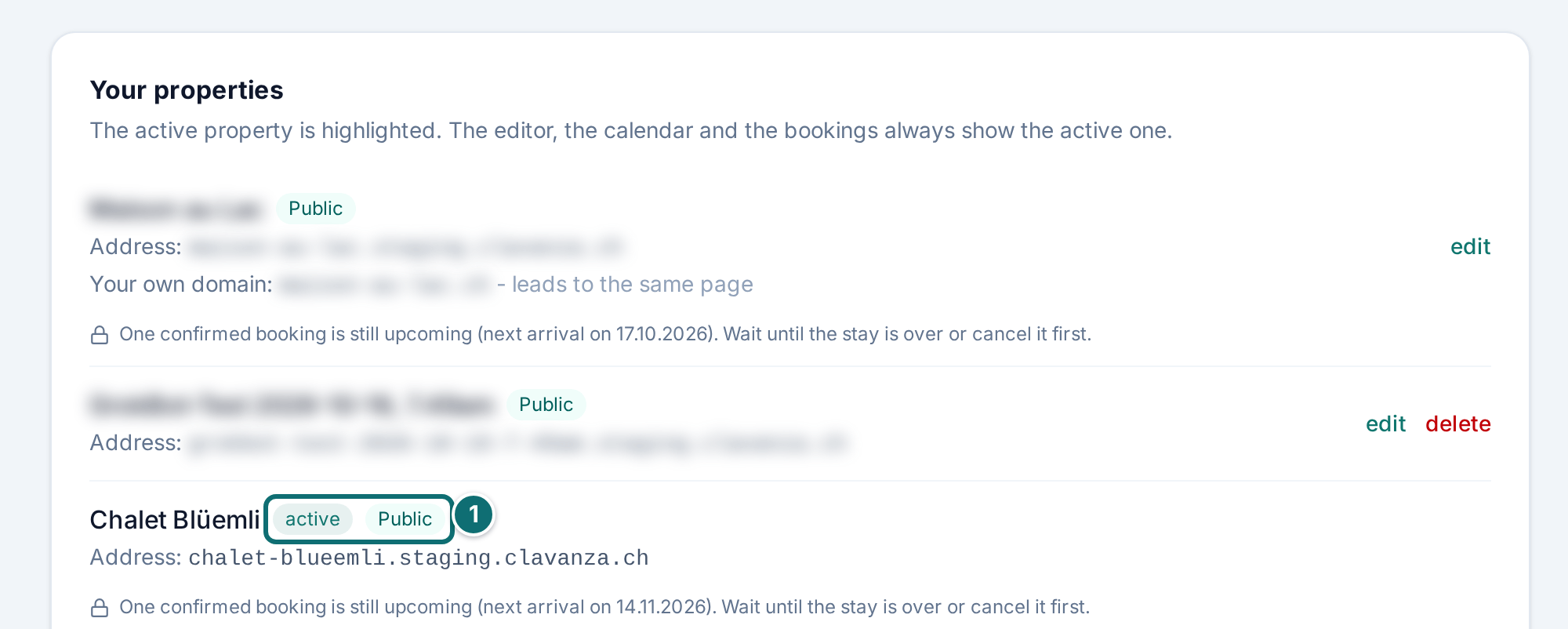
After registration, your listing is a draft. You see it, nobody else does. Anyone who calls your address gets a placeholder page, and search engines stay out.
How to do it
Meet every required point under My listing: prices, number of guests, at least 5 photos, title and description, type of property, locality, required details in the legal notice, address of the property and a connected payment account.
Wait for our review. It usually takes 2 to 3 working days.
Read our email. Either your listing is switched on and bookable at once, or we write to you about what is still missing. The reason then also appears under My listing.
Once you have improved it, click Resubmit for review under My listing. The button appears only when every required point is met.
Not public yet: the reason and the button to submit again are under "My listing".Markierungen im Bild: 1. Badges "active" and "Public": approved and online 2. Badge "Not yet approved"
Further properties
We review each property on its own. With the approval of your account, the first property you entered goes online. A further property is not public at first:
Meet its required points.
Under My listing, click Submit for review.
We approve it or write to you about what is still missing. Your other properties are not affected.
Good to know
No payment account, no review. A listing without a connected payment account does not even reach the review. With the payment account, who is behind the offer has been checked.
The Stripe account must stay valid. If no payments are possible through your account, for example because Stripe is asking you for details or you have disconnected, your listing is paused automatically and you receive an email. As soon as Stripe releases your account, it is public again on its own. Existing bookings continue in the meantime.
The yellow note. As long as your listing is not public, a yellow note with the reason sits above your pages. You see it only because you are signed in. Guests then do not see the pages at all.
Ongoing review. Approved listings are also checked regularly by automation, above all for whether they steer guests past Clavanza. If there is a finding, we contact you first. A person decides, not the machine.
A fresh review after larger changes. We look at your listing again if, after approval, you change something fundamental:
- rewrite the title or the description in large part
- replace the main photo or several photos
- change the type of property, the locality, the address or the number of guests
Your property stays online and bookable, and you receive an email that we are reviewing again. We only get in touch once you have changed nothing for a while, so we do not look at a half-finished state. Prices, calendar, amenities and FAQ do not trigger a fresh review.
4.2 Your address on the web
What it's for: this chapter explains under which addresses guests find your property.
•Its own address: every property runs under its own address (identifier.clavanza.ch), with its own home page, its own photos and its own booking calendar.
•Catalogue on clavanza.ch: in addition, each of your properties appears in the catalogue, with its own entry, its own price and its own features. A click on the entry takes guests to the address of the property, with the chosen period in the calendar. That is also where the booking is made.
•Languages: you decide which languages your listing carries. The interface exists in five languages; for the listing texts, the Translate area helps you (chapter 2.10).
One property, two paths: through the catalogue or directly under its own address.Markierungen im Bild: 1. "Address:" (subdomain on clavanza.ch) and "Your own domain:"
5. Day-to-day running
What comes your way after approval.
5.1 Bookings and requests
What it's for: under Bookings you see every booking, request and block, you answer requests and you refund amounts.
If the requested period fits your weekly grid, the guest books and pays directly. You do not have to do anything and you receive a notification. If the period differs, a request arises.
How to answer a request
Open Bookings. Open requests carry a yellow line on the left.
Click the row to expand it.
Accept the request with Confirm & send link or decline it with Decline.
If you accept, the guest receives a payment link. The booking becomes binding only with their payment.
How to find an entry
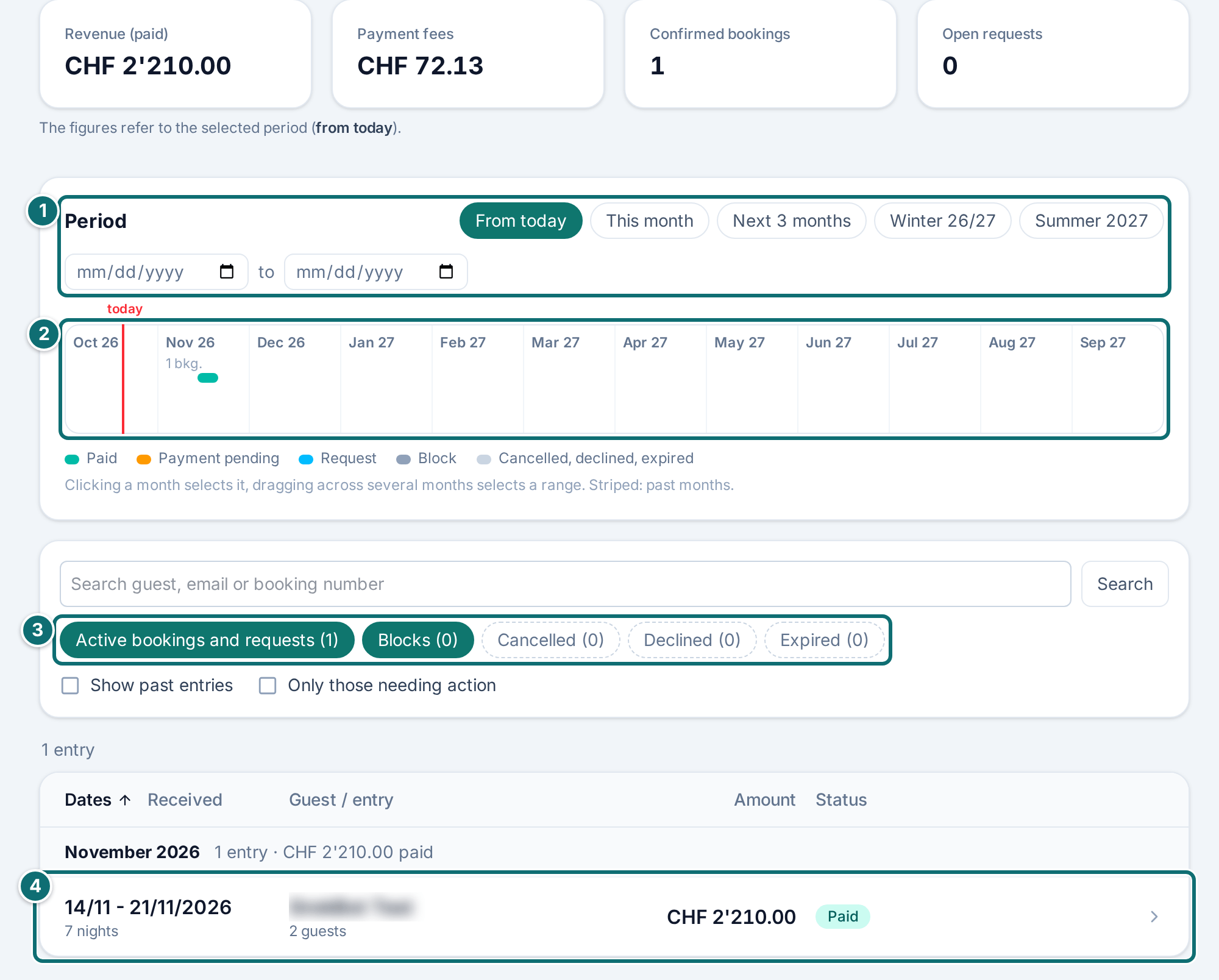
Choose the period at the top: by shortcut (From today, This month, Next 3 months, the coming winter and summer season), with From and To, or directly on the occupancy band. A click on a month in the band selects it, dragging across several months selects a range.
Search by name, email or booking number.
Show or hide groups: Active bookings and requests, Blocks, Cancelled, Declined, Expired.
With Only those needing action, only what is waiting for you remains: an open request, a payment still due, an open refund or a chargeback.
With Show all you bring back past, cancelled, declined and expired entries.
The booking list: period, occupancy band, search and filters.Markierungen im Bild: 1. Choose the period 2. Month band: clicking a month filters 3. Status filter 4. One booking, a click opens the details (guest name made unreadable)
How to refund an amount
Expand a paid booking.
Click Refund an amount.
Enter the amount and the reason. More than is still open, the form does not allow.
Confirm. The amount goes back to the guest through the website, and our commission is refunded in proportion.
This is meant for the case the terms provide for: if you have re-let the cancelled period, the guest owes you only the difference. Whether it was re-let, and at what price, only you know. The same place covers goodwill cases.
The details on every row
Every row carries two details: the course (requested, confirmed, cancelled) and the payment status. Both are needed, because a cancelled booking says nothing about whether the money has flowed back. Expanded, the row shows contact, address, receipt, refunds and the buttons.
Payment status · Meaning
Payment status
Meaning
Outstanding
The guest has not paid yet.
Paid
The guest has paid.
Refunded
The amount has gone back in full.
Partly refunded
Part of it has gone back.
Refund pending
The refund is noted, but it did not run through the website. You have to act.
Good to know
"Refund pending" is the only status that asks something of you. The refund is noted on the booking, but it did NOT run through the website, usually because the payment account was not set up yet or the call failed. The money is therefore still with you, and your guest is waiting for it. Transfer it yourself. The status stays and reminds you. It is amber, like every other open claim in the admin area.
"Paid, not confirmed" means: the guest has paid, but the booking did not come about, usually because the period had become firmly taken in the meantime. If two guests request the same nights, the one who pays first gets them. The money is on your payment account, and the guest knows you will get in touch. You have three options:
- If the period is free, you choose Confirm anyway.
- Otherwise you click Refund … in full and confirm with Yes, refund. The commission goes back with it, and the guest receives an email.
- If you have settled it another way, you note Settled manually.
The same buttons appear for a double payment. Until you act, the booking stays among the active ones and carries the yellow line. If you do not act for 14 days, we refund the full amount automatically and write you an email. The case names the date.
"Refund will be retried" means: Stripe could not be reached at the moment of the refund. We then try every hour, for up to 48 hours, and the money goes back as usual to your guest's payment method. In this case, transfer nothing yourself, otherwise your guest receives the amount twice. If it does not work in that time, you receive an email, and only then does "Refund pending" appear.
Recording a re-let. The cancelled booking and the re-let know nothing of each other. You record the re-let like any other booking. You make the link between the two in the reason you enter with the refund. Write it so that you still understand it in a year.
Requests expire after 14 days on their own and free the period. Reply earlier anyway, because until then the period is blocked for other guests.
Figures. The numbers at the top (revenue, commission or payment fees, confirmed bookings, open requests) count with what the list is showing right now. The sentence underneath names the period. For the figures of a whole year, you therefore choose the period first and show the past.
Nothing is lost. When you open it, the list shows only what is current: bookings, requests and blocks whose check-out is not over. Past, cancelled, declined and expired entries are only hidden. The line above the list says how many there are.
Bookmarks. Period, search and selection are in the address of the page. A bookmark or a shared link opens the list exactly like that, and the browser's back button takes the last step back.
Several properties. The page always shows only the active property, which you can see from the switcher at the top left. If the list is unexpectedly empty, the wrong property is usually active.
5.2 Blocks and cash payment
What it's for: under Blocks you block periods that are not let through the website: own use, renovation, friends, or a letting your guest pays in cash on site.
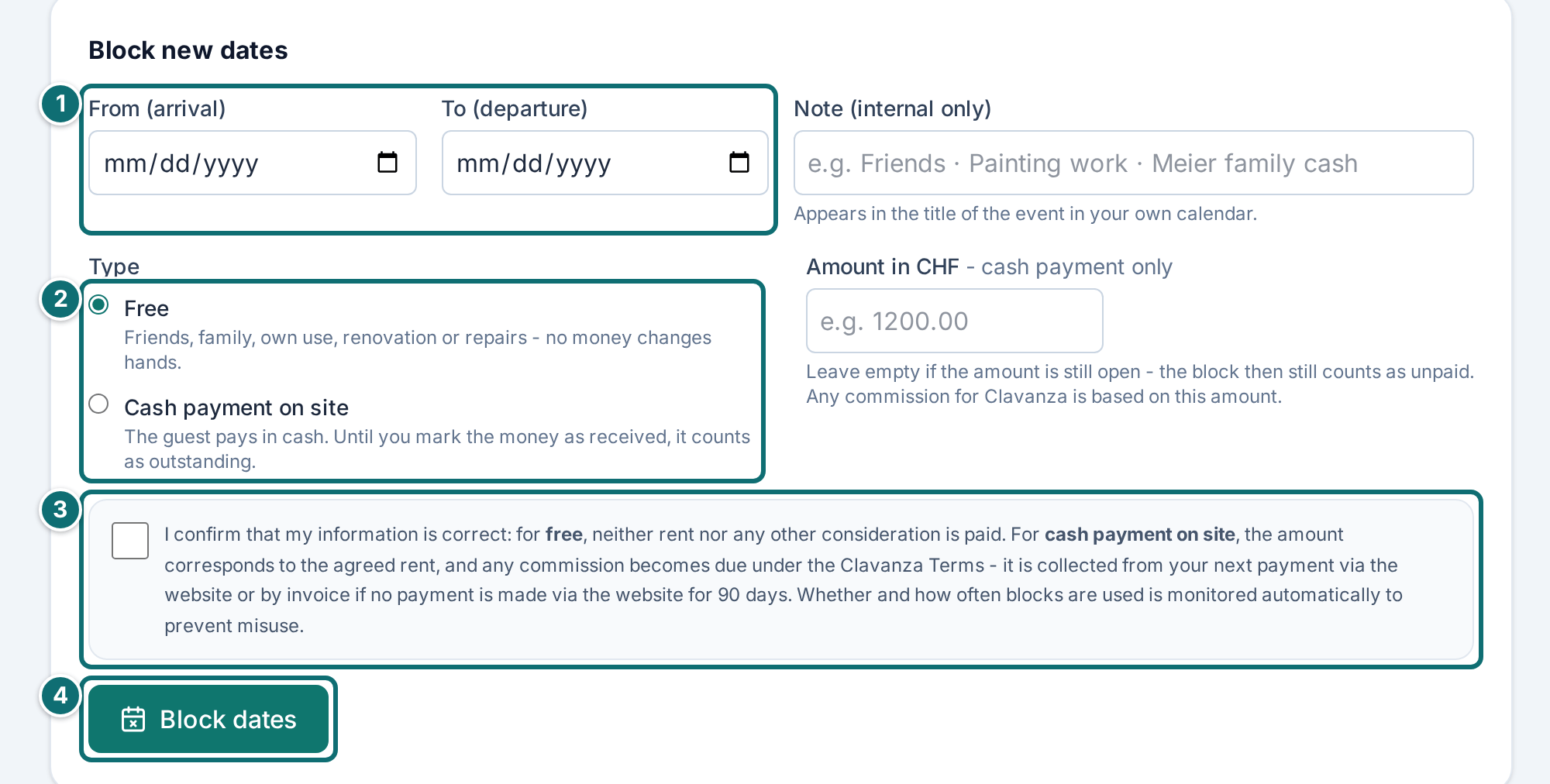
How to do it
Open Blocks and check on the switcher at the top left that the right property is active.
Choose the period.
Choose Free or Cash payment on site. For a cash payment, you enter the amount.
Add a note if you need one.
Tick that your statement is correct. Without the tick, the form cannot be sent.
Click Block dates.
Once you have received the cash, click Payment received.
Enter a block: free or against a cash payment.Markierungen im Bild: 1. From (check-in) and To (check-out) 2. Type: Free or Cash payment on site 3. Tick the confirmation 4. "Block dates"
Good to know
The tick is a statement. For "free" you confirm that neither rent nor any other return is flowing. For "cash payment on site" you confirm that the amount entered matches the agreed rent.
Commission on cash lettings. The amount produces the commission, and it is fixed at once. It is offset against your next payment through the website; your guest therefore does not pay a single centime more. If no such payment runs for 90 days, we invoice the amount. Both are also in the terms of Clavanza, clauses 9 and 13. The exact sequence is in chapter 3.2.
Open cash payments sit at the very top of the page until you note them as received. That is the only place where you see what is still outstanding, because this money does not run through the website.
Abuse check. We look automatically at how often and in what pattern blocks are entered, for example blocks exactly on the weekly grid in which guests book, or cash payments that are never noted as received. This serves only to prevent abuse and never leads automatically to a measure. A hit creates a note for us, a person decides, and we contact you first. You can read this in the terms of Clavanza, clause 14, and in the privacy policy, clause 9.
The note nobody sees except you. It does appear in the title of the event if you have subscribed to your calendar (chapter 5.4): "Sperre" then becomes, for example, "Sperre (Familie Meier)". For Airbnb, Booking.com and Vrbo the occupancy stays nameless.
Several properties. The page always shows only the active property. If the list is unexpectedly empty, the wrong property is usually active.
5.3 Calendar sync with other platforms
What it's for: under Calendar sync you exchange occupied periods with Airbnb, Booking.com or Vrbo, in both directions, so that no night is let twice.
The exchange runs over iCal, the calendar format every large platform understands. You store two kinds of address: those of the outside channels at Clavanza, and the one from Clavanza at the outside channels.
How to do it
Check on the switcher that the right property is active.
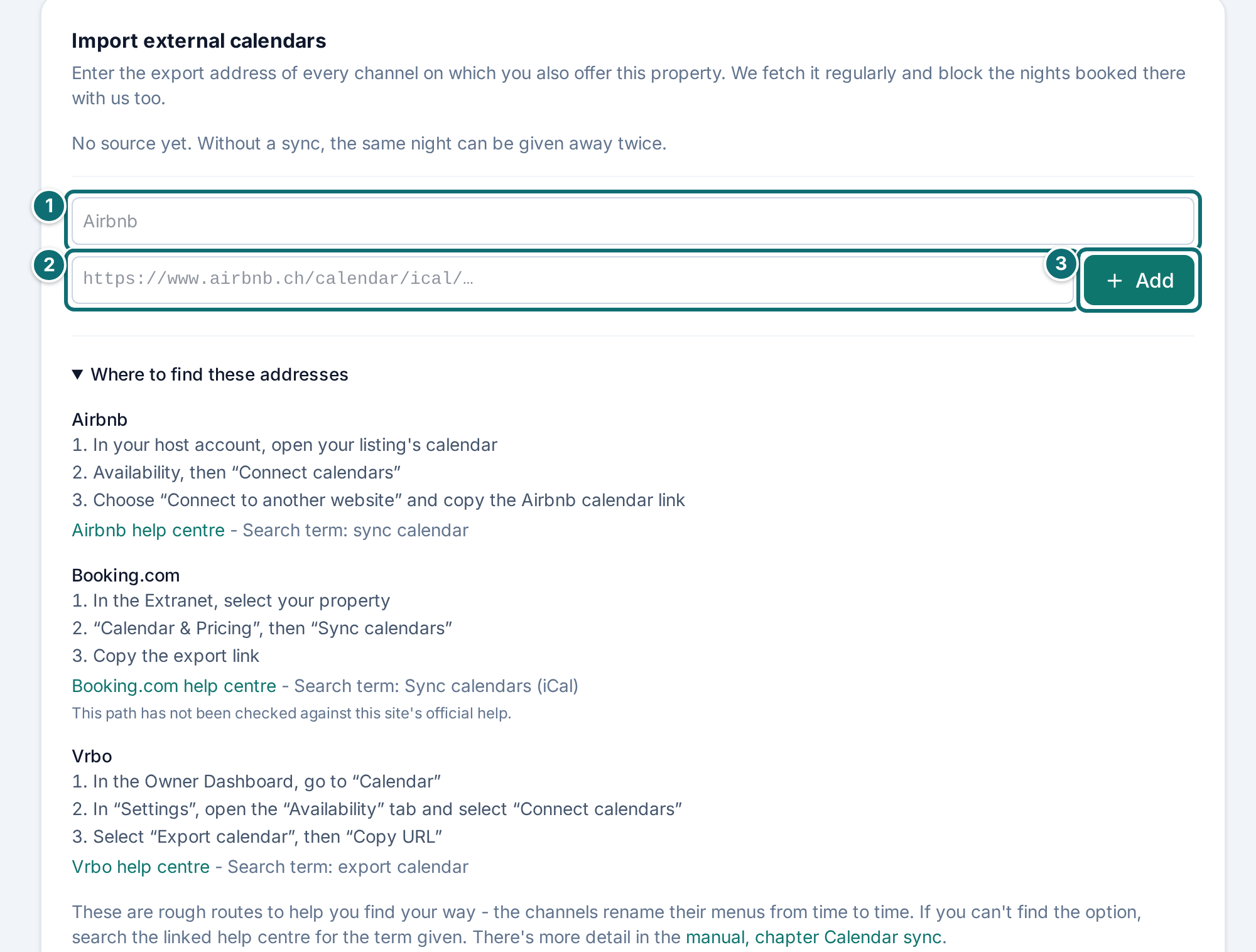
Fetch the calendar address at the outside channel. At Airbnb, under Calendar, Availability, Connect calendars. At Booking.com, under Extranet, Calendar & Pricing, Sync calendars. At Vrbo, under Calendar, Connect calendars, Export calendar.
Paste the address into the box Import external calendars, with a name by which you recognise the channel.
Copy the address from Clavanza for the other direction and enter it on each platform under "import a calendar".
For each source, check when it was last read successfully.
Calendar sync: read in outside calendars, the address for the other platforms and the note when there is a double booking.Markierungen im Bild: 1. "Channel name", e.g. Airbnb 2. "Export address" of the channel 3. "Add"
Good to know
Paths can change. The labels at the platforms can change. In the box Import external calendars, under Where to find these addresses, each channel has a link into its help, together with the term you search for there. As long as you have entered no channel, the section is open; afterwards you expand it when you need it.
This path has not been checked against this site's official help. The sentence appears under Where to find these addresses for Booking.com. The menu names show the direction. If you cannot find the item, search the linked help for the term given.
Occupied means blocked. Nights that are occupied on the outside channel are also occupied at Clavanza. They do not appear as a booking, but as blocked time. No money flows, and no commission arises.
One address for all. The address from Clavanza contains only periods, no names and no amounts. It also passes on the occupancy of every other connected channel. You connect each channel once to Clavanza, and we distribute to all of them.
Separate per property. If you run several properties, you set up the sync for each one separately. Each property has its own calendar at Airbnb and Booking.com and gets its own subscription address here. An address on the wrong property blocks the wrong nights.
Channel unreachable. If a channel is temporarily unreachable, we keep the blocks last read. They grow older, but they do not disappear. Dropping a block only because nobody is answering would be the direct path to a double booking.
The fetch fails for good. Then the address has usually expired. Fetch it again at the channel and replace it here. Until then, nights occupied there are not blocked at Clavanza.
If a double booking happens anyway
If, despite the sync, a booking comes in for a period that is already let on another channel, a note appears at the top of the page. Such cases arise in the window between two fetches. The more often the sync runs, the smaller that window is; it cannot be ruled out entirely over iCal.
Read the note. Where it can be established, it says which of the two bookings was there first.
Decide which booking stays. We cancel nothing on our own.
If you want to cancel the booking at Clavanza, use the path directly by the note.
Give a reason. It appears in the email to your guest.
Before you send, check the amount shown and send.
Which booking was there first, we do not read from the outside calendar, which does not say. We derive it from when the stay first appeared at Clavanza and when it was not there yet. If your booking falls exactly between two fetches, we say so expressly, instead of guessing.
If you cancel, your guest receives the full amount back, with no cancellation fee, because they did nothing wrong. They are notified by email. The cancellation costs you the commission on this booking; it stays with Clavanza and is not refunded. We charge no extra fee, and your visibility does not suffer. You see the exact amount before you send. Where occupied details are available, the page shows beside it what a cancellation costs on the other channel.
5.4 See bookings in your own calendar
What it's for: with your personal calendar address you see every booking and block in your calendar app on phone and computer, without signing in.
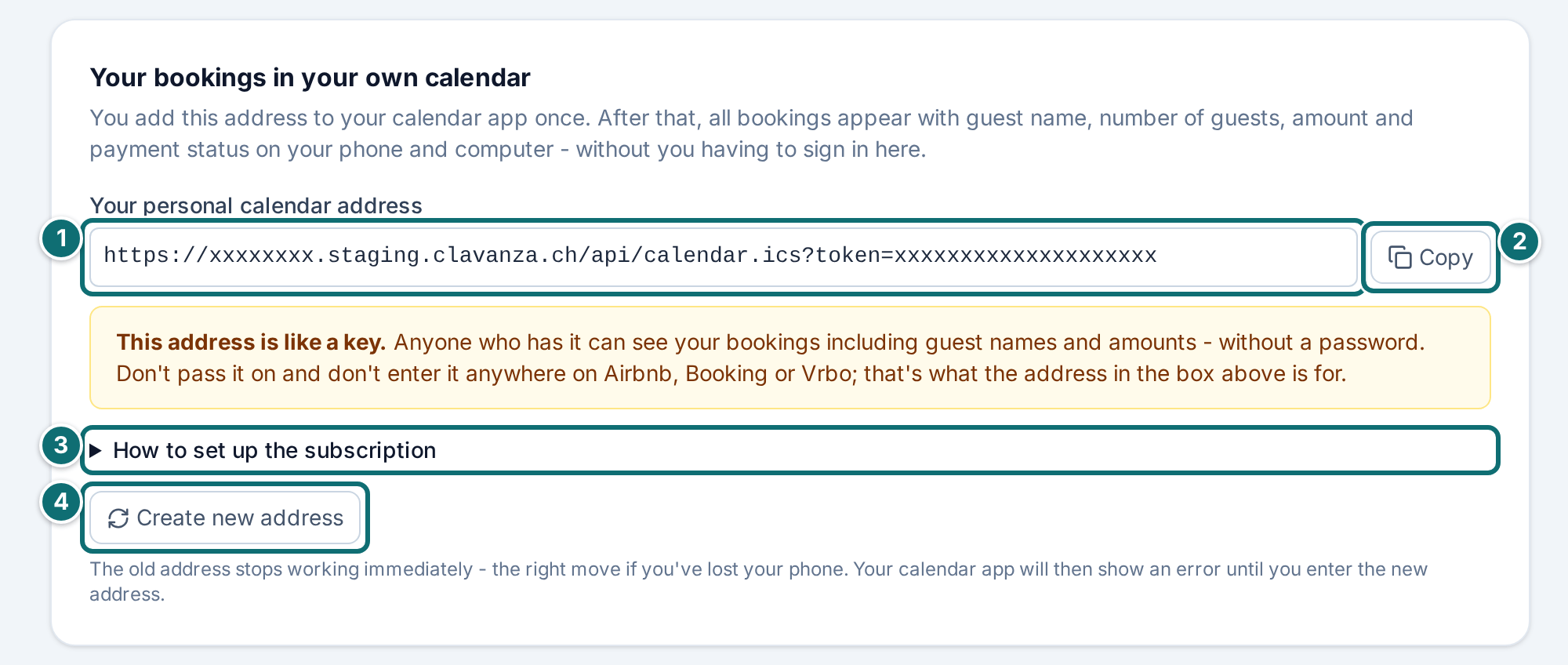
The calendar shows the guest's name, the number of people, the amount, the payment status and the phone number. You find the address on the page Calendar sync.
How to do it
Next to the field with your personal calendar address, click Copy. If the button is missing, click into the field (that selects the whole text) and press Ctrl+C.
Paste the address into your calendar app. iPhone and iPad: Settings → Apps → Calendar → Calendar Accounts → Add Account → Other → Add Subscribed Calendar. Paste the address, save. Android (Google Calendar): On a computer at calendar.google.com → Other calendars → From URL. It doesn't work on the phone itself; afterwards the calendar appears there automatically. Outlook: Calendar → Add calendar → Subscribe from web.
The personal calendar address: copy it once, paste it into the calendar app.Markierungen im Bild: 1. Your personal calendar address (token made unreadable) 2. "Copy" 3. "How to set up the subscription" 4. "Create new address"
Good to know
The address is like a key. Anyone who has it sees your bookings including guest names and amounts, without a password. Do not pass it on, and do not enter it at Airbnb, Booking.com or Vrbo. That is what the other address is for, the one that contains no names (chapter 5.3).
Address lost? If the address has fallen into the wrong hands or you have lost your phone, click Create new address. The previous one stops working at once. Your calendar app shows an error until you enter the other one.
Blocks with a note. Your blocks are in the calendar too. If you stored a note when you entered the block, it appears in the title of the event, for example "Sperre (Pizzi & Chris)". If the note is long, the title shows its start and the event itself shows it in full. The note stays internal: for Airbnb, Booking.com and Vrbo every occupancy is called "Nicht verfügbar".
Delay. The calendar apps decide for themselves how often they look, usually every one to three hours, and with Google Calendar often much less often, sometimes only after a day. A booking that has just come in is therefore not necessarily already on the phone. Whether a period is free, the admin area shows reliably.
5.5 Messages
What it's for: under Messages you read what visitors to your website write through the contact form.
How to do it
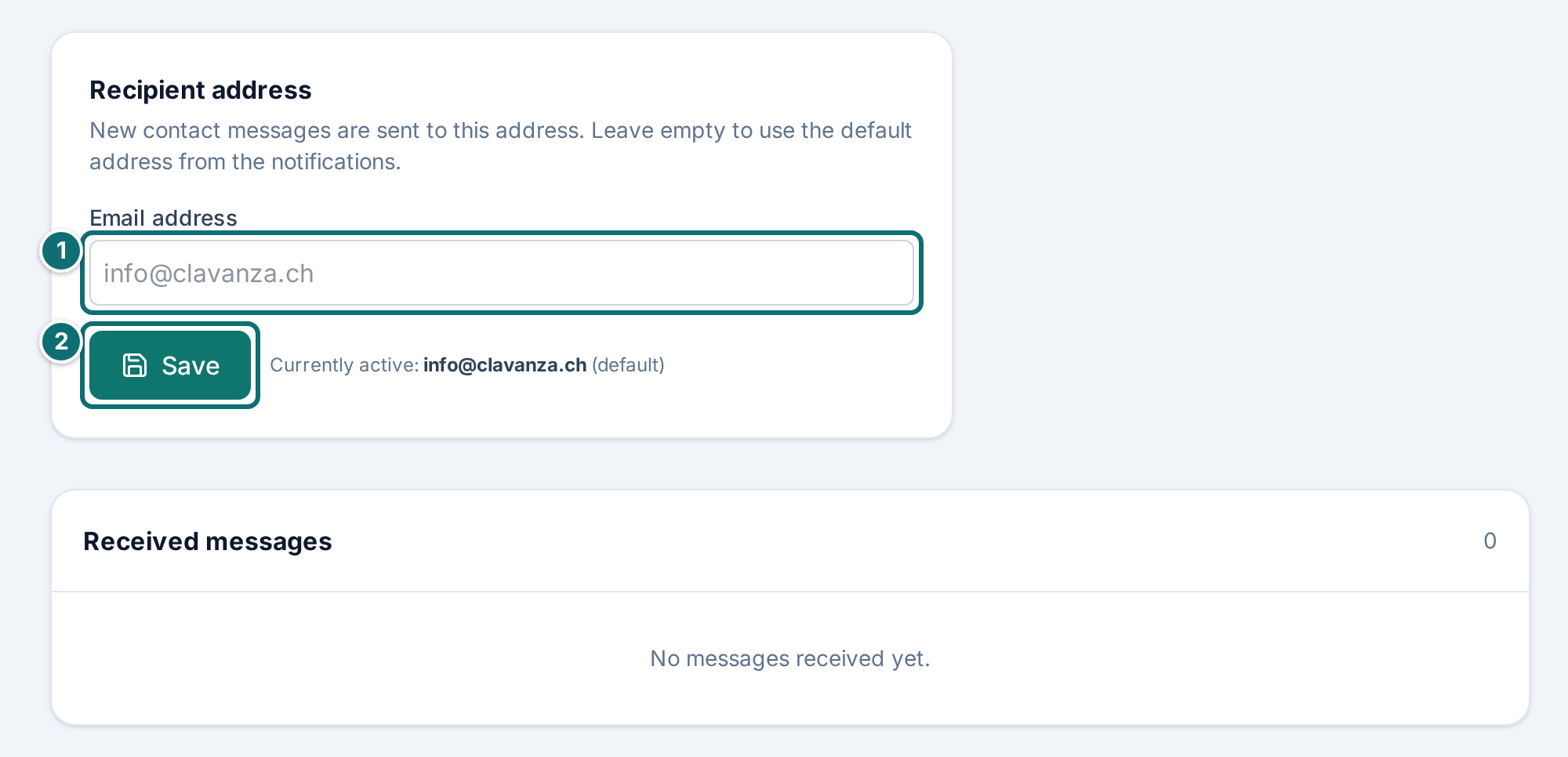
Open Messages. The counter in the navigation shows the unread ones.
Read the message and mark it as read, or delete it.
If you need to, change the recipient address on the same page.
Messages from the contact form, with a counter in the sidebar.Markierungen im Bild: 1. Email address for contact messages 2. "Save"
Every message is also sent to your address.
5.6 Reviews
What it's for: under Reviews you review your guests, approve their reviews and reply in public.
How to do it
About 2 days after check-out, your guest receives an invitation to leave a review.
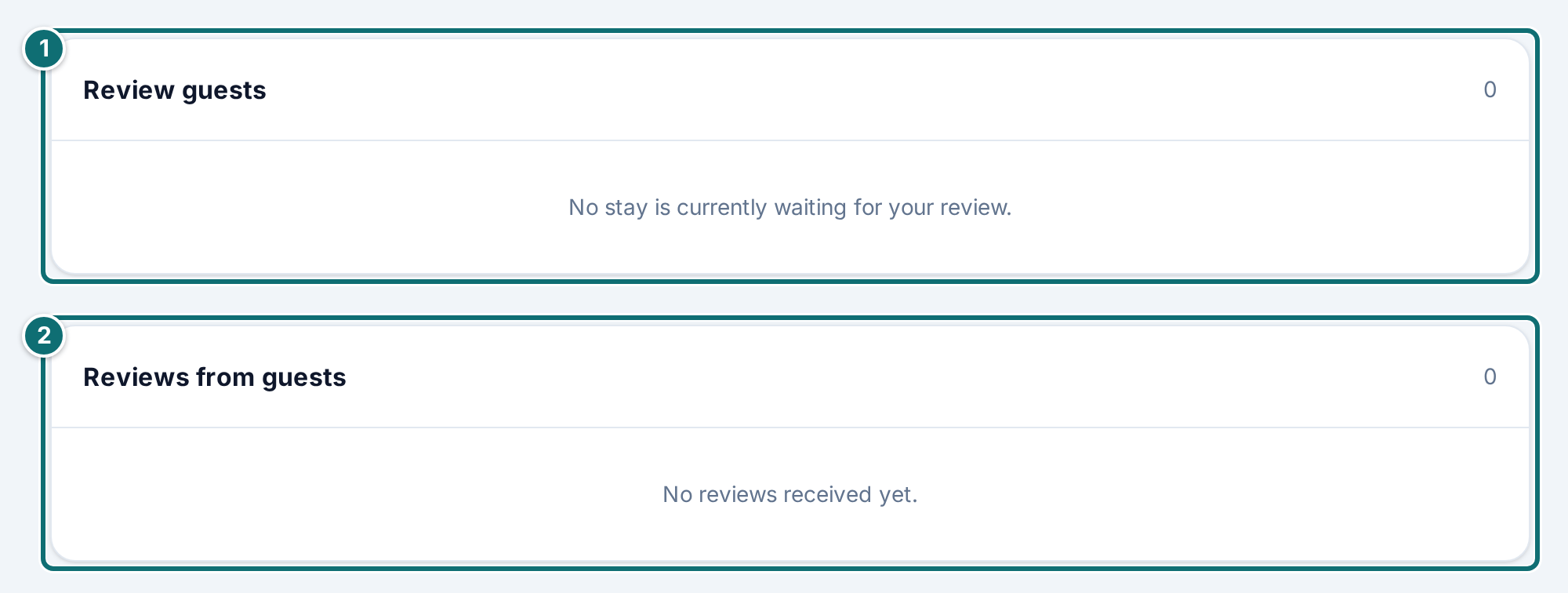
Review your guest under Reviews.
As soon as both reviews are visible, you approve the guest's review or decline it.
Write a public reply if you need one.
If it says at the top that reviews are not translated yet, click Translate now.
Reviews: approve, decline, reply in public.Markierungen im Bild: 1. "Review guests" 2. "Reviews from guests"
Good to know
Double blind. Until both have submitted, neither side sees the other's text. At the latest after 14 days, both become visible. That way a review cannot be used as leverage, and you cannot make your reply depend on what your guest wrote.
What is public. Your review of the guest is never public. Of the guest, only the first name, the first letter of the last name and the month of the trip appear.
Translation. With approval, the review is translated automatically into the other languages of your website, and your reply too. Guests see the translation with the note "Translated automatically" and can expand the original. Only the text goes to the translation service, without names and scores.
Several properties. Reviews belong to the individual property. The page shows those of the active one, and the score on a property page comes only from the votes for that property.
5.7 Vouchers
What it's for: under Vouchers you issue a voucher to a guest, as a percentage of the nights or as a fixed amount.
How to issue a voucher
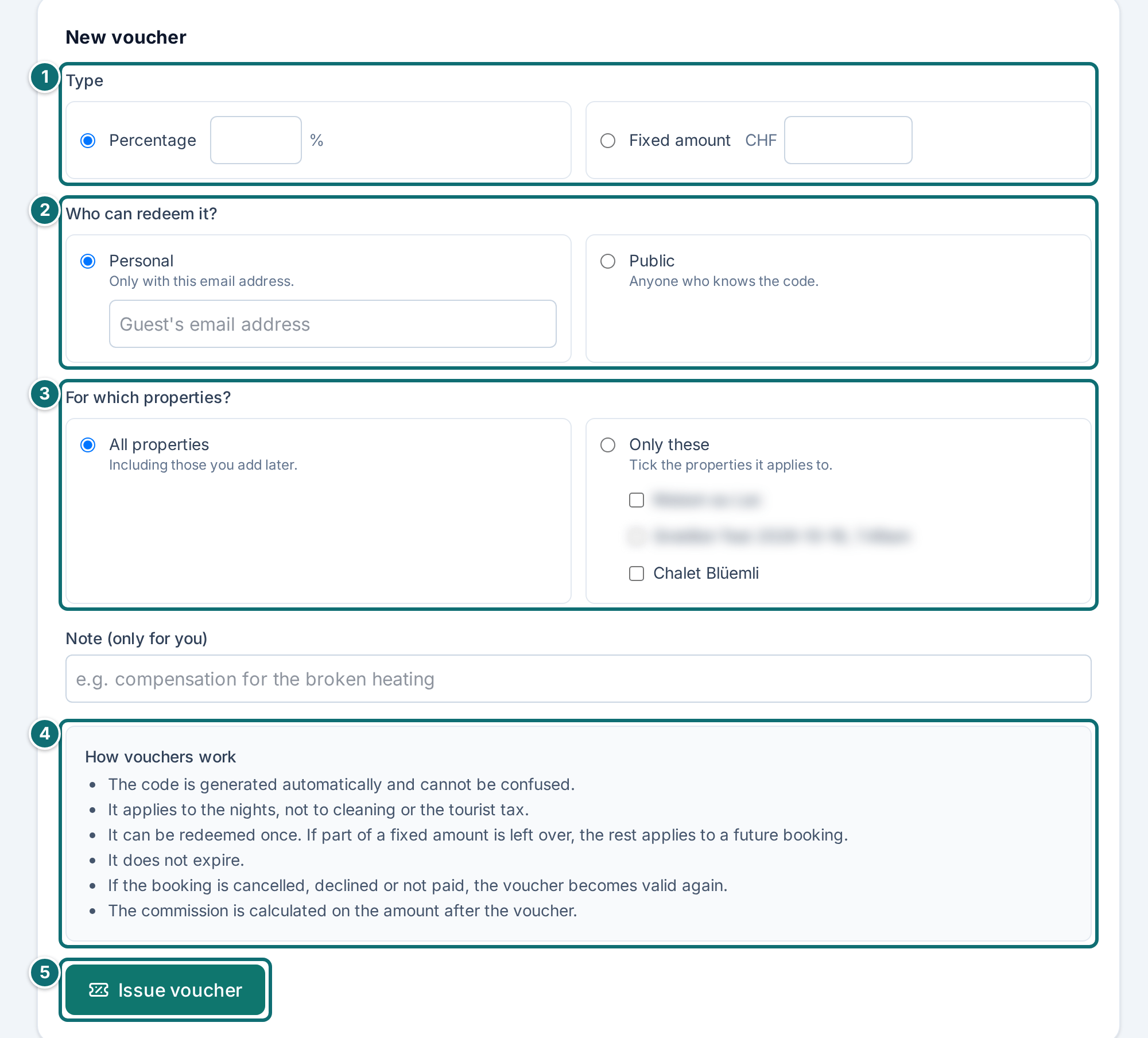
Open Vouchers. It is quicker from the booking list: every booking has Issue a voucher for this guest, and the address is already entered.
Choose a percentage or a fixed amount.
Choose who may redeem it: Personal (only with the email address you enter) or Public (anyone who knows the code).
If you run several properties, limit it to individual ones if you need to.
Click Issue voucher. The system produces the code and shows it with a link that already enters it in the booking form.
Pass on the code or the link yourself, or send the voucher with Send by email.
How to send it by email
On the voucher, click Send by email.
Enter up to 3 addresses. A personal voucher goes only to its own address.
Choose the language of the email.
Write a short greeting if you want one: at most 300 characters, plain text without links.
Tick that the recipients know you and agree. Without the tick, nothing goes out.
Click Send voucher.
Vouchers: issue, pass on, send by email.Markierungen im Bild: 1. Type: percentage or fixed amount 2. Who may redeem it: Personal (with the guest's email) or Public 3. For which properties 4. "How vouchers work" 5. "Issue voucher"
Rules for vouchers
•A voucher applies to the nights, not to cleaning or visitor's tax.
•It can be redeemed once. If something is left of a fixed amount, the rest applies to a later booking.
•It does not expire.
•If the booking is cancelled, declined or not paid, it becomes valid again.
•It applies to all your properties, including ones added later, unless you limit it.
•At least CHF 0.50 always remains to be paid. Below that, the payment provider accepts no payment.
•The guest enters the code in the booking form, and the deduction appears at once in the price summary.
Rules for voucher emails
•At most 5 emails per hour and 20 per day, counted for your operation and for your account.
•The email goes out in a fixed template: with your name as sender, the code and a button that opens the booking form with the code. Recipients' replies come to you.
•Every email contains a link with which the recipient unsubscribes from further vouchers from you. Nothing can be sent to that address afterwards.
•Under the voucher it says when it went to whom. The addresses are shortened, for example "an***@gmail.com".
•As long as Clavanza is not yet public for guests, nothing can be sent, because the button in the email would lead nowhere.
Good to know
The commission we calculate on the amount after the voucher. You and we bear the discount in proportion.
Withdraw. With that you withdraw a voucher that should not apply. Bookings that have already redeemed it keep their discount. The list shows for each voucher what is left of it and which booking holds it. In the booking list it appears on the booking.
Why the limits are tight. All emails go out beyond Clavanza. If voucher emails were reported as spam, the booking confirmations of every host would land in the spam folder too.
Only for the owner. Issuing, sending and withdrawing is allowed only for the role "Owner". A voucher, like a refund, is giving up money.
5.8 Visitor numbers
What it's for: under Visitors you see where your visitors come from, which pages they look at and how many of them book.
The report explains every figure in plain language and names, for every recommendation, the figure it rests on.
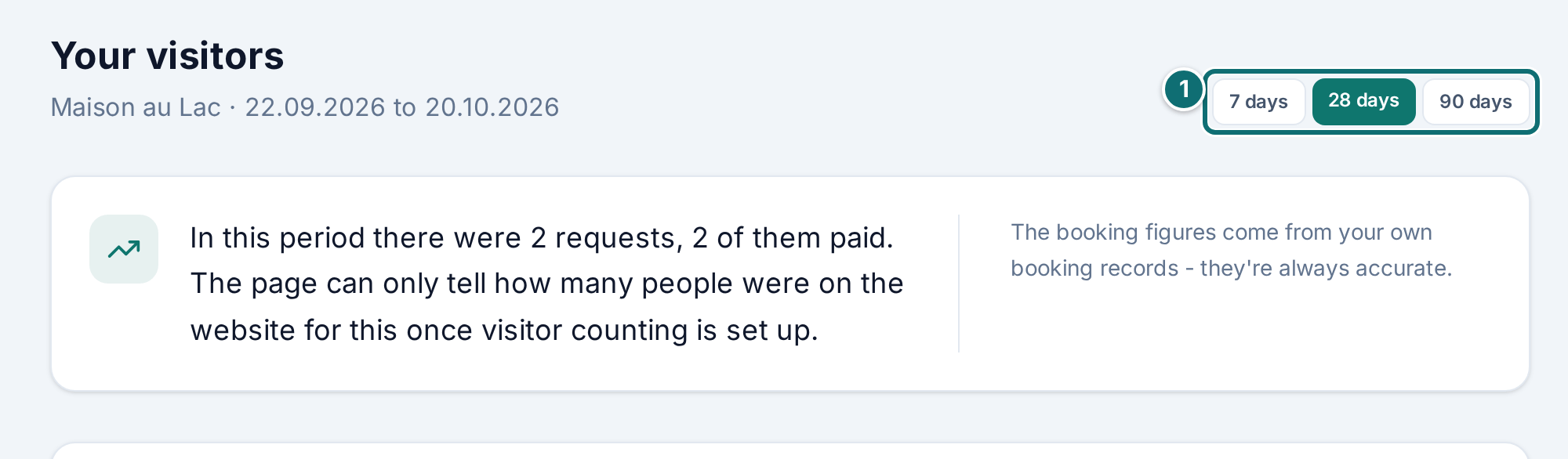
Visitor numbers: funnel, visits per day and the grid by weekday and hour.Markierungen im Bild: 1. Period: 7, 28 or 90 days
Good to know
Two sources in the funnel. The upper steps come from the visit count, the lower ones from your own booking book. Even without a visit count, bookings, the rate and the explanations stay usable.
When they come. There is a bar for every day, including days with no visit; there it is empty. If you point at a bar, the weekday, the date and the number of visits appear. Under the axis, depending on the period, every day or every seventh day is shown. Below that you see the same visits by weekday and hour: the stronger a cell, the more people were there at that hour.
Swiss time. The time is Swiss time, not the guest's.
The busiest time. The sentence about when it is busiest exists only from about 100 visits in the period. Below that, the busiest hour would be chance, because the grid has 168 cells. You still see the distribution. The sentence names only a time that is clearly ahead. If several hours have the same number of visits, it says that there is no clear peak yet.
5.9 Advertising for your property
What it's for: under Advertising you decide whether Clavanza may advertise your property on Facebook and Instagram, and you approve each ad individually.
How to do it
Click Allow advertising. Clavanza may then use photos and details from your listing in ads, and you confirm that you hold the rights to the photos.
Wait until an ad for your property appears. The menu item then shows a number, and you receive an email.
Check the text, the images in every format, the link, the audience and, if they are advertised, the free nights.
Click Approve or Reject with a short reason.
After your approval, Clavanza checks the ad one last time and publishes it.
Advertising: consent at the top, each ad to approve below.Markierungen im Bild: 1. "Your consent" 2. "Ads for your property"
Good to know
What Clavanza does not do with your consent: change prices, promise something your listing does not offer, or publish an ad without your approval.
Who may do what. Only the role "Owner" can allow and revoke. Anyone who may edit the listing can approve and decline.
Starter package. The first 20 properties that go live receive an ad campaign on Facebook and Instagram with 50 francs of ad budget over 10 days. The starter package exists only with this consent. As long as there are places and you have not allowed advertising, the overview reminds you. The same reminder is in the email with which we switch your listing on.
Emails. If an ad is waiting for you, you receive at most one email a day, even if several ads are waiting.
Revoke. With Withdraw consent you withdraw the consent at any time. Every ad with your property that is not yet published is withdrawn at once. What is already running on Facebook or Instagram has to be switched off there by a person; Clavanza is notified at once.
5.10 Let other people in
What it's for: under Account access you give other people access to this property, for example cleaning, accounting or a co-host.
How to do it
Open Account access.
Enter the person's email address. If they do not have an account yet, they create one the first time they sign in.
Choose the role.
Click Invite.
If you want to end an access, click Remove. The person is signed out at once, not only the next time they sign in.
Access: enter the email address, choose the role.Markierungen im Bild: 1. Card "People": who has access 2. Email of the new person 3. Choose the role 4. "Invite" 5. "Recent changes"
The roles
Roles
Role
What it may do
Owner
Can do everything - including the payout account, commission and roles.
Co-host
Manages bookings and the listing, but doesn't see any amounts.
Accountant
Sees bookings and all amounts, can't change anything.
Viewer
Sees bookings and the calendar without amounts, can't change anything.
Service provider
Sees nothing.
Good to know
At most 10 people on one property. If the list is full, you withdraw an access first.
Give the role "Owner" sparingly. Only that role may grant access, connect the payout account and delete the listing. Anyone who has it can withdraw your own access.
Amounts kept apart. Anyone who should not see amounts gets "Viewer". "Paid or not" is operational information, the amount is financial information, and the two are separate here.
Log. Every grant and every withdrawal is recorded, with the time and the person who acted. This is not surveillance, it is the answer to the question that counts if it gets serious: since when did who have access?
6. Account, limits and help
The rest, which you should have read once.
6.1 My account and several properties
What it's for: under My account you change your name, password, language and newsletter, and you can delete your access.
How to change your password
Open My account.
Enter your current password. Without it, a screen left unattended for a moment would be enough to take over your account.
Enter the password you want and save.
Every other device is signed out. That is the right step if you suspect someone is reading over your shoulder.
How to set language and newsletter
In the box Language, choose the language of your account. In it appear the admin area, the setup assistant, this handbook and the emails we send you.
In the box Newsletter for hosts, subscribe to the newsletter with Subscribe to the newsletter, or unsubscribe with Unsubscribe from the newsletter.
My account: name, password, language, newsletter and, at the very bottom, "Delete access".Markierungen im Bild: 1. "Save name"My account: language and newsletterMarkierungen im Bild: 1. "Save language" 2. "Subscribe to the newsletter"My account: change passwordMarkierungen im Bild: 1. "Change password"
Several properties
If you run several properties, you switch between them at the top of the navigation with Switch property. Each has its own address, its own content and its own calendar; your account is the same. If you run several accounts, the switcher is called Switch account. On the overview, the same list appears under Your other properties.
Switch between properties: the choice applies to everything you look at next.Markierungen im Bild: 1. Click the name of the property 2. Menu "Switch property" and manage properties
How to delete your access
At the very bottom of My account, click Delete access.
Enter your password. Every owner address is notified.
After that we wait 30 days. During that time your properties are not visible to the public. Everything else stays: you can sign in as usual and take the deletion back at any time.
In these weeks, take what you want to keep: your photos are in the editor, the data access for a guest you pull under Data access request (chapter 6.2). After the deadline, both are gone.
Close your Stripe account at Stripe yourself. It belongs to you; we only remove the link.
Good to know
What is deleted after the deadline: texts, images, prices, calendar and your host profile. Your bookings remain as a record, without names, addresses and phone numbers of your guests. We keep amounts and periods, because business books have to be retained. The addresses of your properties are blocked permanently and never given out again.
What holds the deletion up: a confirmed booking that is still ahead, and an open commission. The page tells you which of the two. Both are promises to someone else, and they do not end because you stop.
Unsubscribe from the newsletter also works through the link at the end of every newsletter email. If emails to your address bounce or you report one as spam, we unsubscribe you ourselves. The box then tells you why.
The languages of the website are independent of the language of your account. You set them on the Translate tab (chapter 2.10).
6.2 Data access for a guest
What it's for: under Data access request you put together for a guest which data you hold about them.
A guest may know which data you hold about them, and they may demand it. That is in the Swiss Data Protection Act (revFADP Art. 25). You are the one responsible: for your guests' data you are the controller, we process it on your behalf.
How to do it
Open Data access request. From the guest's request you have 30 days.
Enter the guest's email address.
Choose the format: Download as text or As JSON, if the guest wants to take the data into another system.
Download the file and pass it on to the guest.
What the file contains
•bookings, messages, reviews
•vouchers and voucher emails, including any unsubscribe from them
•the emails that went through Clavanza to this address, in their wording, for as long as we keep them: emails about bookings for ten years, short-lived ones such as access links and voucher emails for 90 days
•also what we do not have: we never see card data, it lies exclusively with Stripe
Good to know
Every data access is recorded: who pulled it, when, and for which address. A data access is itself a disclosure of personal data. The log protects you, because in a dispute it proves that you answered in time. And it shows if someone is using the data access as a search engine. The page is therefore open only to the role "Owner".
Deletion instead of data access. If someone demands deletion, contact us. Booking and payment data are subject to the statutory retention duty and must not simply disappear. What can be deleted, we clarify together.
6.3 What you remain responsible for
What it's for: this chapter shows what Clavanza takes on and what stays with you.
Clavanza provides the technology. The rental contract is between you and your guest; Clavanza is not a party to it.
You are responsible for:
•the property itself, its description and its availability
•taxes, charges and the visitor's tax
•cleaning, key handover and looking after people on site
•the legal texts of your website, insofar as they concern you
•the permits your municipality requires for a letting
Clavanza takes care of: the website, booking handling, payments, emails and the backup of your data.
6.4 If something does not work
What it's for: here you find the most common messages and what they mean.
What you see · What is behind it and what you do
What you see
What is behind it and what you do
"Request rejected"
The form was open too long. Refresh the page and save again.
The fields are grey, the button does not respond
Your account has only read access for this property.
"The dates overlap an existing booking"
There is already a booking or a block in the chosen period.
Sign-in fails even though the password is right
After several failed attempts the account is locked for 15 minutes.
The confirmation link does not work
It is valid only once. Register again or write to us.
A booking is paid, the money is not at the bank
That is normal before check-in (chapter 3.3).
If something stays unclear, write to us. Name the address of your property and, if it is about a booking, its identifier from the booking list.
6.5 Glossary
What it's for: the most important terms in this handbook, in short.
•Request: a wish to book that needs your agreement, because the period differs from the weekly grid. A request is not binding.
•Booking: a stay that becomes binding with the guest's payment.
•Double blind: the procedure that shows reviews only once both sides have submitted.
•Draft: a listing that only you see, because it has not been approved yet.
•High-season period: a stretch you set, during which the higher price applies.
•Commission: the share we keep from a payment.
•Block: a period that is occupied in the calendar, without a booking having come through the website.
•Payment link: the address through which a guest pays after an accepted request.
As of 20.10.2026 · Questions are answered in the FAQ; for anything else, contact Clavanza.
We use optional cookies for anonymous statistics (Google Analytics) to improve the website. Technically necessary cookies are always active. Details in the privacy policy.